Manage your catalog on the Inventory page — add products, and edit price, cost, or reorder point inline.
A step-by-step walkthrough with real screenshots · FoolProof POS for alcohol retail
1. The item list
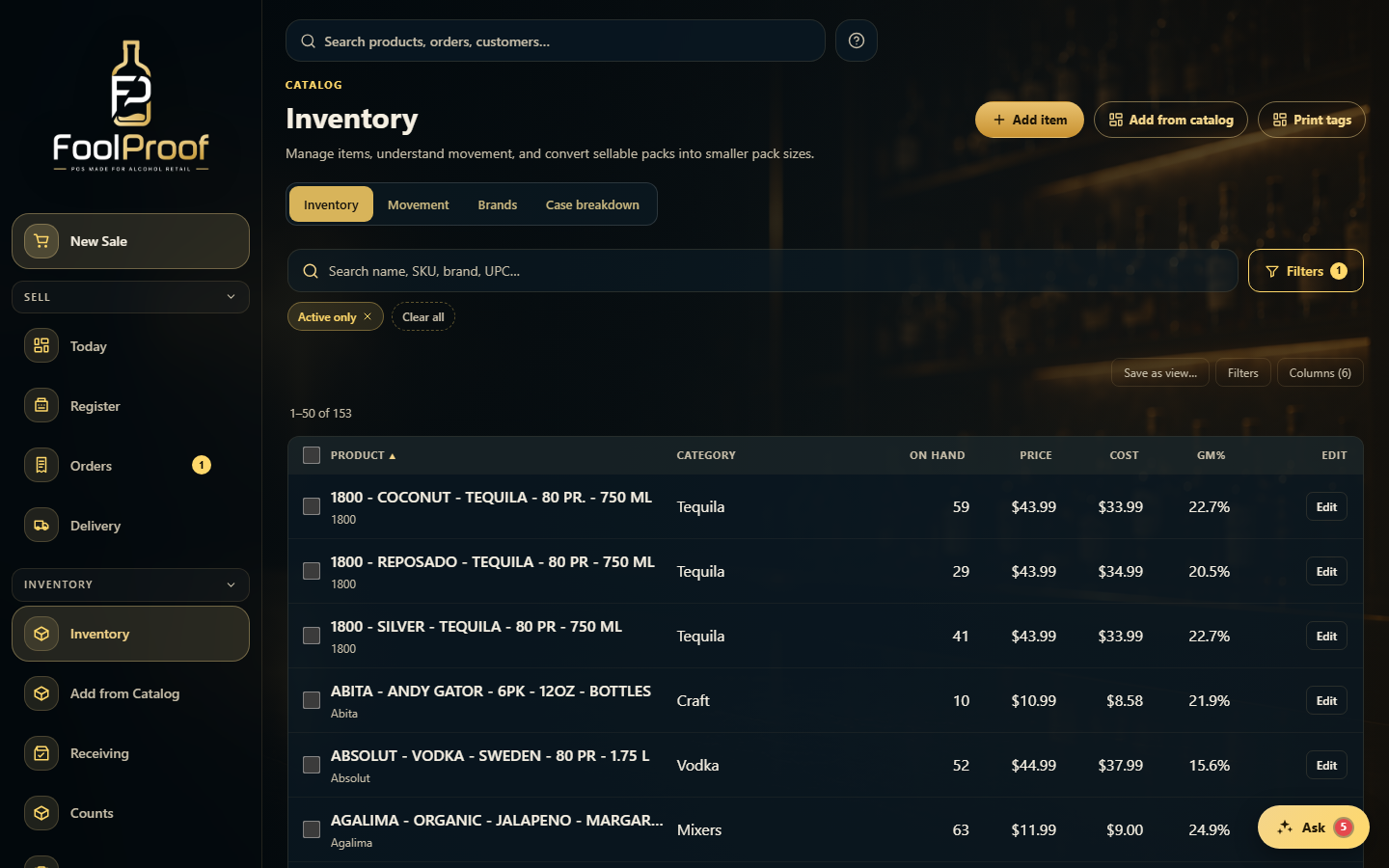
Inventory lists your whole catalog. Search or filter to find an item; each row shows on-hand, price, cost, and margin.
12
1Add a custom item, pull one from the shared catalog, or print shelf tags.
2Every product with on-hand, price, cost, and margin — search runs across your whole catalog.
2. Edit a product inline
Click Edit on a row to change price, cost, or reorder point right there, then Save. (Editing prices needs the price-edit permission — ask an admin if you don't have it.)
12
1Price and Cost become editable right in the row.
2Type the new values and Save.
3. Movement, brands, and case breakdown
The other tabs go deeper: Movement ranks your fastest and slowest sellers, Brands groups by brand, and Case breakdown splits a sellable case into smaller packs.
12
1Switch to Movement, Brands, or Case breakdown here.
2Case breakdown lists what you can open into a smaller pack — pick one to split it.
 12
12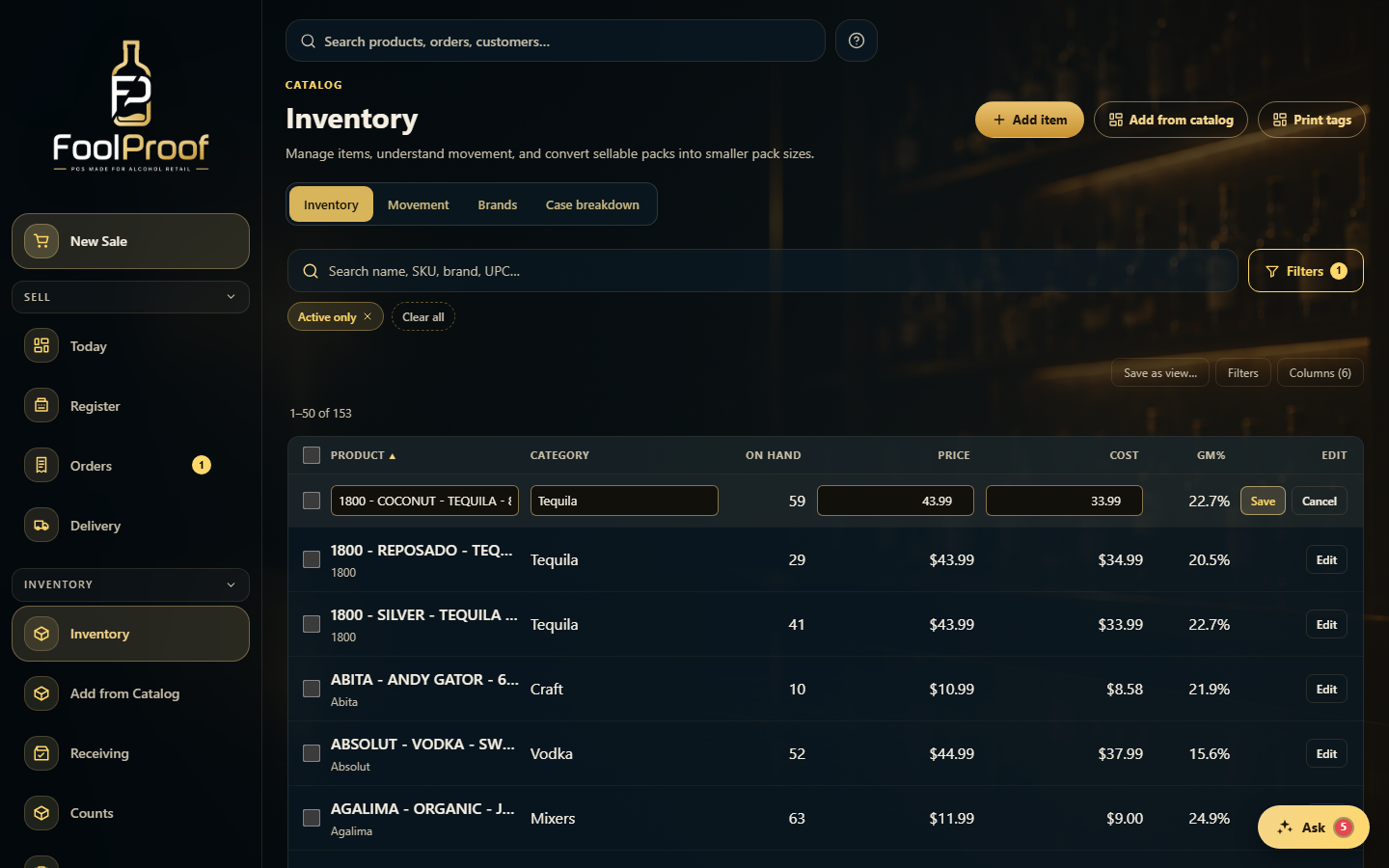 12
12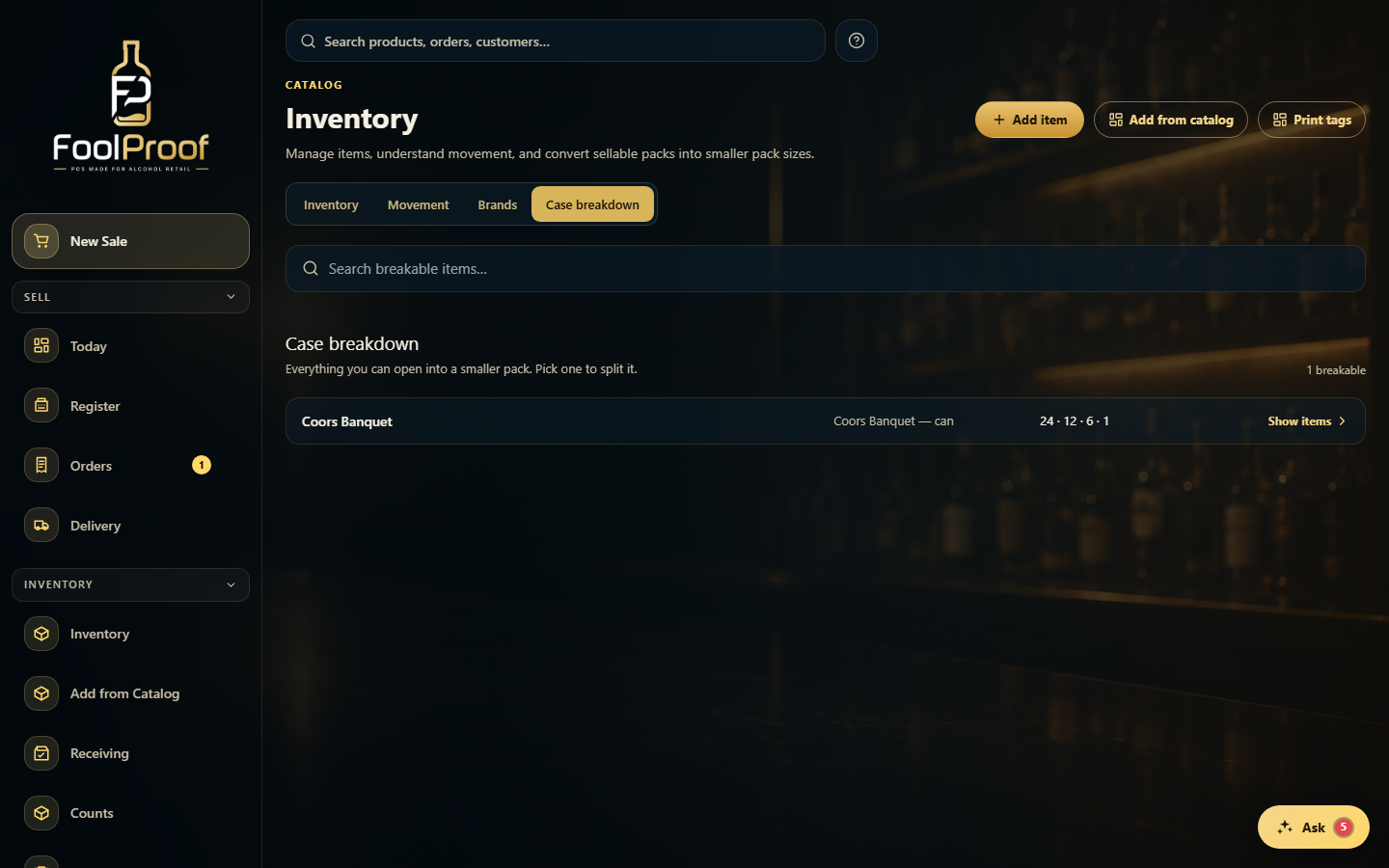 12
12