Roles decide which pages and actions each employee can use; edit the starter Manager and Cashier roles or build your own with permission checkboxes.
A step-by-step walkthrough with real screenshots · FoolProof POS for alcohol retail
1. Open the Roles tab
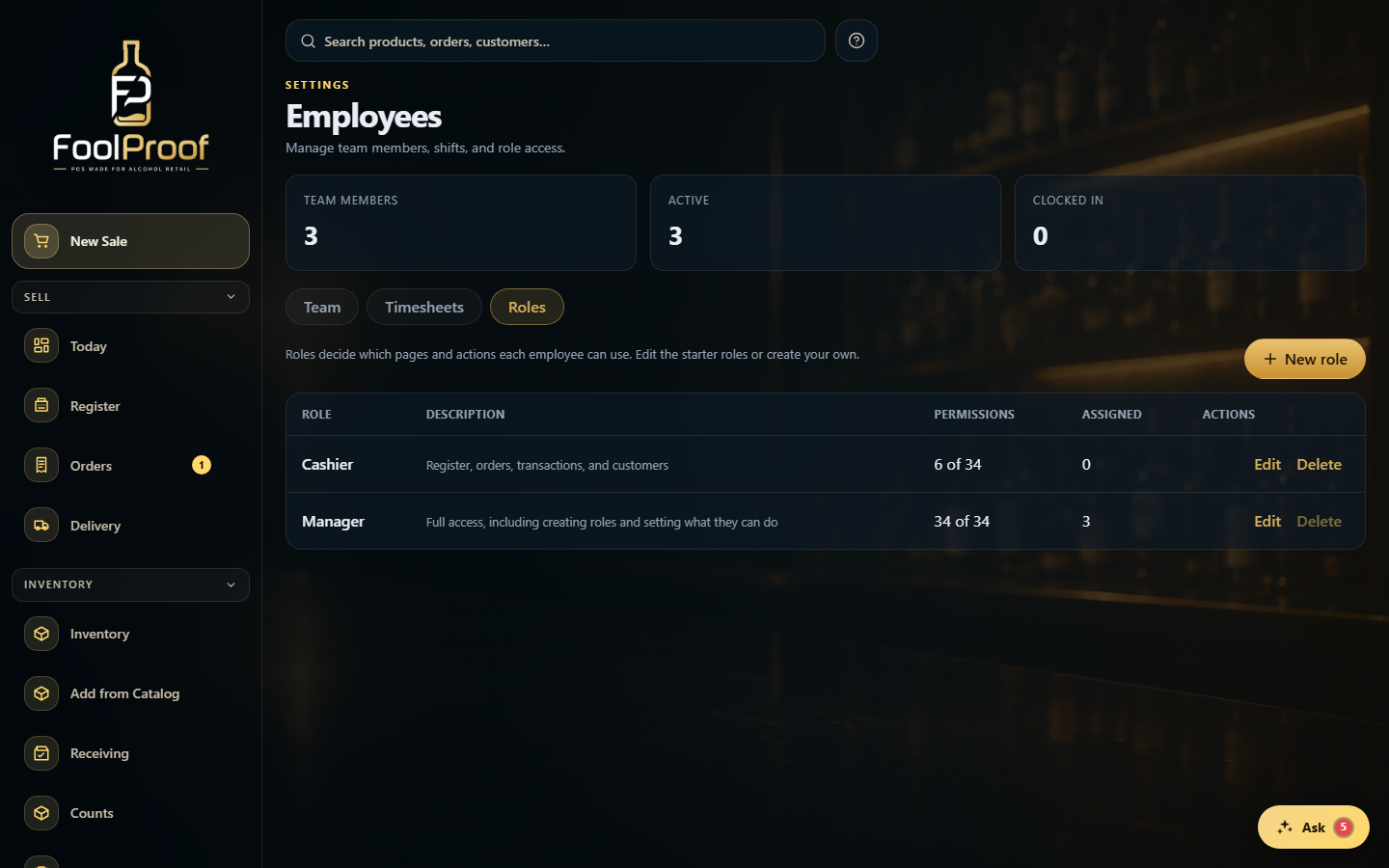
On the Employees page, switch to the Roles tab. It lists your roles — edit the starter Manager and Cashier, or click New role.
1
1Your roles, their permission counts, and how many people have each — New role or Edit.
2. Choose what the role can do
Give the role a name, then tick the pages it can open and the actions it can take. Save, and assign it to people from the Team tab. A role can't be deleted while people have it.
123
1Name the role, then check which pages it can open.
2Check the actions it can take — refunds, editing prices, managing staff, and so on.
 1
1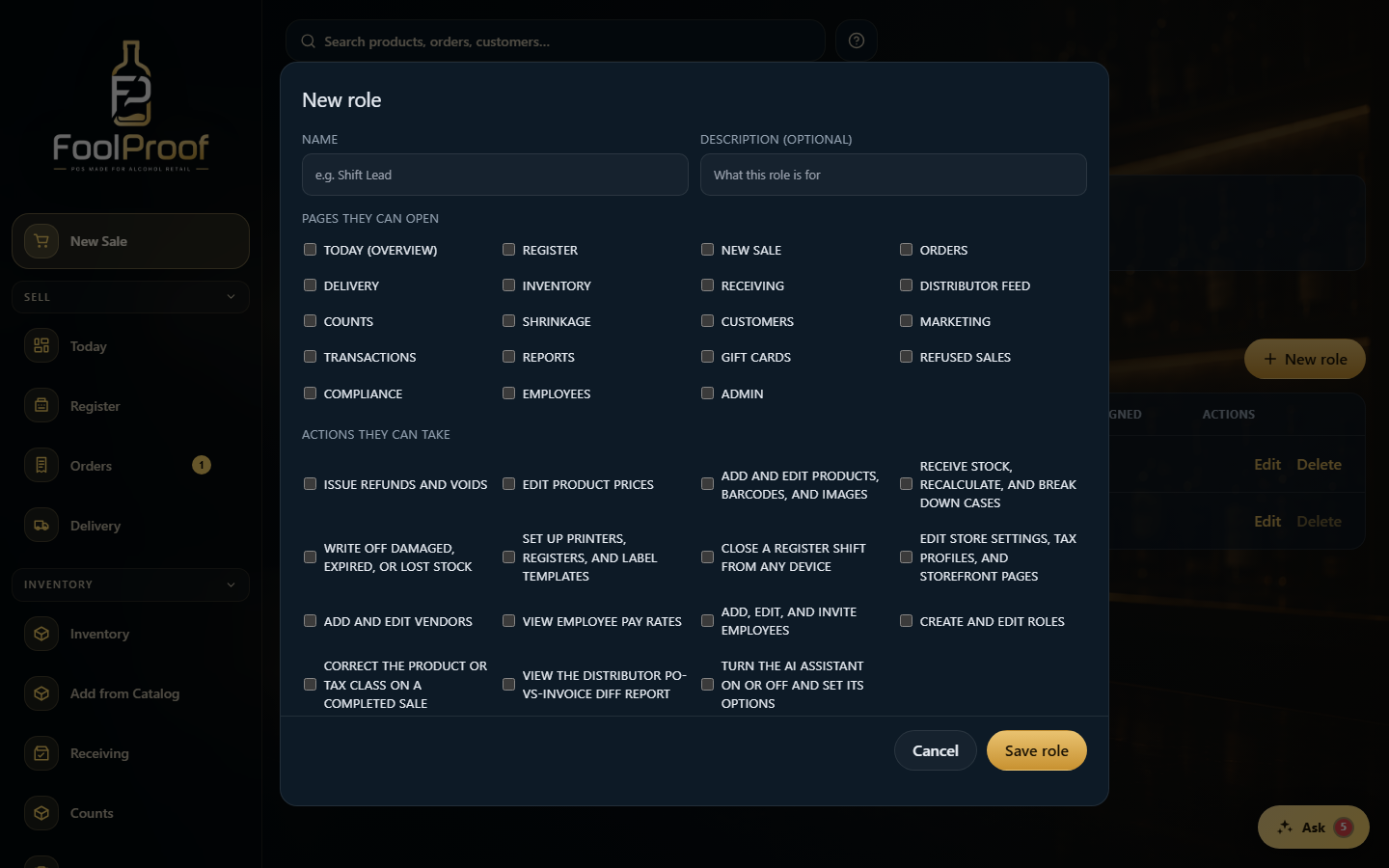 123
123