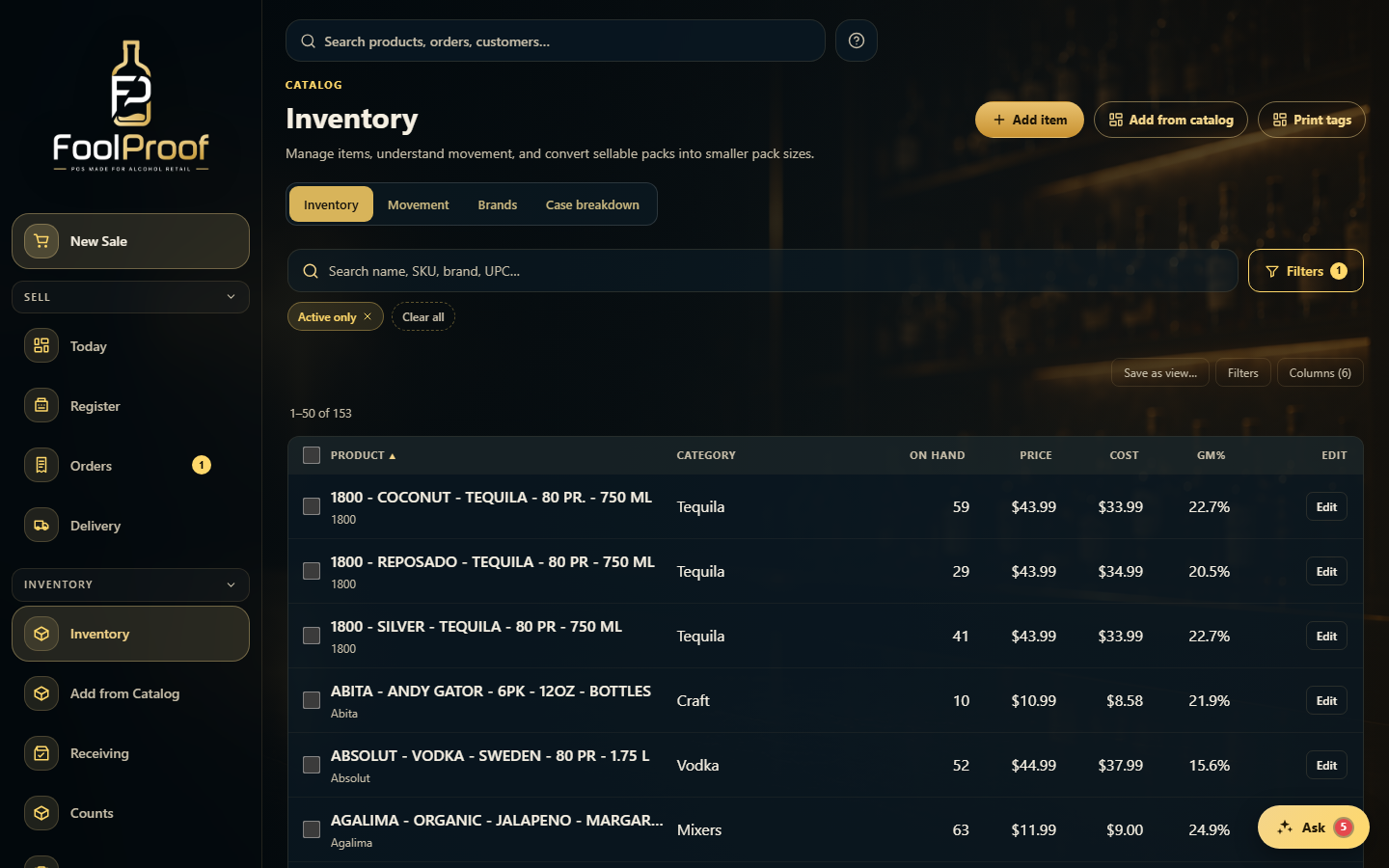
Add items two ways — Add item on the Inventory page for a custom product, or Add from Catalog to pull one from the shared catalog — then open a product to edit its details, barcodes, and picture.
A step-by-step walkthrough with real screenshots · FoolProof POS for alcohol retail
1. Two ways to add
There are two ways to add stock: Add item for a brand-new custom product, or Add from Catalog to pull an existing one — with its image — from the shared catalog.
12
1Add item creates a brand-new custom product.
2Add from Catalog pulls an existing product from the shared catalog.
2. Add a custom item
Add item opens a form. A name and price are all you need — brand, category, cost, SKU, and the rest are optional. It's added to this store only.
12
1Name and Price are all that's required — everything else is optional.
2Click Add item — it's created for this store only.
3. Or pull one from the catalog
Add from Catalog opens a searchable browser of the shared catalog. Tap a product to add it — its image and details come along; set a price now or leave it blank and price it later.
12
1Search the shared catalog by name, brand, category, or UPC.
2Tap a product to add it — its image and details come along.
 12
12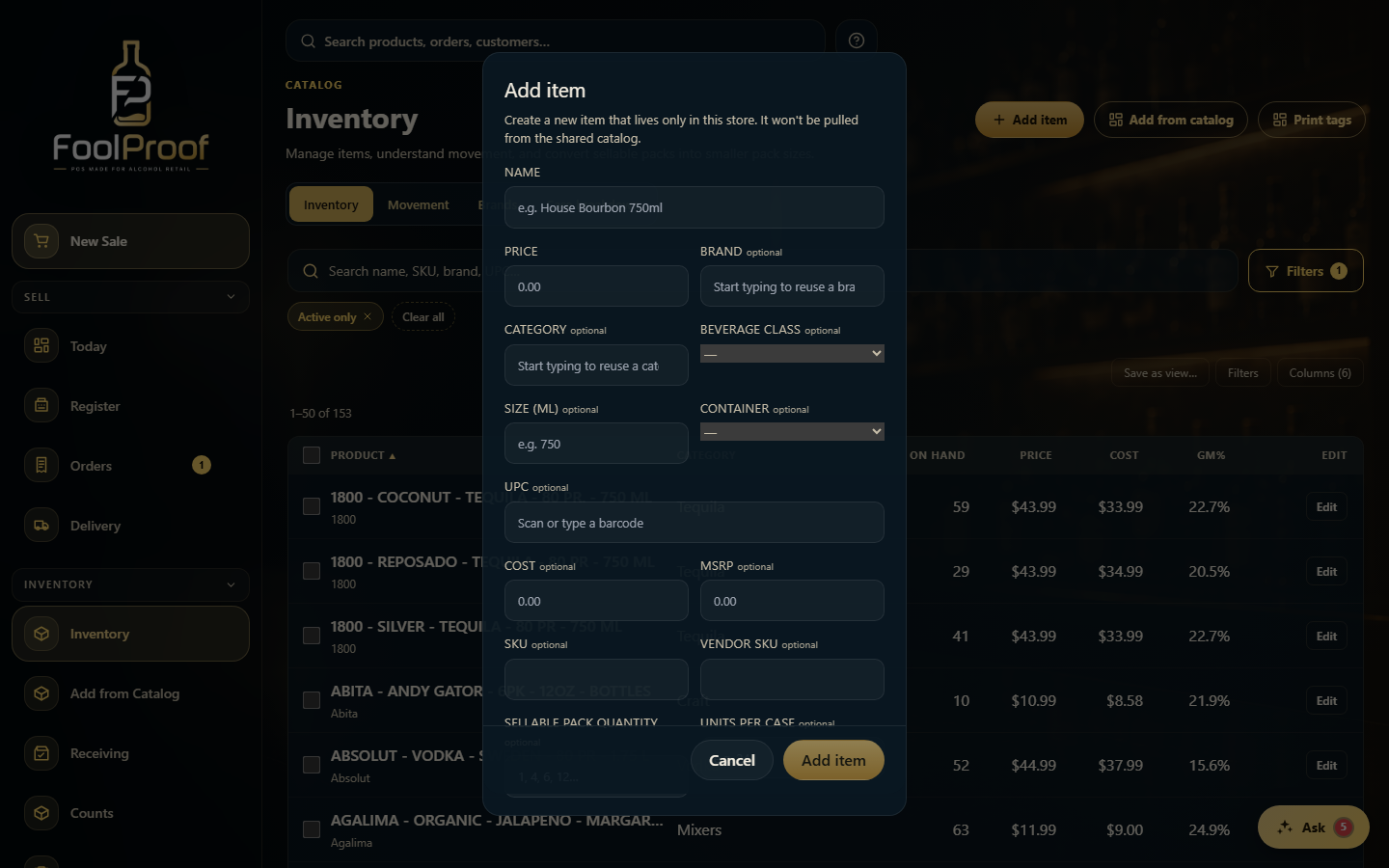 12
12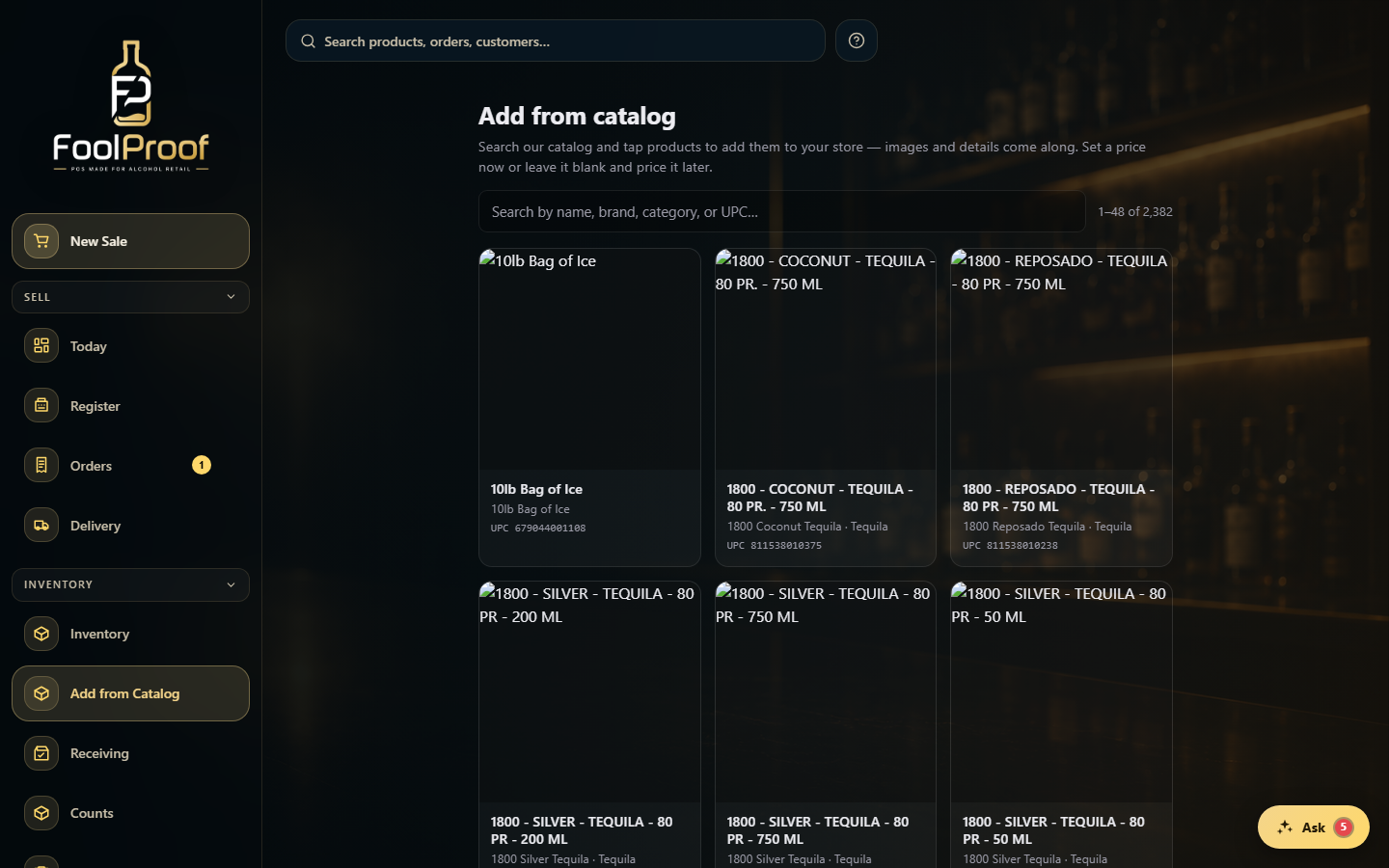 12
12