Every completed sale is on the Transactions page — search it to reprint a receipt or begin a refund.
A step-by-step walkthrough with real screenshots · FoolProof POS for alcohol retail
1. Find a sale
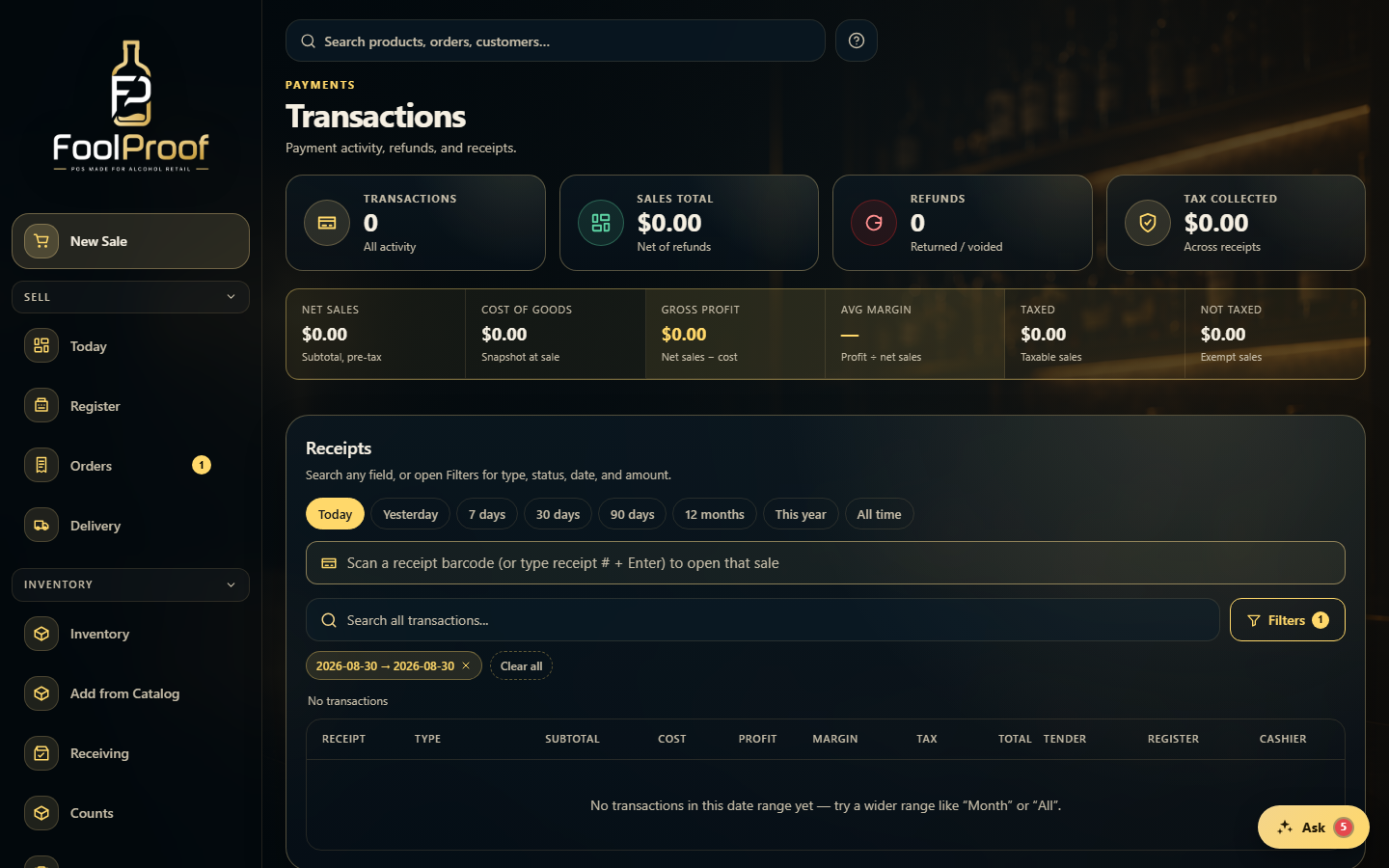
Every completed sale lives on Transactions. Pick a date window (use All time for the full history), then scan a receipt barcode to jump straight to a sale, or search any field — date, amount, item, or receipt number — across every sale, not just the page shown.
12
1Pick a date window — for the full history, use All time.
2Scan a receipt barcode to jump to a sale, or search any field.
2. Open it to reprint or refund
Click a sale in the receipts table to open its detail page, where you can reprint the receipt or start a refund or void. The tiles up top total transactions, sales, refunds, and tax for the chosen window.
1
1Click a sale to open it and reprint the receipt or start a refund.
 12
12