Open a receipt's detail page to refund selected items (or the whole sale) or void the entire sale, reversing payment and returning stock.
A step-by-step walkthrough with real screenshots · FoolProof POS for alcohol retail
1. Open the sale
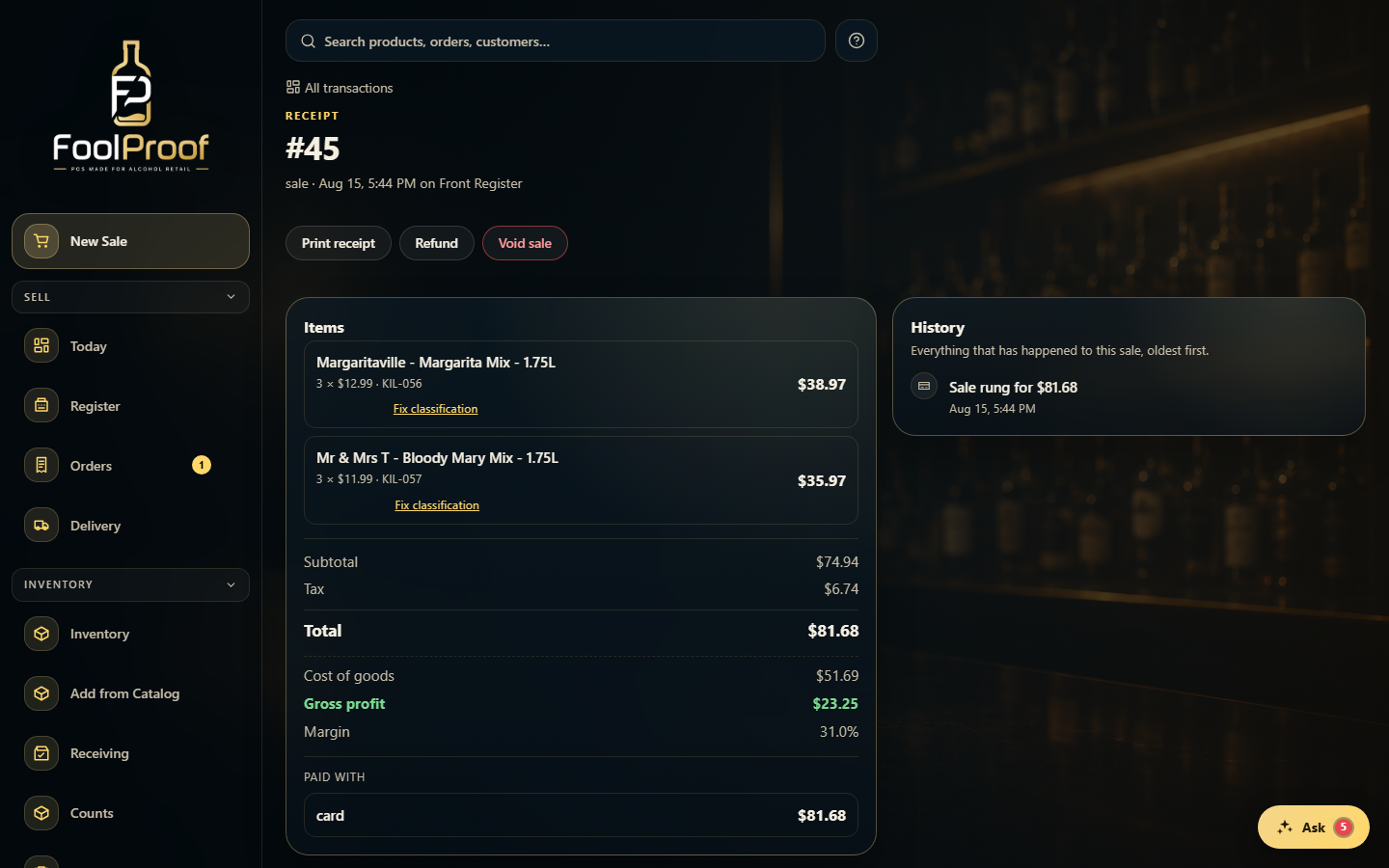
Find the sale on the Transactions page and open its receipt. Refund and Void sit at the top — money going out needs a live connection, so they're hidden when you're offline.
1
1Refund and Void sit at the top of the receipt.
2. Refund some or all of it
Click Refund. Set how many of each item to return — or leave everything at 0 for a full refund — pick a reason, then confirm. The refund is logged in the sale's History.
123
1Set a quantity per item to return just those — leave all at 0 for a full refund.
2Pick a reason, add an optional note, and optionally issue store credit instead of cash/card back.
3Confirm — money goes back the way it was paid and stock returns to inventory.
3. Or void the whole sale
A void is all-or-nothing. Click Void sale, pick a reason, and confirm — it reverses the entire sale and returns every item to inventory, and can't be undone.
12
1Pick a reason (and an optional note) for the void.
2Void this sale reverses everything and returns every item — it can't be undone.
 1
1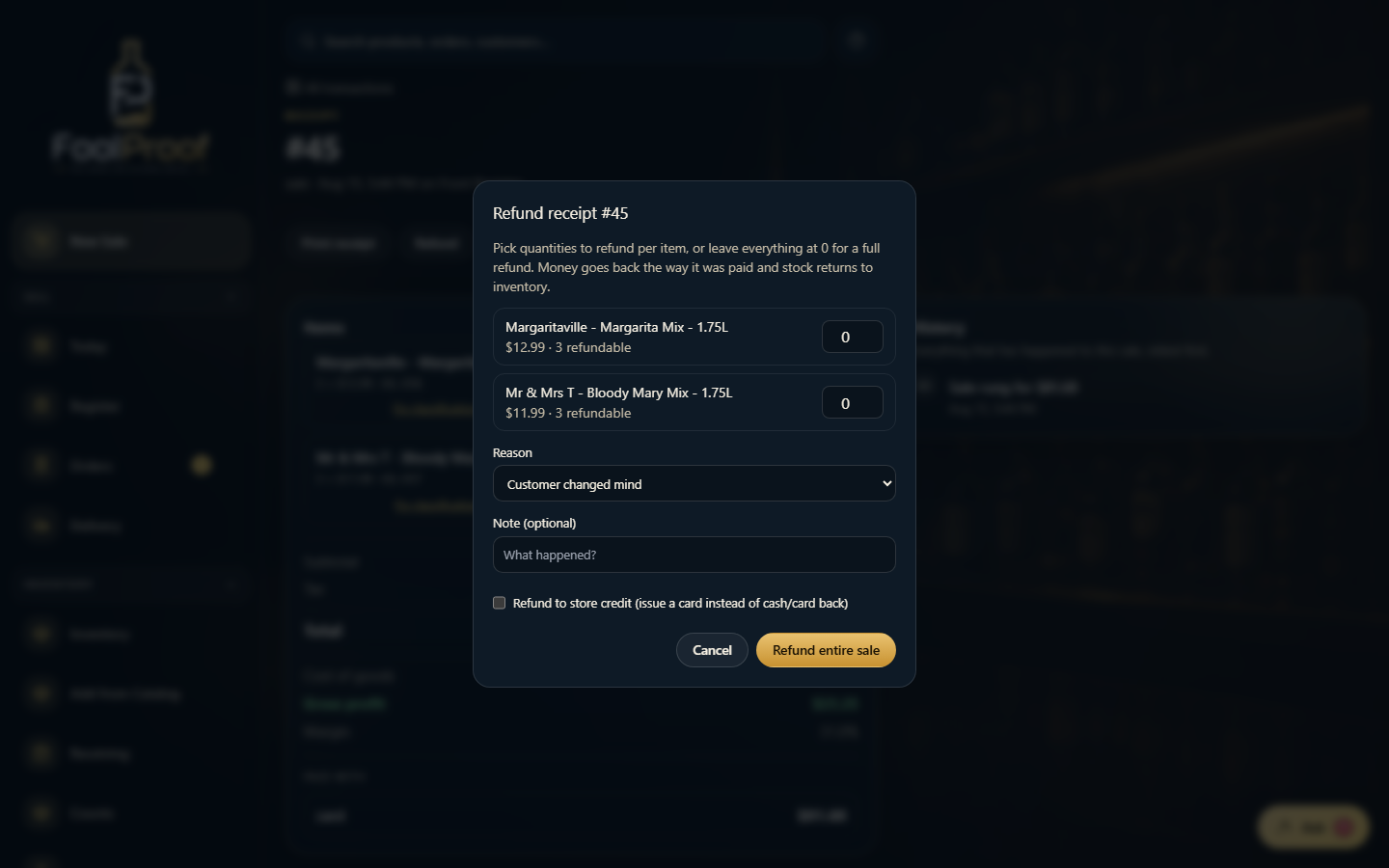 123
123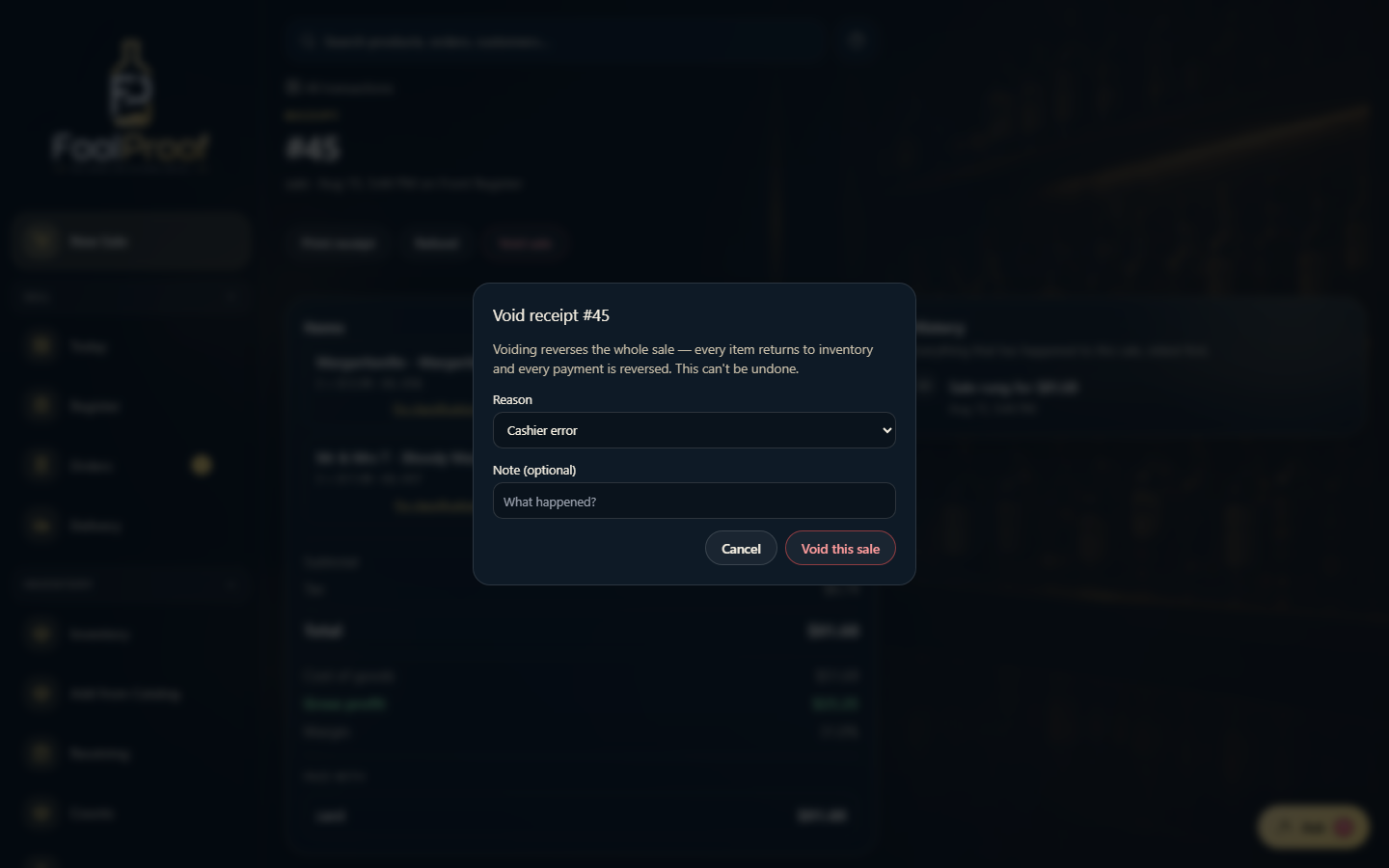 12
12