Add and test your receipt/label printers, drawer, and card terminal, name each register and set where it prints, and design shelf-tag templates — all under Admin.
A step-by-step walkthrough with real screenshots · FoolProof POS for alcohol retail
1. Add a device
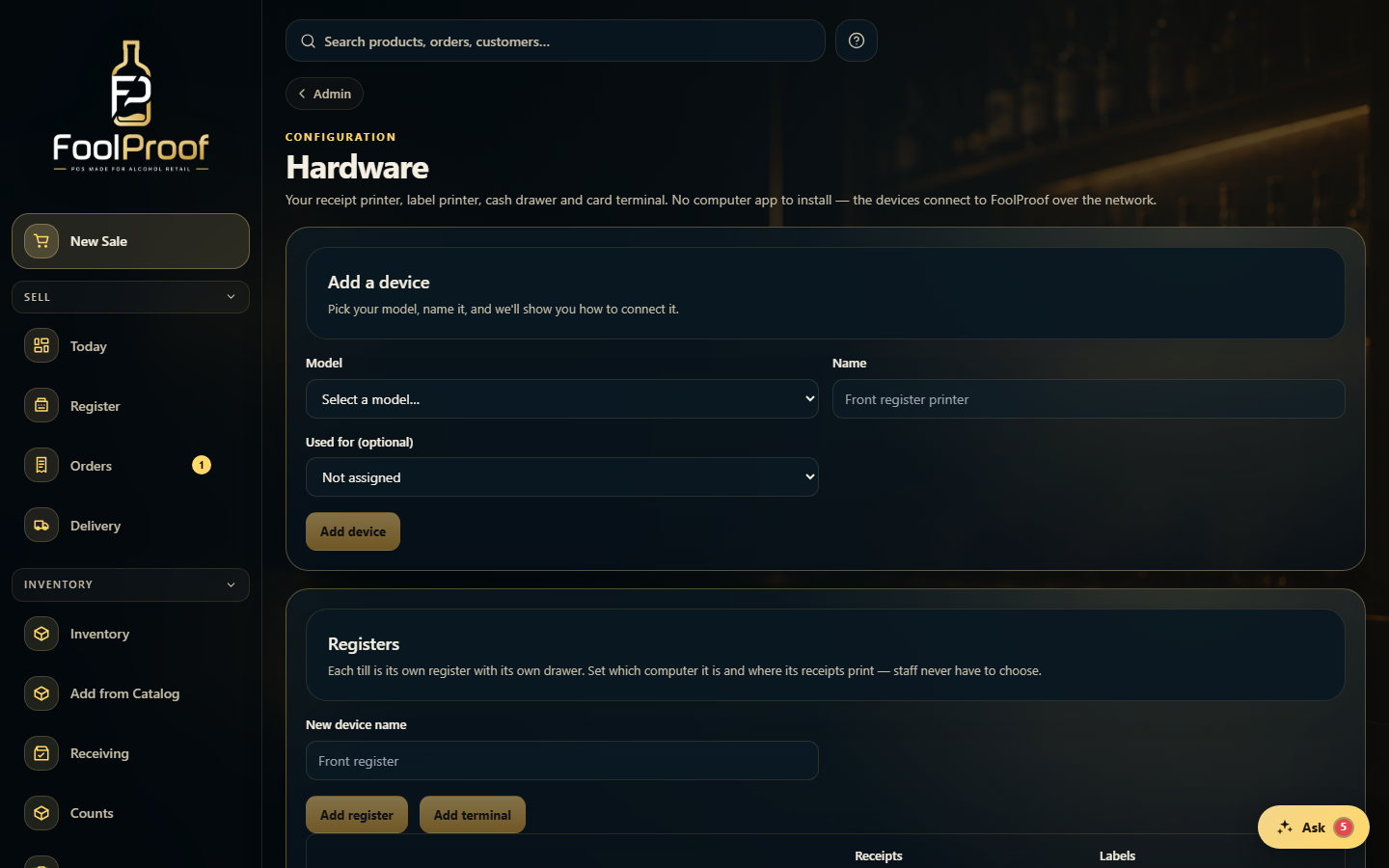
Under Admin → Hardware, add each device: pick the model, name it, set what it's used for, and Add device. Then use Print test (or Open drawer) to confirm it's connected.
1
1Pick the model, name it, Add device — then Print test to confirm.
2. Set up registers
In the Registers card, name each till and choose which computer it is and which printers handle its receipts and labels. Shelf-tag templates live under Admin → Label template.
1
1Name each till, set its computer, and choose which printers handle its receipts and labels.
 1
1