Use New Sale to build a cart by scanning or searching items, then take payment.
A step-by-step walkthrough with real screenshots · FoolProof POS for alcohol retail
1. Open New Sale
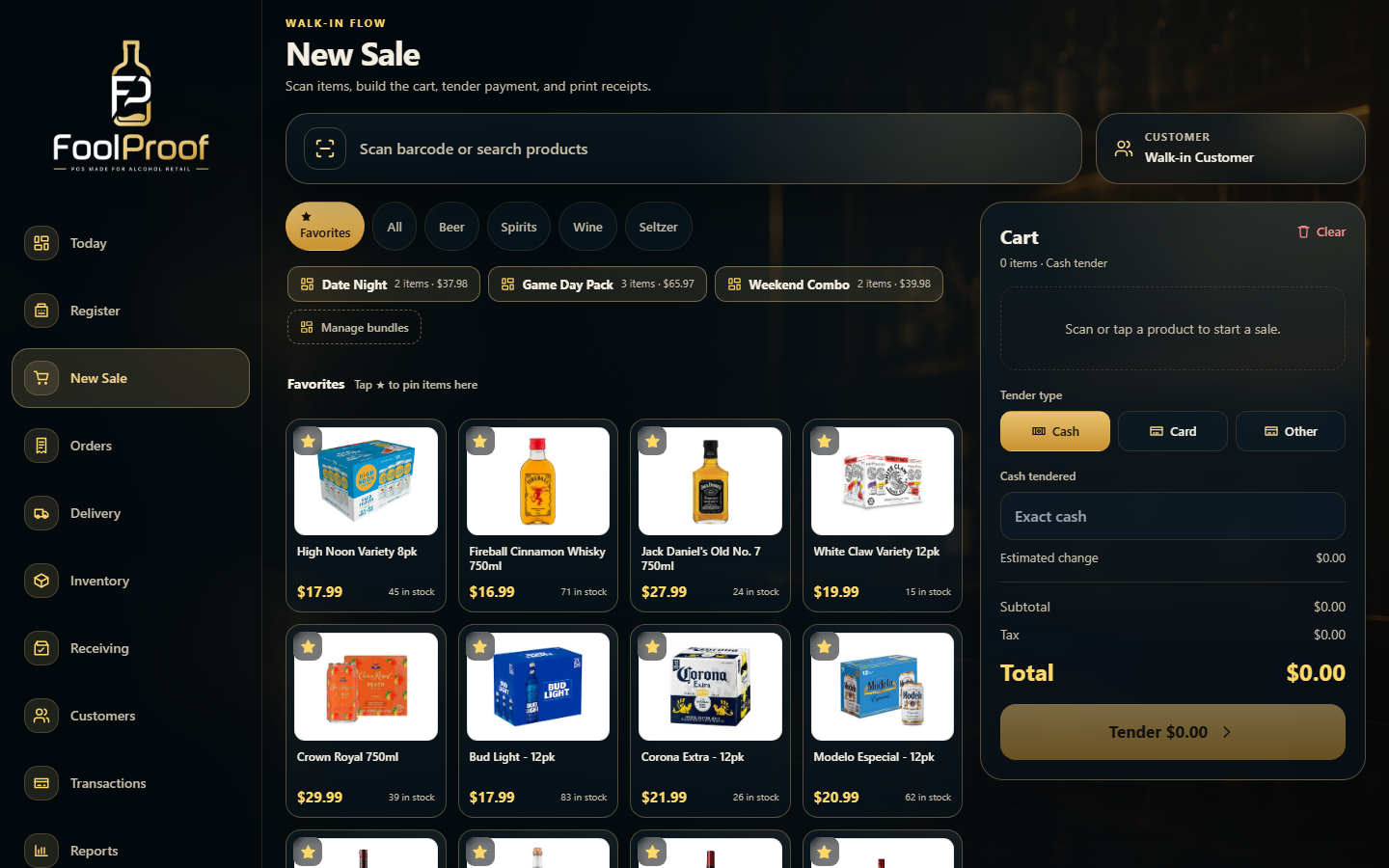
Tap New Sale in the sidebar. The register has three zones: the scan/search bar on top, your products and favorites in the middle, and the live cart on the right.
123
1Scan a barcode or search by name to find a product.
2Or tap a product tile — star your top sellers to keep them on Favorites.
3The cart builds here on the right.
2. Add items to the cart
Each tap on a product (or a scan) drops it into the cart with its price. Adjust the quantity with the − and + buttons, or type it in. A customer is optional.
12
1Tap a product tile — each tap adds one to the cart.
2Items appear in the cart with price and quantity; use − / + to change how many.
3. Take payment
Pick how the customer is paying. For cash, type what they handed you and the change due is worked out for you; Card, Gift card, Other, and Split payment are all here too.
12
1Pick the tender — Cash, Card, Gift card, Other, or Split payment.
2For cash, enter what they handed you; the change due is calculated. Then press Tender to finish.
4. The receipt
The sale is done. Its receipt prints (or can be emailed), and you can always come back to it from Transactions to reprint, refund, or void.
12
1The finished sale's receipt — Print receipt to reprint it any time.
2Subtotal, tax, total, and the tender used — the full record of the sale.
 123
123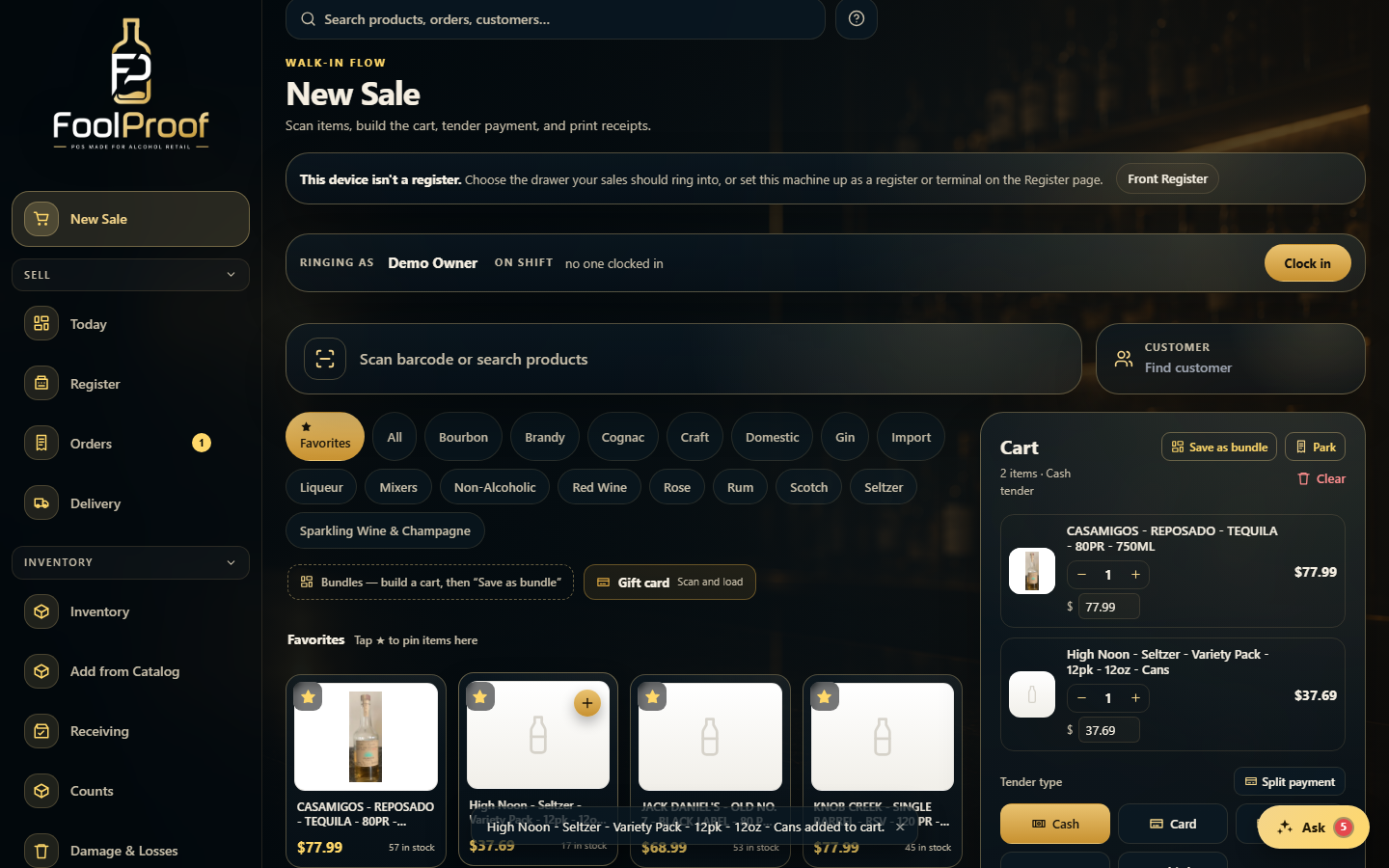 12
12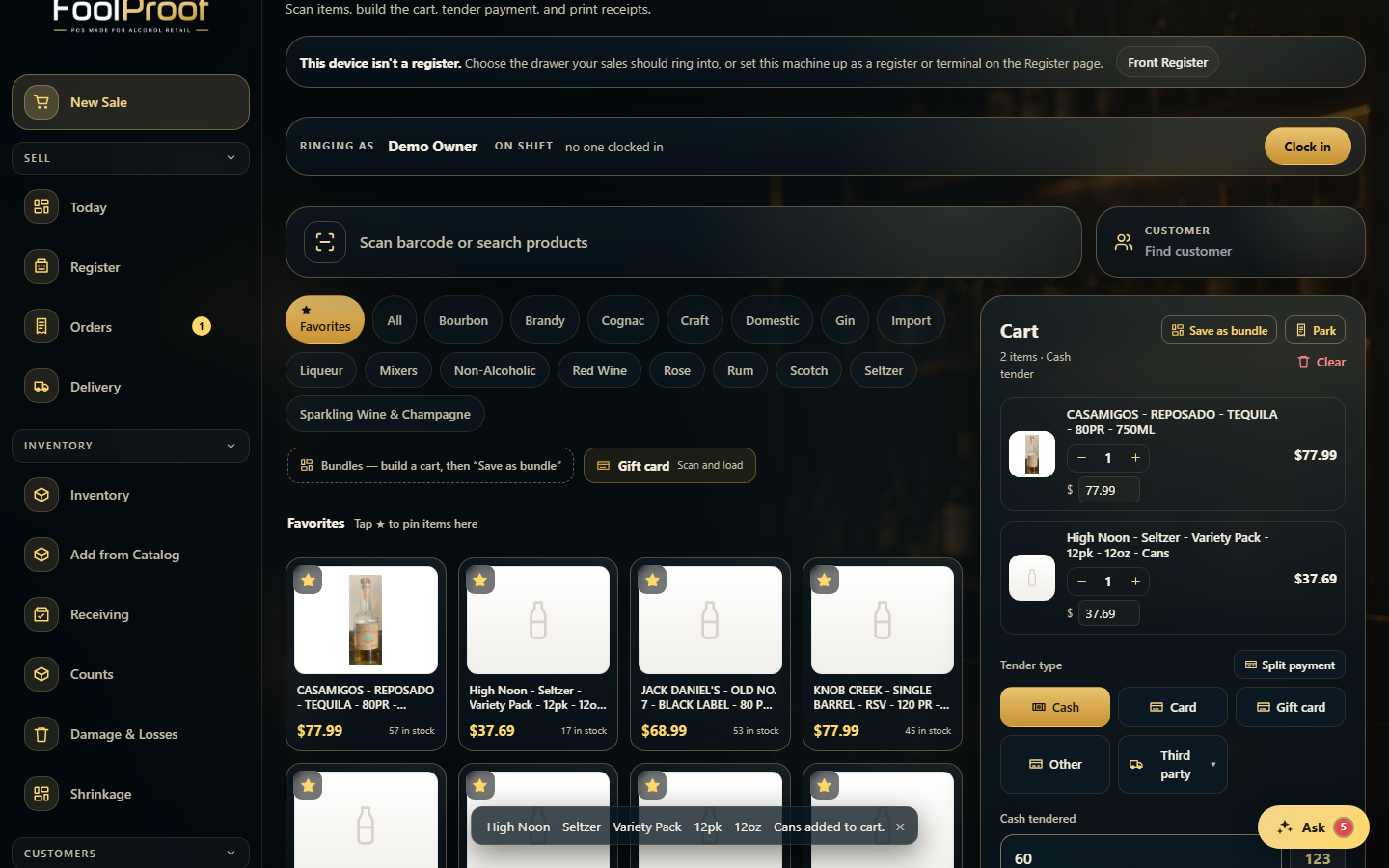 12
12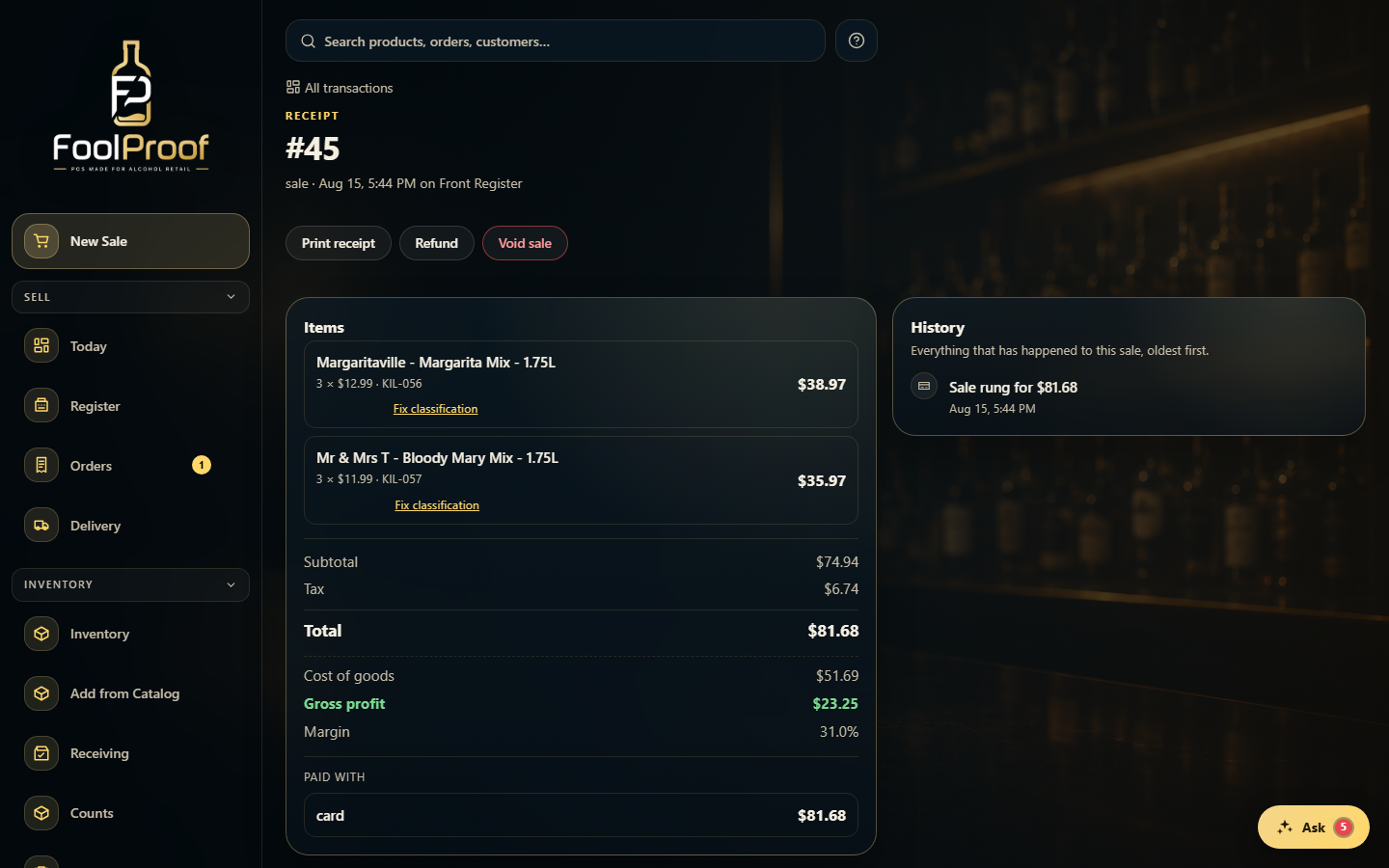 12
12