Compliance
 123
12312
Log a refused alcohol sale
Record every alcohol sale you turn away on Refused Sales — the log is your dram-shop / liability defense.
Steps
- Open Refused Sales from the menu.
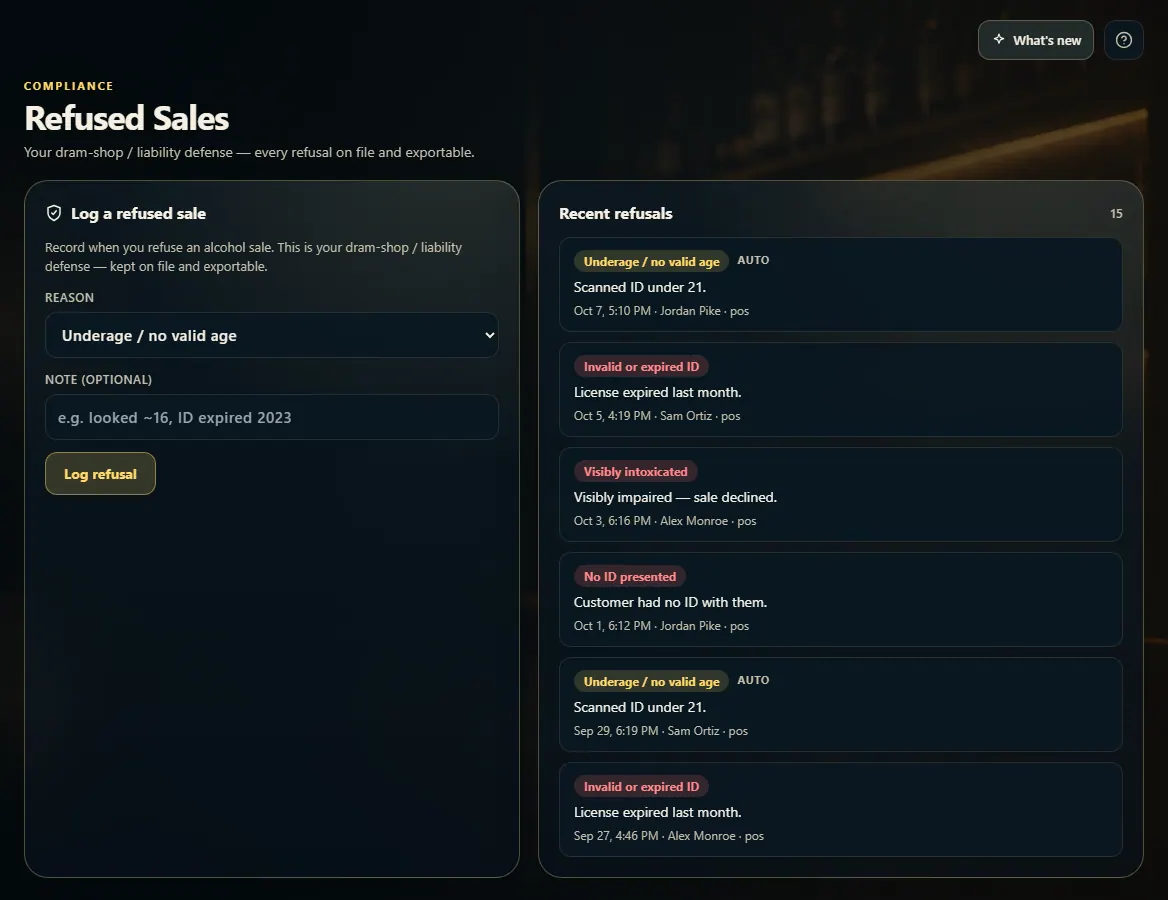
- Pick a Reason: Underage / no valid age, Visibly intoxicated, Over the legal quantity limit, Invalid or expired ID, No ID presented, or Other.
- Add a note if it helps, for example "looked ~16, ID expired 2023".
- Click Log refusal.
- Check Recent refusals: each entry shows the reason, note, time, who logged it, and where it happened.
Good to know
- Entries marked AUTO were logged by the register when an ID scan failed — you don't need to log those again.
- When a driver refuses a delivery at the door, it is logged here too, marked delivery.
1. Log a refusal
Pick the reason, add a short note, and click Log refusal. It takes a few seconds and is kept on file.
123- 1Why you refused the sale.
- 2An optional note.
- 3Save it to the log.
2. The refusal log
Every refusal lands in Recent refusals. AUTO means the register logged it from a failed ID scan.
12- 1Reason, note, time, employee, and channel.
- 2Logged automatically by a failed ID scan.