Licenses, delivery coverage, and your state's rules
The Compliance page shows what needs fixing, your alcohol licenses, where you may legally deliver, and your state's trade-practice rules.
A step-by-step walkthrough with real screenshots · FoolProof POS for alcohol retail
Steps
Open Compliance from the menu.
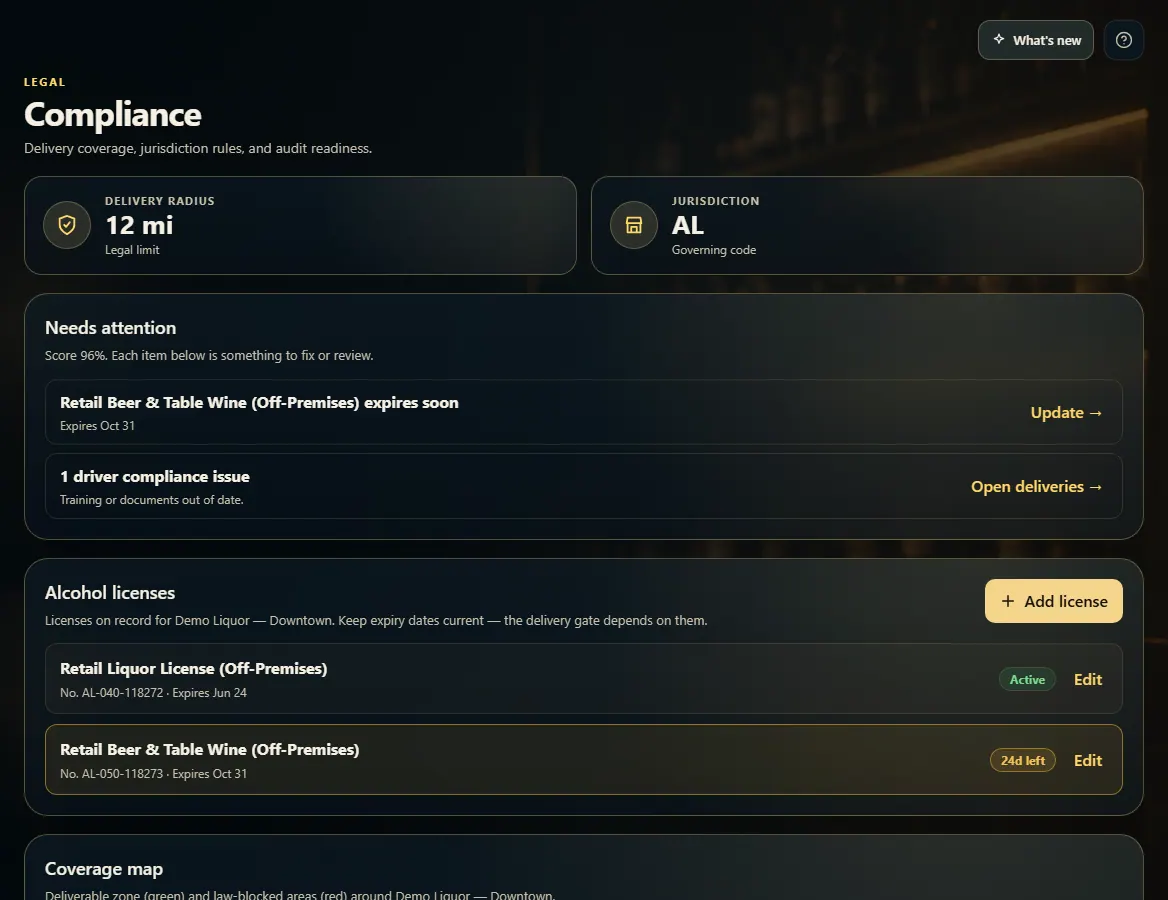
Check the Delivery Radius and Jurisdiction tiles at the top.
Work through Needs attention — each item has a button that takes you to the fix.
Under Alcohol licenses, click Add license to record each license with its number and expiry date, or Edit to update one.
Use the Coverage map: green is where you may deliver, red is blocked by law.
Scroll to Trade-practice rules to see what your state allows, each with a Yes/No badge and citation.
Good to know
Keep license expiry dates current — the delivery check depends on them.
In Alabama, alcohol retailers can't give customers rewards or other inducements to buy. That's why FoolProof's loyalty sign-up only collects contact details — no points or rewards.
Trade-practice rules are researched public regulations, not legal advice. Confirm with a licensed beverage attorney before relying on one.
1. What needs attention
The tiles show your legal delivery radius and governing code. Needs attention lists anything to fix, with a button to go fix it. Add each alcohol license so its expiry is tracked.
123
1Your legal delivery radius and jurisdiction.
2Things to fix, each with a button to the fix.
3Add your alcohol licenses.
2. Your state's rules
Trade-practice rules list what's legal for alcohol retail in your state, each with a Yes/No badge, a short explanation, and the citation.
12
1A rule for your state, with the law it comes from.
 123
123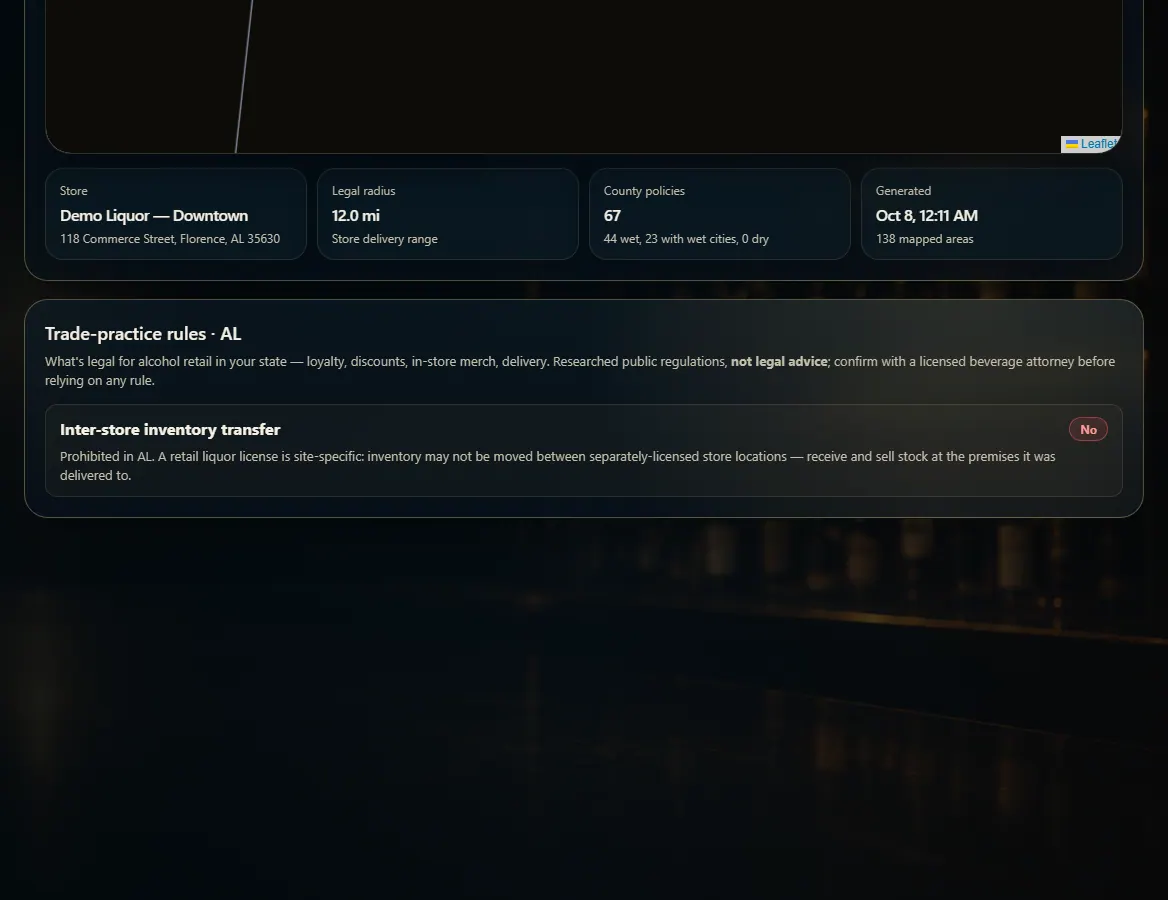 12
12