The Delivery page shows every delivery on the road, where your drivers are, and which drivers can't get offers yet.
A step-by-step walkthrough with real screenshots · FoolProof POS for alcohol retail
Steps
Open Delivery from the menu.
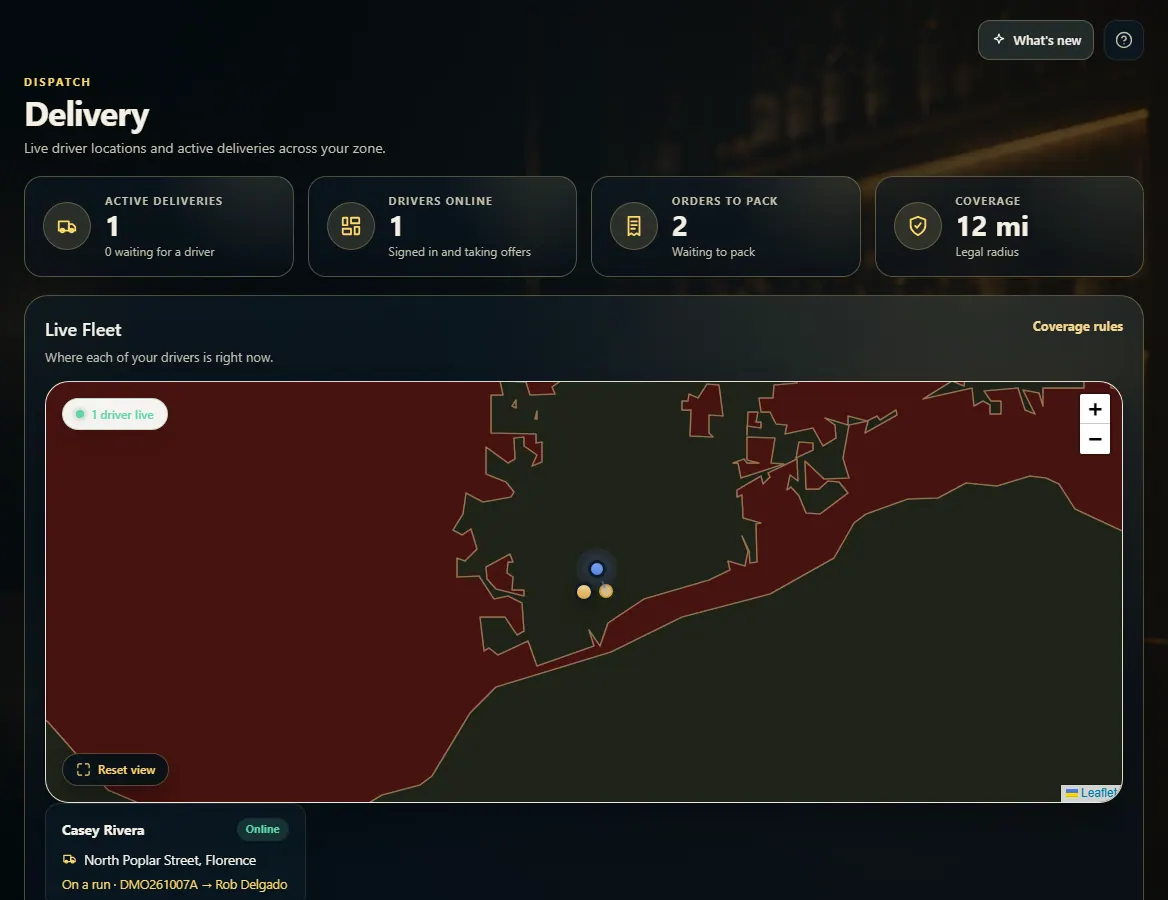
Check the tiles: active deliveries, drivers online, orders to pack, and your legal delivery radius.
Use the Live Fleet map and driver cards to see who is online, where they are, and who is on a run.
Scroll to Active Deliveries to see each order on the road and which driver has it.
Click Release driver to take an order back from its driver and offer it to others, or Cancel order to cancel it for the customer.
If a card says Drivers who can't get offers yet, click Open Employees and finish their driver verification.
Good to know
Refused at the door lists deliveries a driver brought back — the customer's payment is released automatically.
Coverage rules opens the Compliance page, where the coverage map shows exactly where you may deliver.
1. Dispatch at a glance
The tiles count what's on the road and who's working. The Live Fleet map shows where each driver is right now.
123
1Active deliveries, drivers online, orders to pack, and your radius.
2Where each driver is right now.
3Where you're allowed to deliver.
2. Every delivery on the road
Active Deliveries lists each packed or moving order with its driver. Release driver gives it back to the queue; Cancel order cancels it for the customer.
12
1An order on its way, and who has it.
2Cancel the order — or Release driver once a driver has it.
 123
123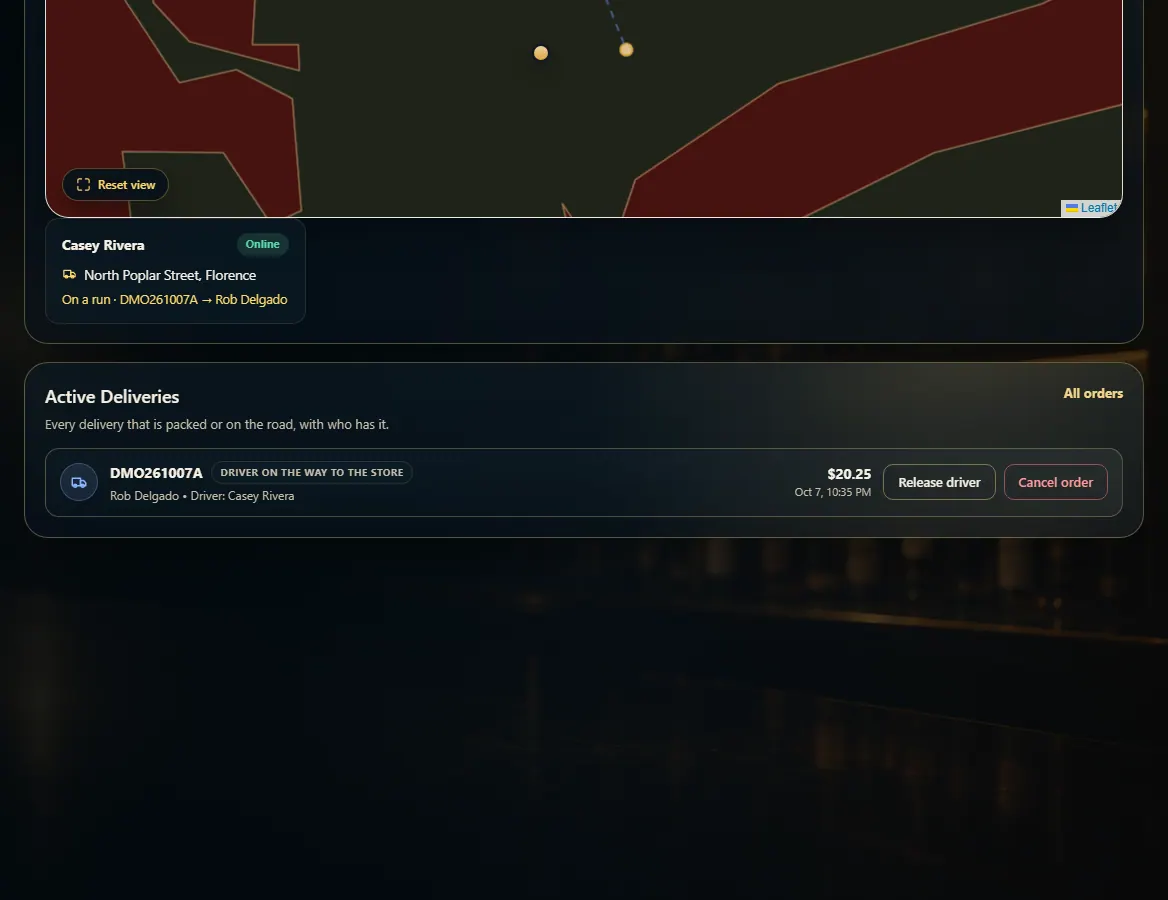 12
12