Orders lists every pickup and delivery order — move each one along with the button on its row: Accept, Mark ready, then Confirm pickup or Dispatch.
A step-by-step walkthrough with real screenshots · FoolProof POS for alcohol retail
Steps
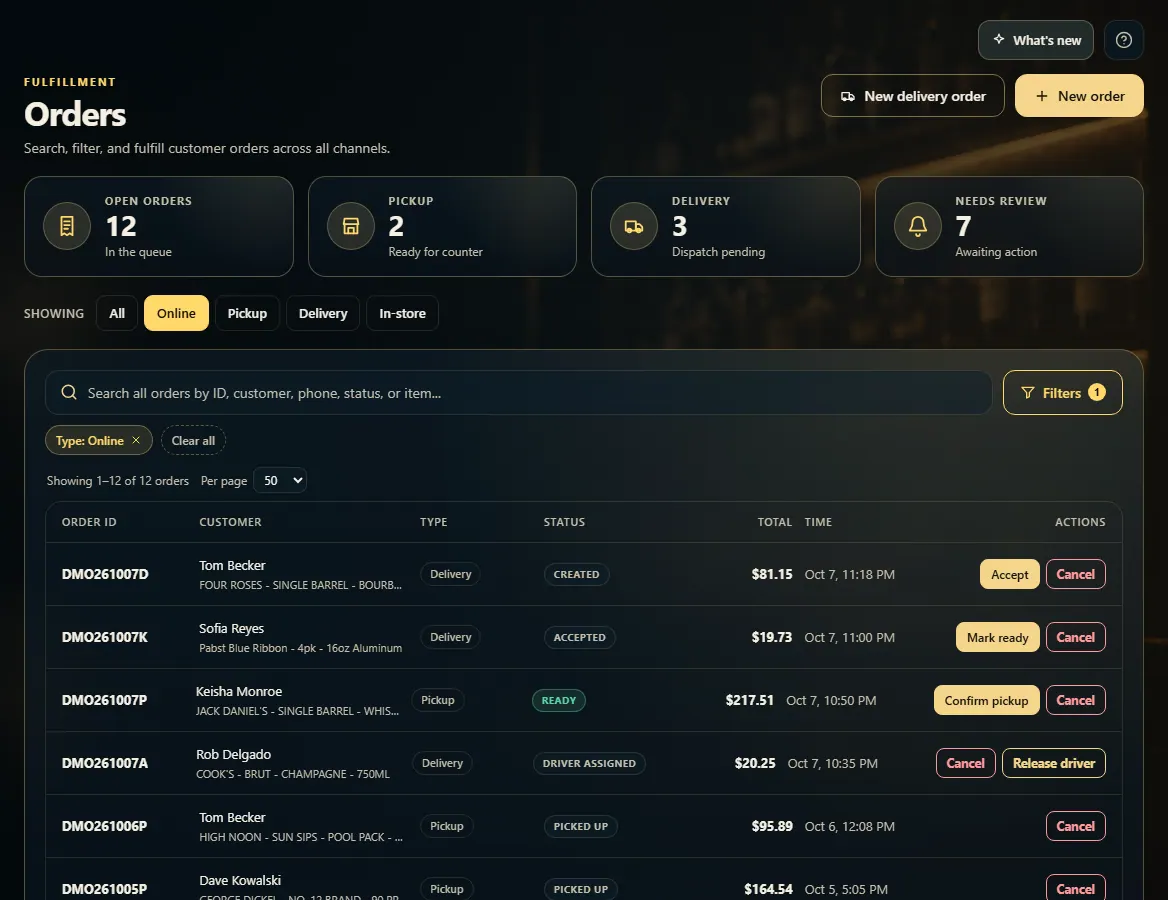
Open Orders from the menu. The tiles up top count open, pickup, delivery, and needs-review orders.
Use the Showing buttons (All, Online, Pickup, Delivery, In-store) to pick which orders you see, or search by order ID, customer, phone, status, or item.
Click Accept on a new order, then pull the items and click Mark ready.
Pickup: when the customer arrives, open the order, check the pickup code matches theirs, and click Codes match — confirm collection (or Confirm pickup on the row).
Delivery: click Dispatch to offer the order to your drivers. Watch it on the Delivery page.
Click any order to open it and see its items, totals, and every button for its current status.
Good to know
Cancel order cancels the customer's order — they may need a refund. If you only want a different driver, use Release driver instead; the order goes back to the queue and the payment is untouched.
When a curbside customer taps "I'm here", a banner shows at the top of Orders until you click Got it.
Search and filters cover every order, not just the page you can see. Open Filters for sort, status, date range, and amount.
1. See what needs doing
The row buttons always show the next step for that order. Pick a channel with the Showing buttons, or search every order at once.
123
1Choose which orders to show.
2Search by ID, customer, phone, status, or item.
3The next step for that order — Accept, Mark ready, Confirm pickup, or Dispatch.
2. Open an order
Click an order to see its items and totals. The buttons at the bottom change with the order's status. All orders takes you back to the list.
 123
123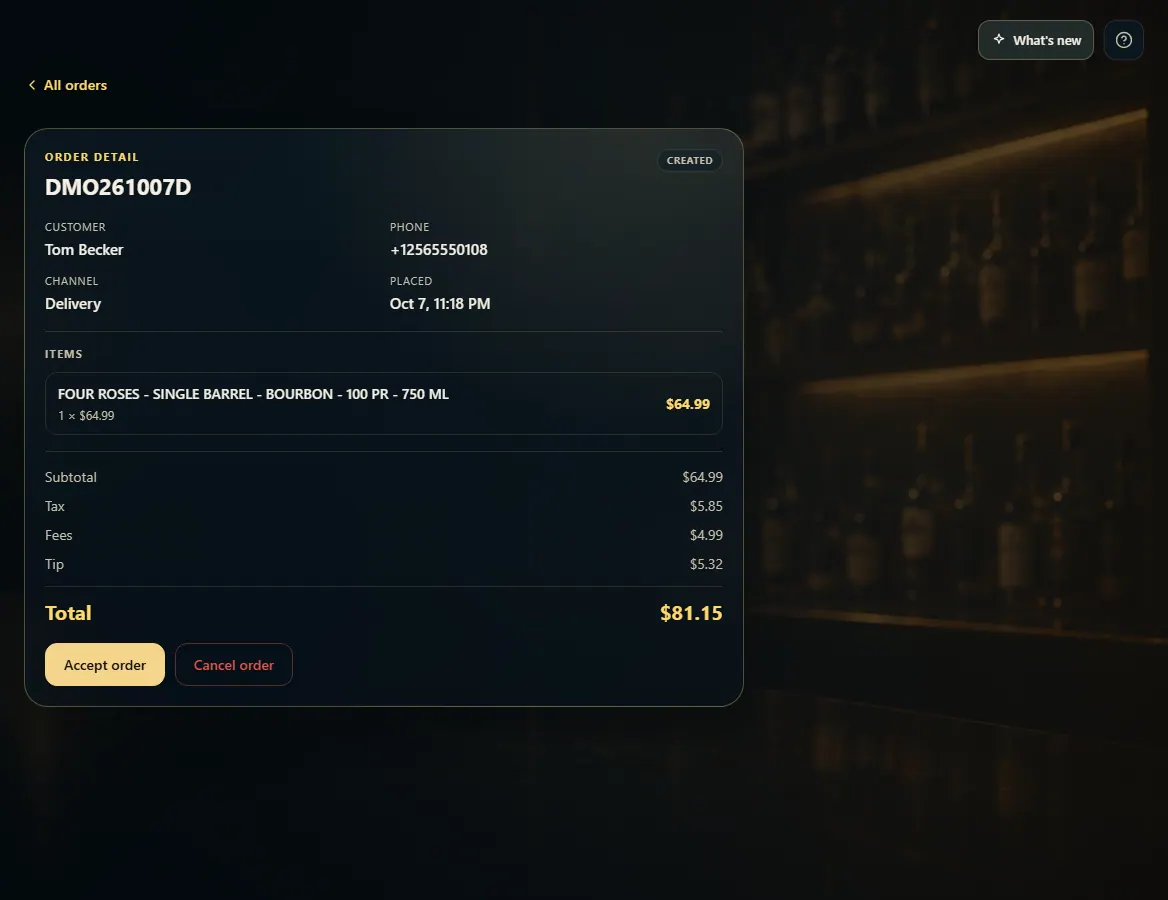 12
12