Online orders & delivery
 123
123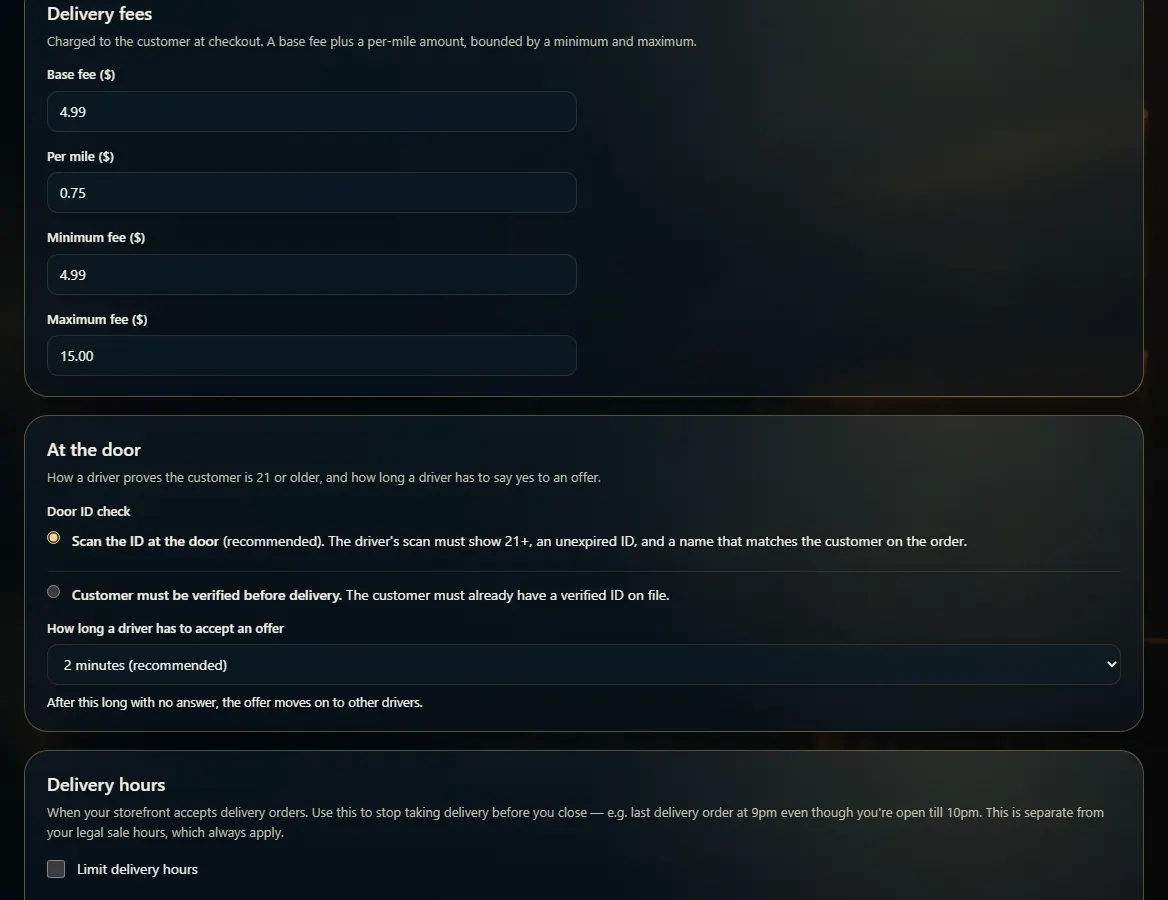 12
12
Set your delivery area, fees, and hours
Admin → Delivery sets whether you deliver, how far, what you charge, how drivers check ID, and the hours you take delivery orders.
Steps
- Open Admin and click Delivery.
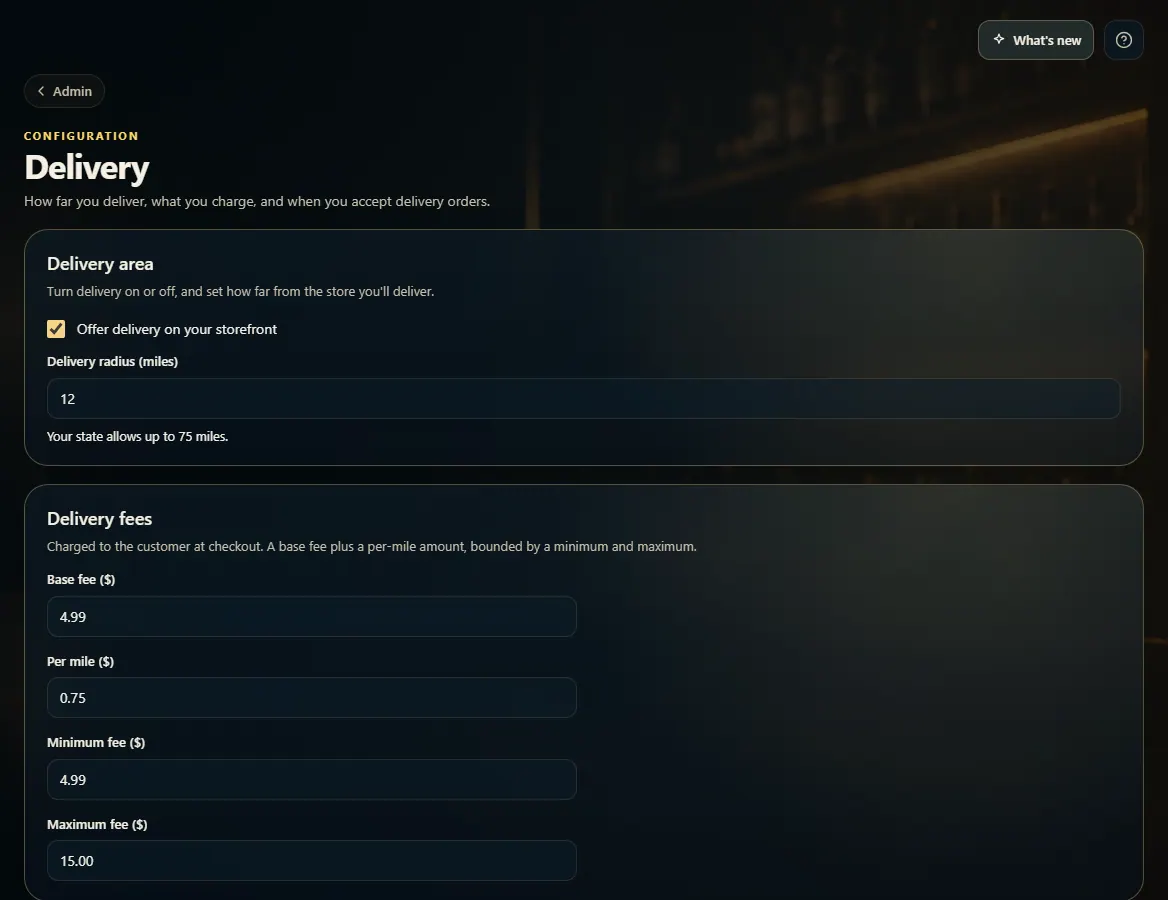
- Under Delivery area, tick Offer delivery on your storefront and set the Delivery radius (miles) — it can't go past what your state allows.
- Under Delivery fees, set the Base fee, Per mile amount, and the Minimum and Maximum fee.
- Under At the door, choose the Door ID check and how long a driver has to accept an offer.
- Tick Limit delivery hours to stop taking delivery orders before you close, and set times for each day.
- Click Save delivery settings.
Good to know
- Delivery hours are on top of your legal sale hours — those always apply.
- Scan the ID at the door is recommended: the scan must show 21+, an unexpired ID, and a name that matches the order.
1. Area and fees
Turn delivery on, set how far you go, and set the fee the customer pays at checkout.
123- 1Turn delivery on or off.
- 2How far you deliver.
- 3Base fee, per mile, minimum, and maximum.
2. At the door and delivery hours
Choose how drivers prove the customer is 21+, how long they have to accept an offer, and when you take delivery orders. Then Save delivery settings.
12- 1How the driver checks ID at the door.
- 2Time to accept an offer.