Customers, gift cards & accounts
 1234
1234
Email or text your customers
Marketing sends a promo by email or SMS to customers who opted in — only opted-in customers are ever contacted.
Steps
- Open Marketing (under Customers).
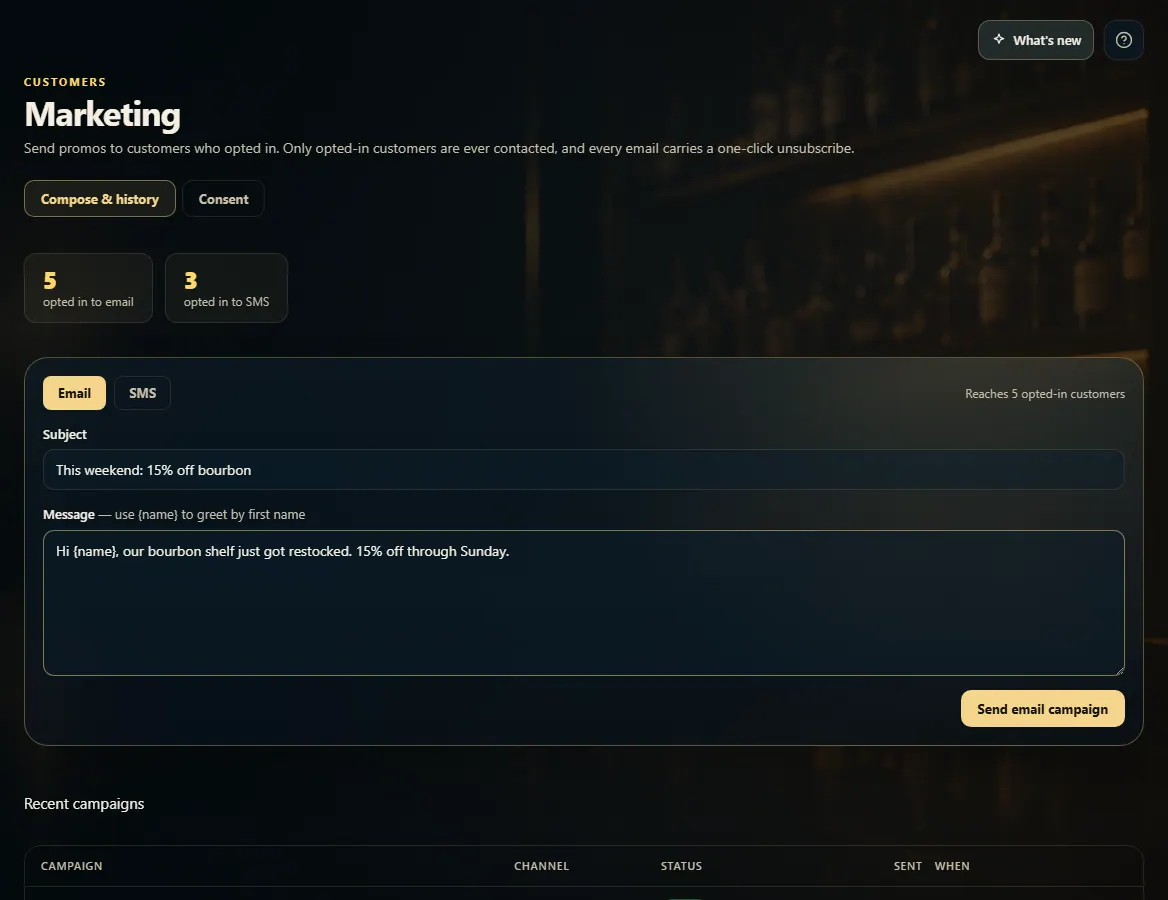
- On Compose & history, choose Email or SMS. It shows how many opted-in customers it will reach.
- For email, type a Subject. Type your Message — {name} greets each customer by first name.
- Click Send email campaign (or Queue SMS campaign).
- To record who has agreed to hear from you, open the Consent tab, search for the customer, and turn their Email or SMS switch on or off.
Good to know
- Every email carries a one-click unsubscribe. A customer who unsubscribes, or whose switch you turn off, is left out of every future campaign.
- A switch can only be turned on when that customer has an email (or phone) on file.
- Texts are held until an SMS provider is connected; the campaign still records who it would reach. Email sends right away.
- Recent campaigns, below the message, shows each campaign's status and how many it reached.
1. Write and send
Pick the channel, write the message, and send. Only customers who opted in to that channel receive it.
1234- 1Email or SMS — and how many it reaches.
- 2Your message. {name} becomes their first name.
- 3Send the campaign.
- 4Manage who has opted in.