Gift Cards lists every card with its balance — search a code to check it, add value with Reload, or Void a card; selling a new one happens on New Sale.
A step-by-step walkthrough with real screenshots · FoolProof POS for alcohol retail
Steps
Open Gift Cards (under Customers).
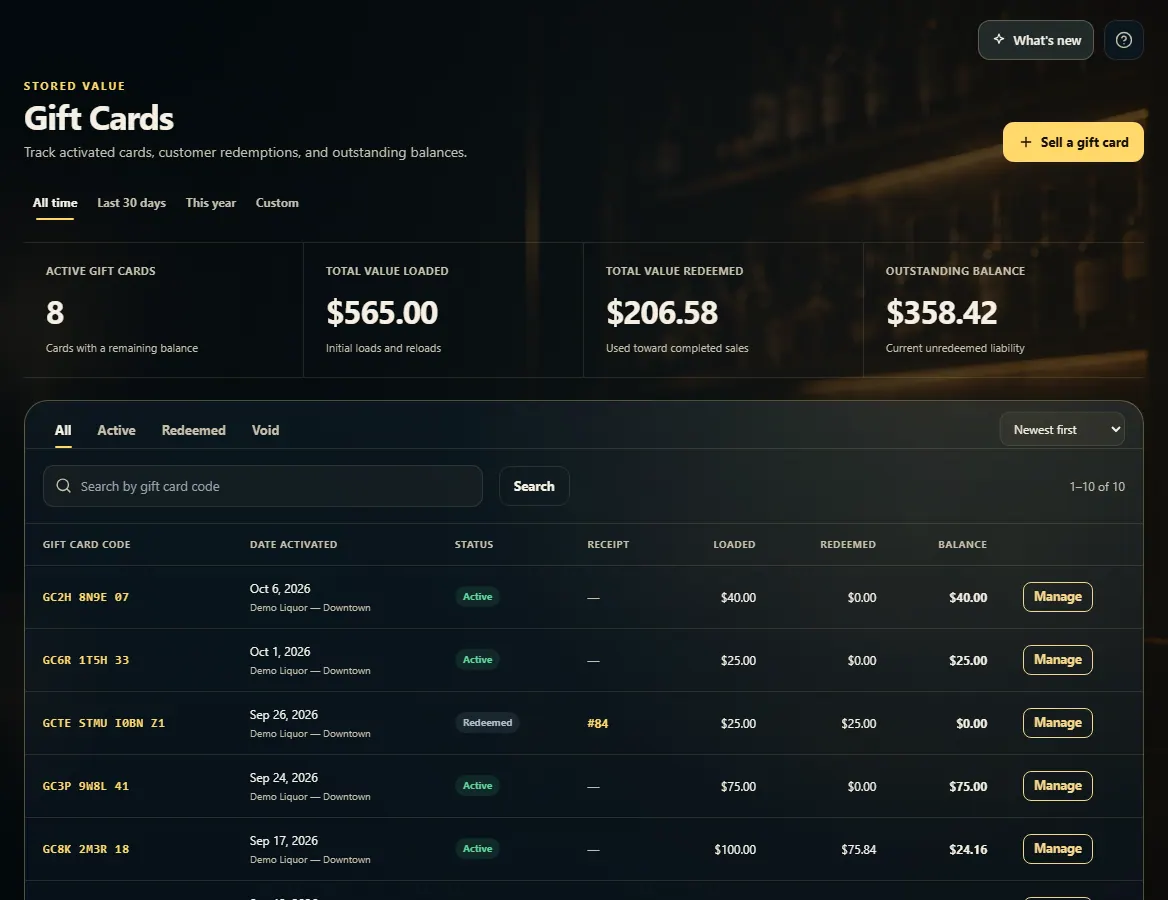
Type the card code in Search by gift card code and click Search, or pick All, Active, Redeemed or Void.
Click the card's code or Manage to see its current balance.
To add value, type the amount under Add value and click Reload.
To cancel a card, click Void card and confirm — its remaining balance is removed.
To sell a new card, click Sell a gift card; it opens New Sale with the gift card ready to fill in.
Good to know
Reload adds value straight onto the card and doesn't ring up a sale, so take the customer's payment for it separately.
A new card sold on New Sale only activates once the sale is paid.
The tiles show active cards, value loaded, value redeemed, and the outstanding balance you still owe on cards — for All time, the last 30 days, this year or custom dates.
Click a card's receipt number to open the sale that issued it.
1. Find a card
Search by code or filter by status. Each row shows what was loaded, what was spent and what's left.
1234
1Sell a new card on New Sale.
2All, Active, Redeemed or Void.
3Search by gift card code.
4Open a card.
2. Check the balance, reload or void
The card window shows its balance. Add value with Reload, or Void card to cancel it.
 1234
1234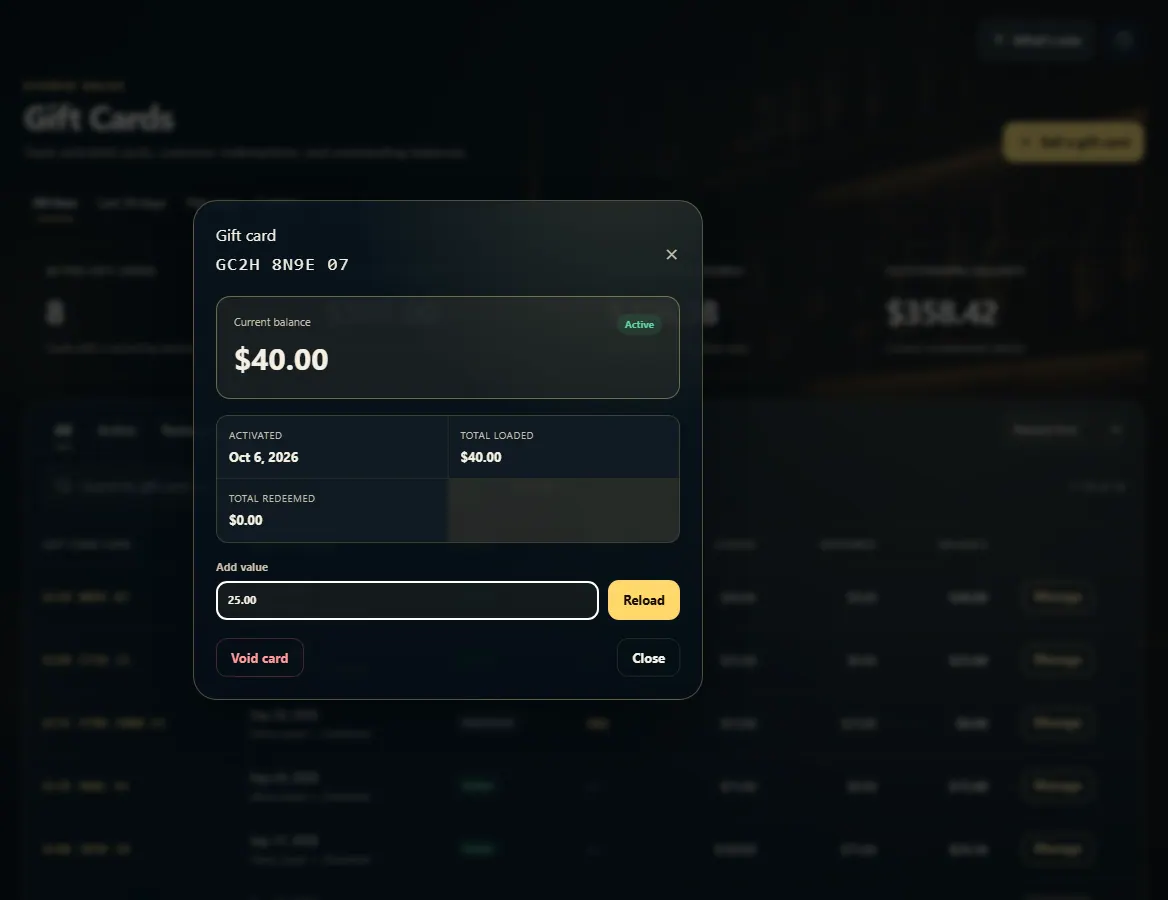 123
123