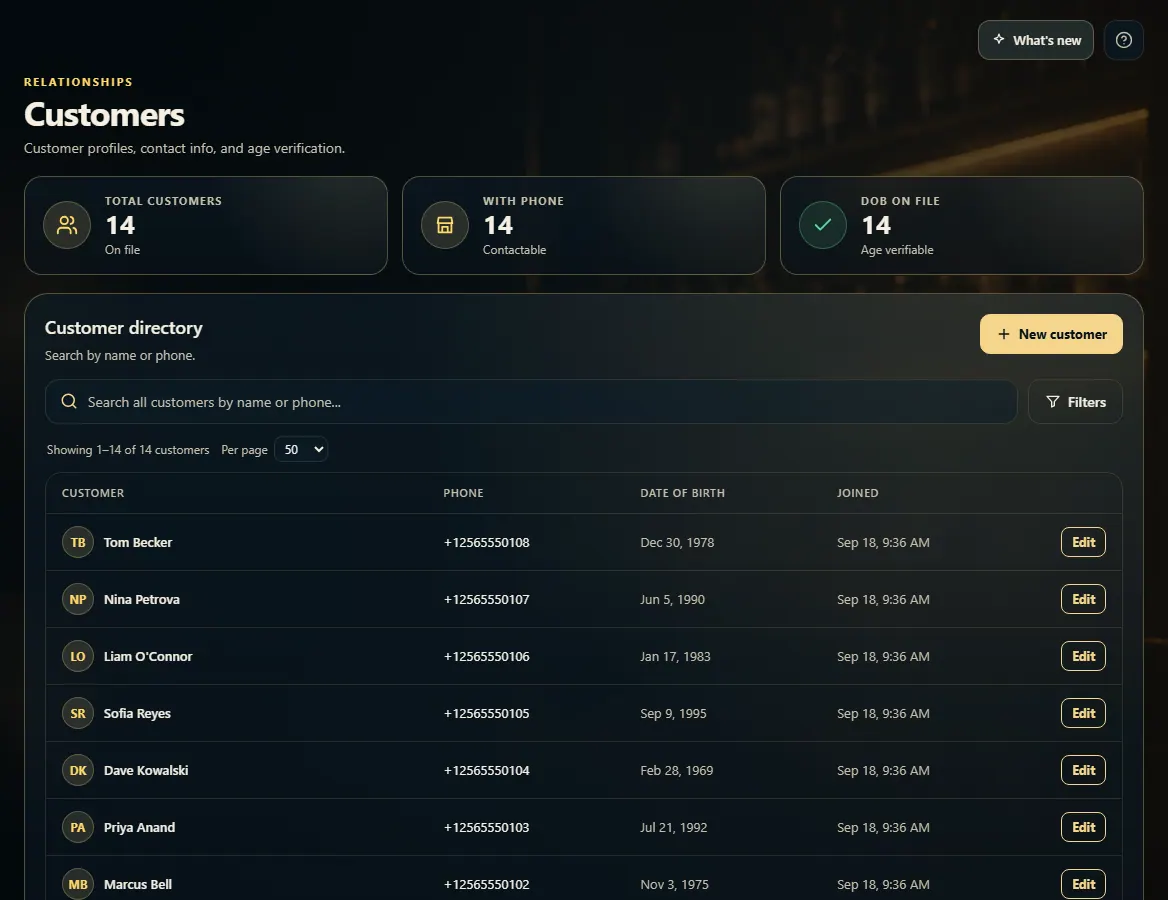
Customers lists everyone on file — search by name or phone, add a new customer, or click Edit to change their details.
A step-by-step walkthrough with real screenshots · FoolProof POS for alcohol retail
Steps
Open Customers from the menu (under Customers).
Type a name or phone number in the search box.
Use Filters to show only customers with (or without) a phone or date of birth, sort the list, or pick the dates they joined.
Click Edit on a customer to change their name, phone, email or date of birth, then click Save changes.
Click New customer to add someone — only a name is required — then click Add customer.
When a customer asks for their data, or to be deleted, open them with Edit and use Export data (JSON) or Export (CSV) to download everything you hold about them, or Delete customer to remove them.
Every such request goes in Privacy requests, below the directory: click Log a request for one taken by phone or at the counter, and Mark done or Refuse (with the reason) when you have answered it.
Good to know
The Email box shows the email on file. Change it to update it; clearing it removes the email.
Two customers can't share a phone number.
If your store has pricing levels, pick one under Pricing level and that customer buys at those prices.
Whether a customer gets marketing emails or texts is set on the Marketing page, Consent tab.
Alabama's data privacy law (from May 2027) gives you 45 days to answer a request; each one shows its due date, and overdue ones are counted at the top. Shoppers can also ask from your online store's Account page, and those requests appear here too.
Delete customer removes their name, phone, email, birth date, address and marketing opt-ins. Records the law makes you keep stay, no longer linked to them: orders and sales (an order under three years old keeps the name and address printed on it), ID check results and their consent history. A customer with an unpaid tab, an open layaway, quote or special order, or an unfinished order can't be deleted until that is finished.
Exporting or deleting a customer needs the Export store data permission. Doing it marks their open request of that kind as done.
A customer whose browser sends the Global Privacy Control signal is recorded as opted out of the sale of their data and of targeted marketing (shown on the Marketing Consent tab).
1. Find a customer
Search covers every customer on file, not just the page you can see. The tiles show how many have a phone or date of birth on file.
 1234
1234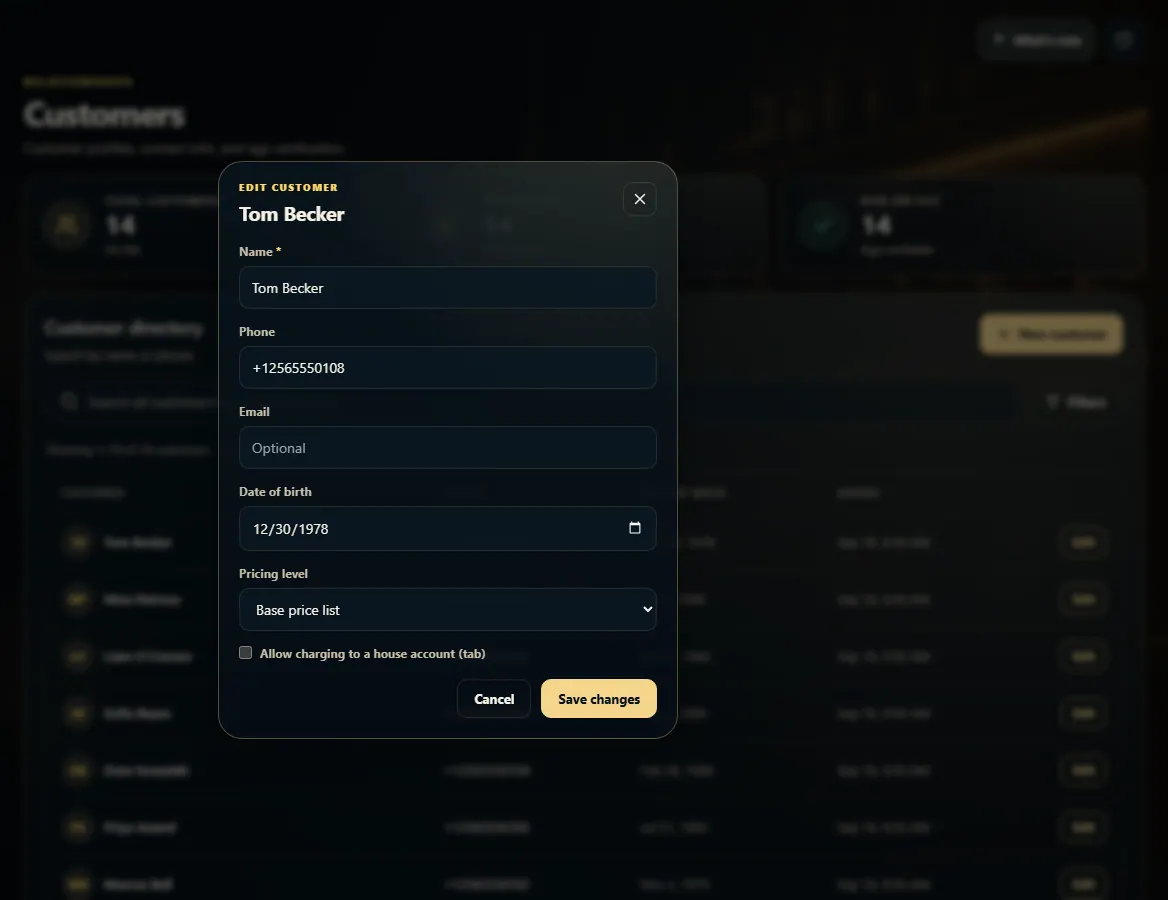 12
12