Every completed sale is on Transactions — search or scan the receipt to open it, then print it again.
A step-by-step walkthrough with real screenshots · FoolProof POS for alcohol retail
Steps
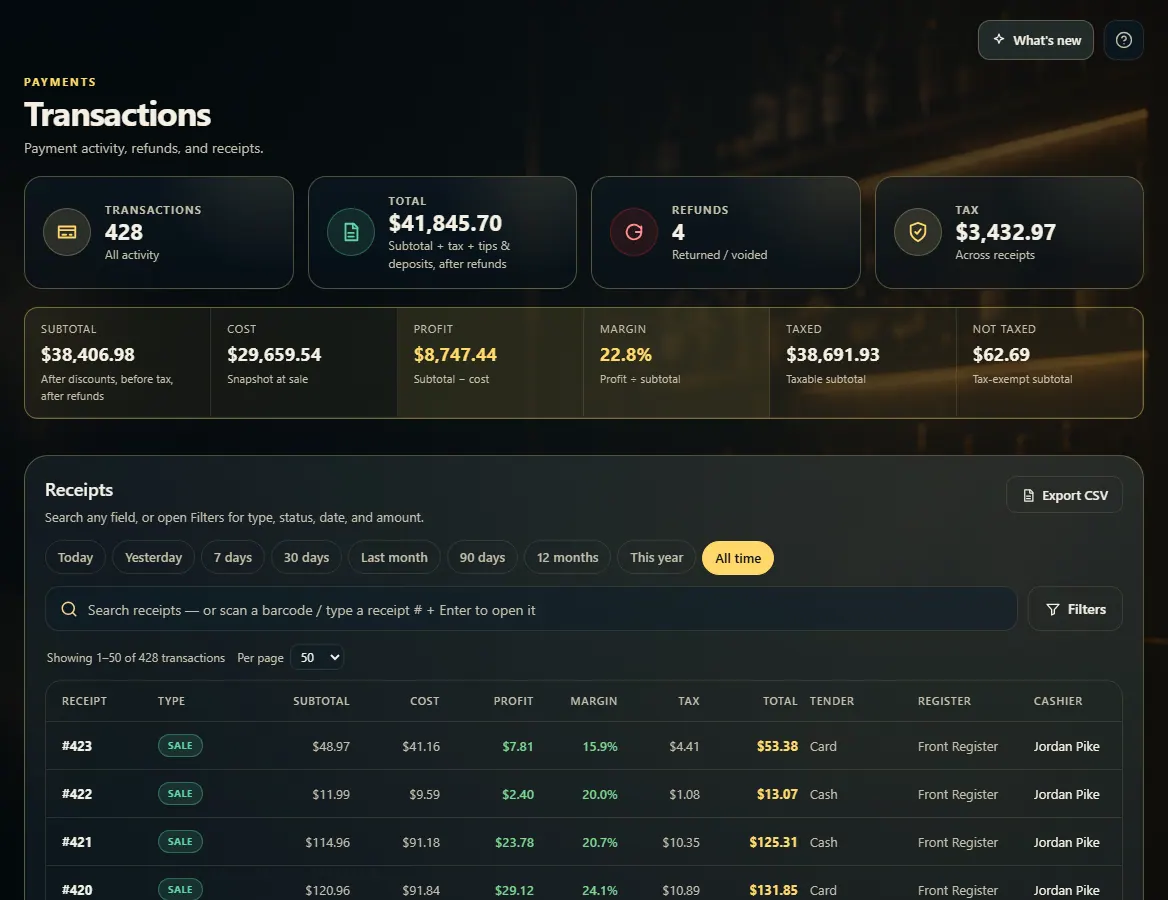
Open Transactions from the menu (under Records).
Pick a date range above the list — Today, Yesterday, 7 days, 30 days, and so on up to All time.
Type in the search box — a receipt number, an item name, an amount like 38.50, or the card's last 4 digits — or scan the barcode on a printed receipt to jump straight to it.
Click the sale to open it.
Click Print receipt to print it again.
Good to know
The list opens on Today. If a sale is missing, pick a wider range such as 30 days or All time.
Filters narrows the list by type, status, tax, where it was sold, a custom date range, or an amount range. Export CSV downloads every sale that matches.
Searching a card's last 4 digits and the amount together ("4242 38.50") finds that exact card payment.
A sale's History card lists everything that happened to it — refunds, voids and corrections — with who did it and when.
1. Search every sale
Pick a date range, then type in the search box or scan a printed receipt's barcode. Search covers every sale in the range, not just the page you can see.
1234
1Pick a date range.
2Search, or scan a receipt barcode.
3Filter by type, status, tax, date or amount.
4Click a sale to open it.
2. Open the sale and print it
The receipt page shows the items, totals, how it was paid, and its History. Print receipt sends it to the receipt printer again.
 1234
1234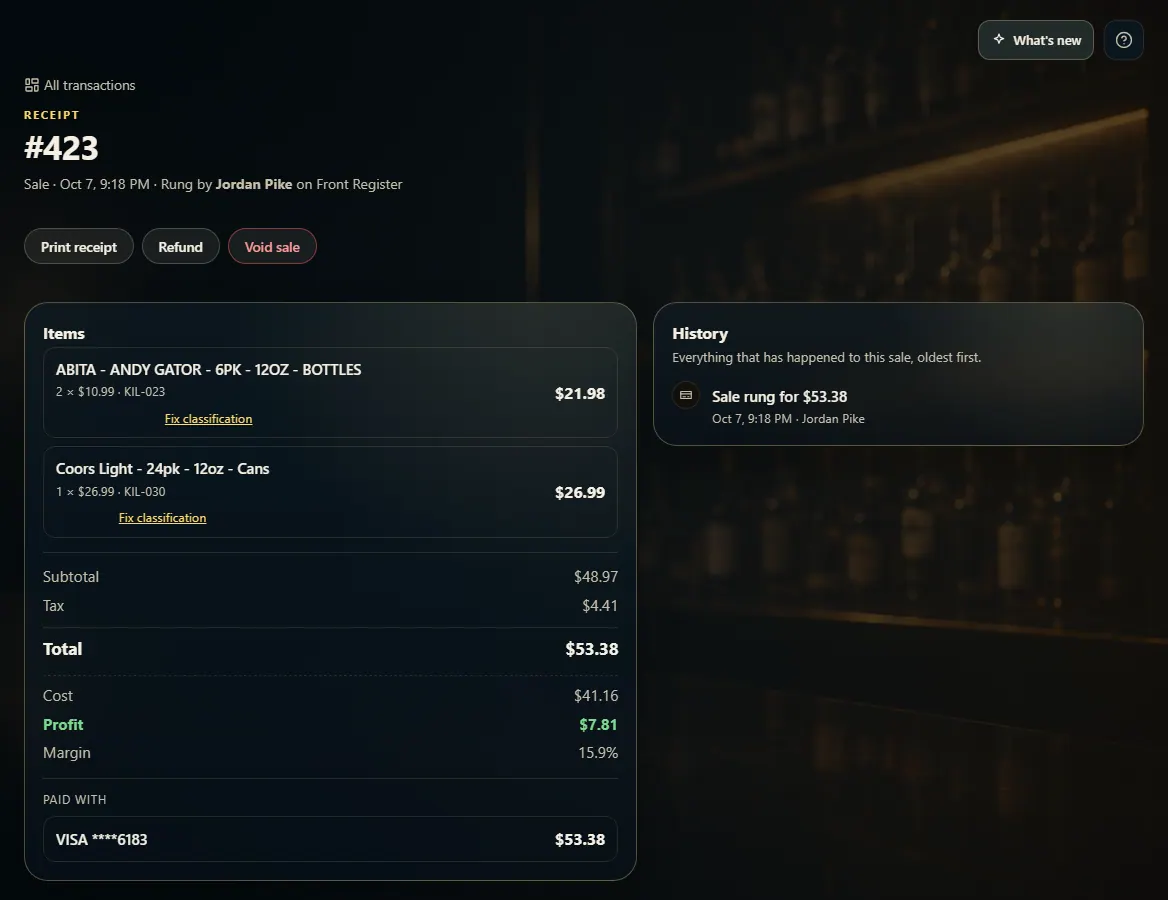 12
12