Open the receipt on Transactions, click Refund, and pick the items to return — or leave them all at 0 to refund the whole sale; the money goes back the way it was paid.
A step-by-step walkthrough with real screenshots · FoolProof POS for alcohol retail
Steps
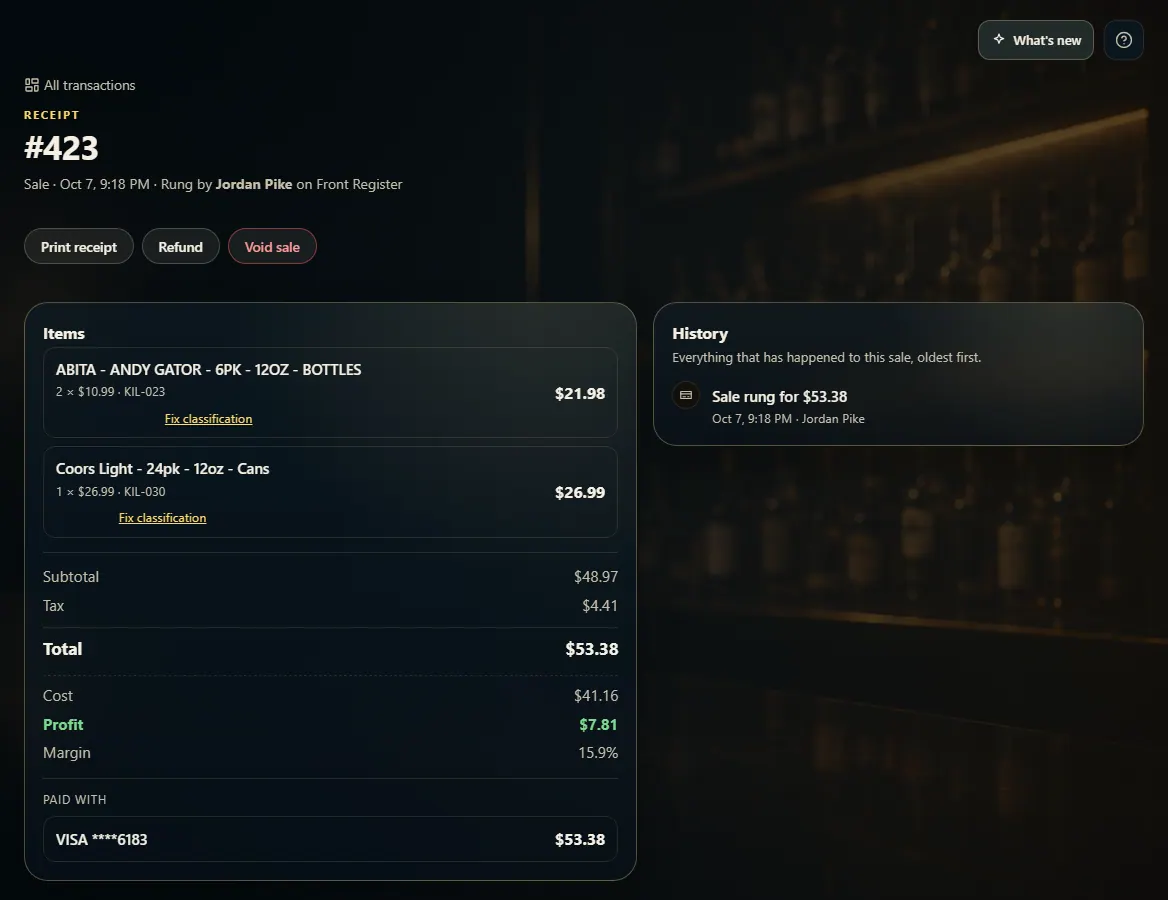
Open Transactions and click the sale (or scan its receipt).
Click Refund.
Set how many of each item to return. Leave every item at 0 to refund the entire sale.
Choose a reason, and add a note if you like.
Tick Refund to store credit only if the customer wants a store-credit card instead of their money back.
Money goes back the way it was paid: cash comes out of the drawer, a card refund goes back to the same card (the dialog names it — check it's the customer's card), a gift card gets its value back, and a house-account sale comes off the customer's tab.
A sale paid with Other or through a delivery marketplace was paid outside FoolProof. The refund is recorded, but give the money back to the customer (or through the marketplace) yourself.
Returned items go back into inventory.
You need an open register drawer and an internet connection to refund. If Refund is missing, the screen says why — no connection, or your role can't issue refunds (ask a manager).
A sale can be refunded more than once, a few items at a time, until nothing is left. Once part of it is refunded it can no longer be voided.
Change the list of reasons under Admin → Refund & void reasons.
1. Open the sale and click Refund
Find the sale on Transactions and open it. Refund sits at the top of the receipt.
1
1Click Refund.
2. Pick what to return
Set a quantity for each item coming back, or leave everything at 0 for a full refund. Choose a reason, then confirm with the gold button.
1234
1A card refund goes back to this card.
2How many of this item to return (0 = none).
3Choose a reason.
4Refund selected items — or the entire sale if everything is 0.
 1
1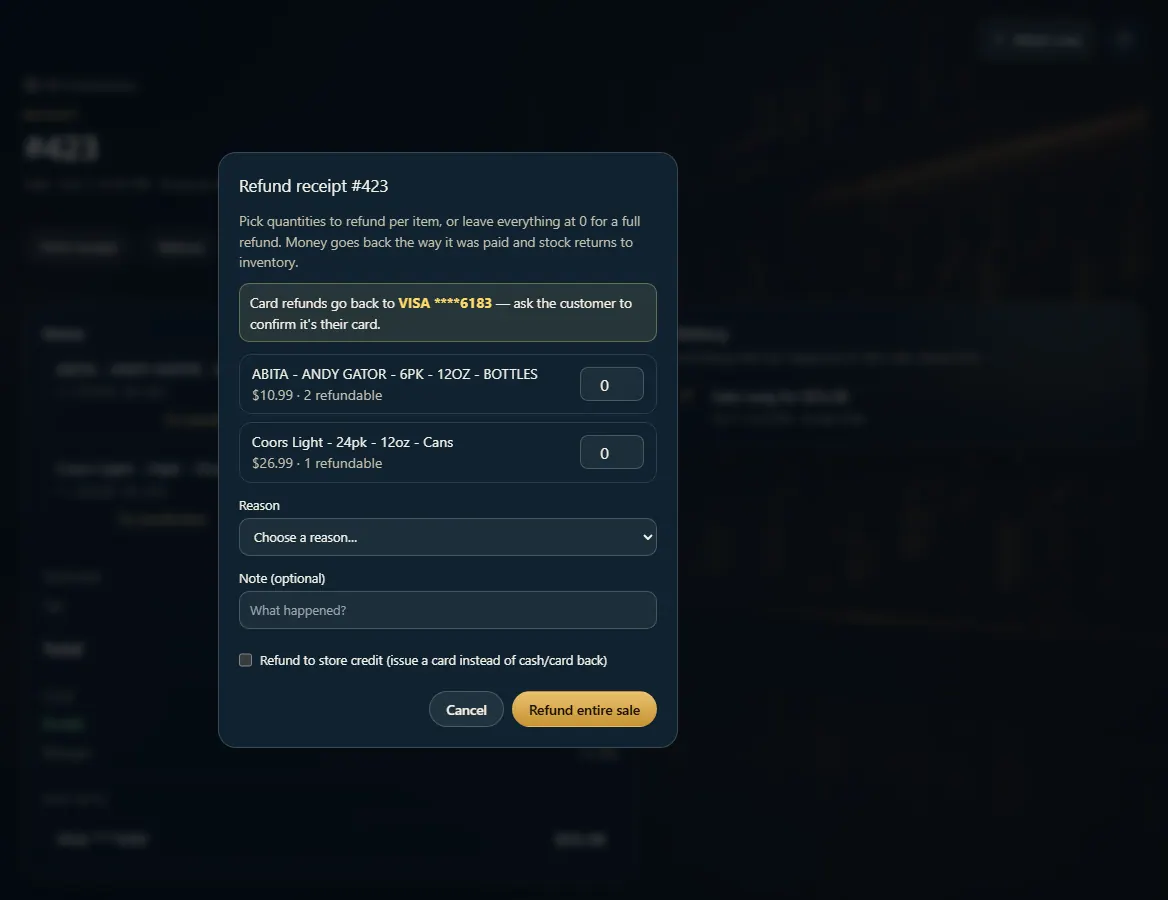 1234
1234