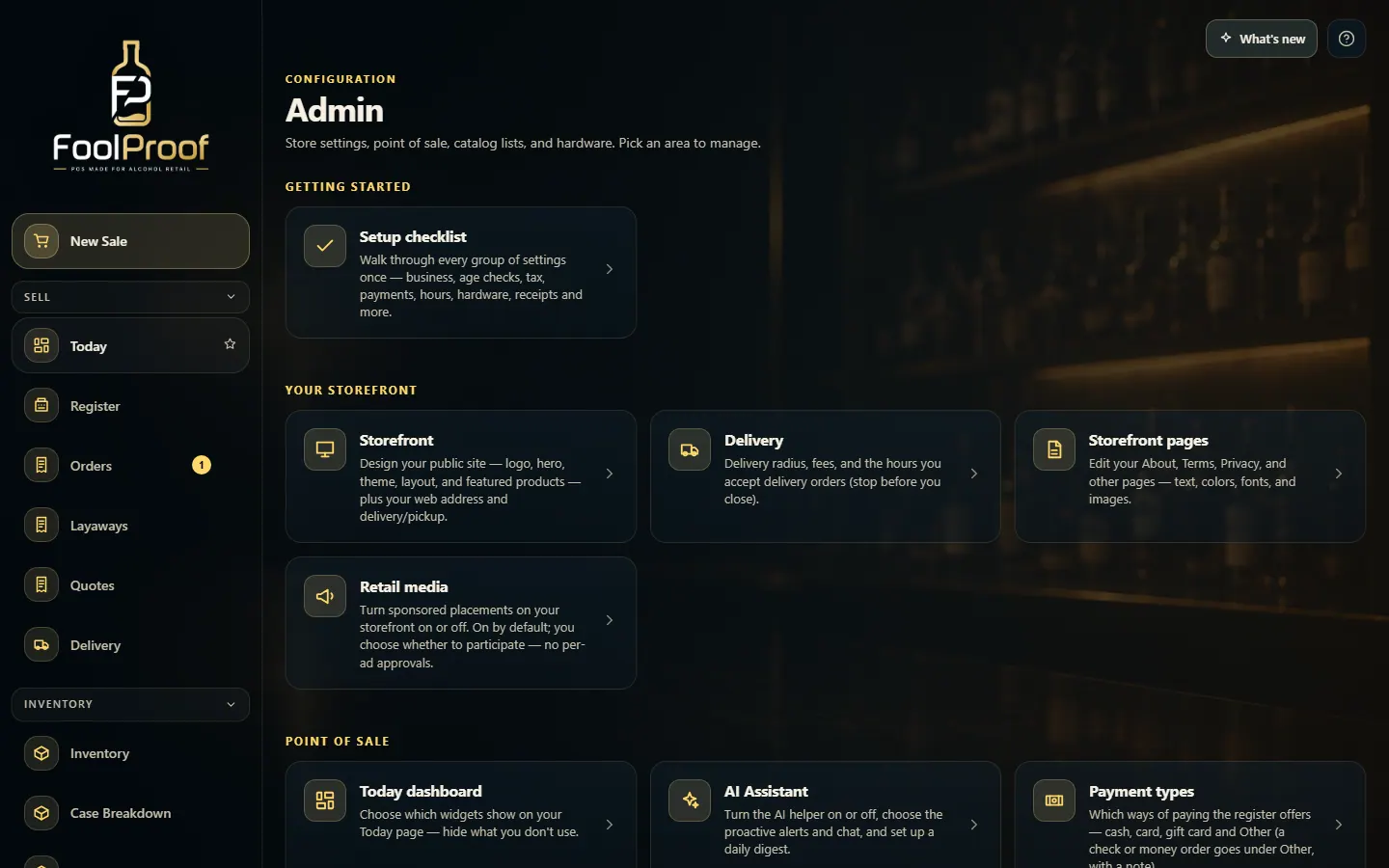
Every page is in the menu on the left, grouped into Sell, Inventory, Customers, Records, Compliance and Settings — pin the ones you use most to the top.
A step-by-step walkthrough with real screenshots · FoolProof POS for alcohol retail
Steps
Use the menu on the left. Pages are grouped under Sell, Inventory, Customers, Records, Compliance and Settings.
Click a group's name to fold it away or open it again.
Point at a page and click its star (Pin to top) to keep it at the top of the menu, under New Sale. Click the star again to unpin it.
Own more than one store? Pick the store in the Store box at the bottom of the menu.
Click Light mode (or Dark mode) at the bottom of the menu to change the colors.
Click the FoolProof logo to shrink the menu to icons, and again to bring it back.
Good to know
You only see the pages your role allows. If a page you need is missing, ask the owner to add it to your role in Employees → Roles.
Some pages only appear when your store uses that feature — for example Layaways, Quotes, Transfers or Distributor Feed.
Pins and folded groups are remembered on this computer, so each register can be set up its own way.
New Sale is always pinned at the top.
1. The menu
New Sale is always at the top. Below it, pages are grouped by what they are for; click a group's name to fold it. Point at any page and click its star to pin it up top.
123
1New Sale is always at the top.
2Click a group's name to fold or open it.
3Click the star to pin a page to the top.
2. Store, account and colors
At the bottom of the menu: switch stores, open your account, change between light and dark, and open the Help Center.
 123
123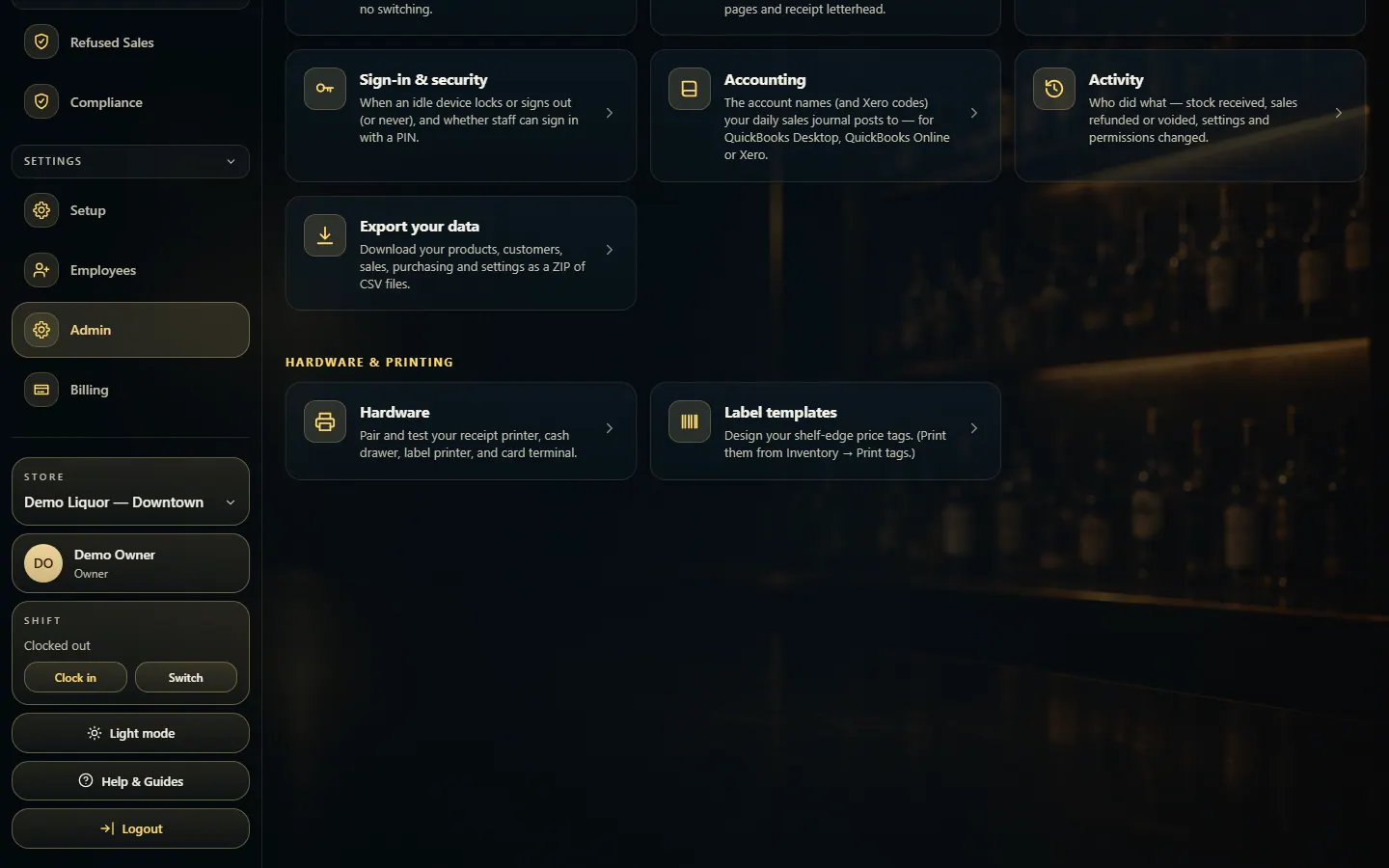 1234
1234