Getting started
 1234
1234
Set your PIN and change your password
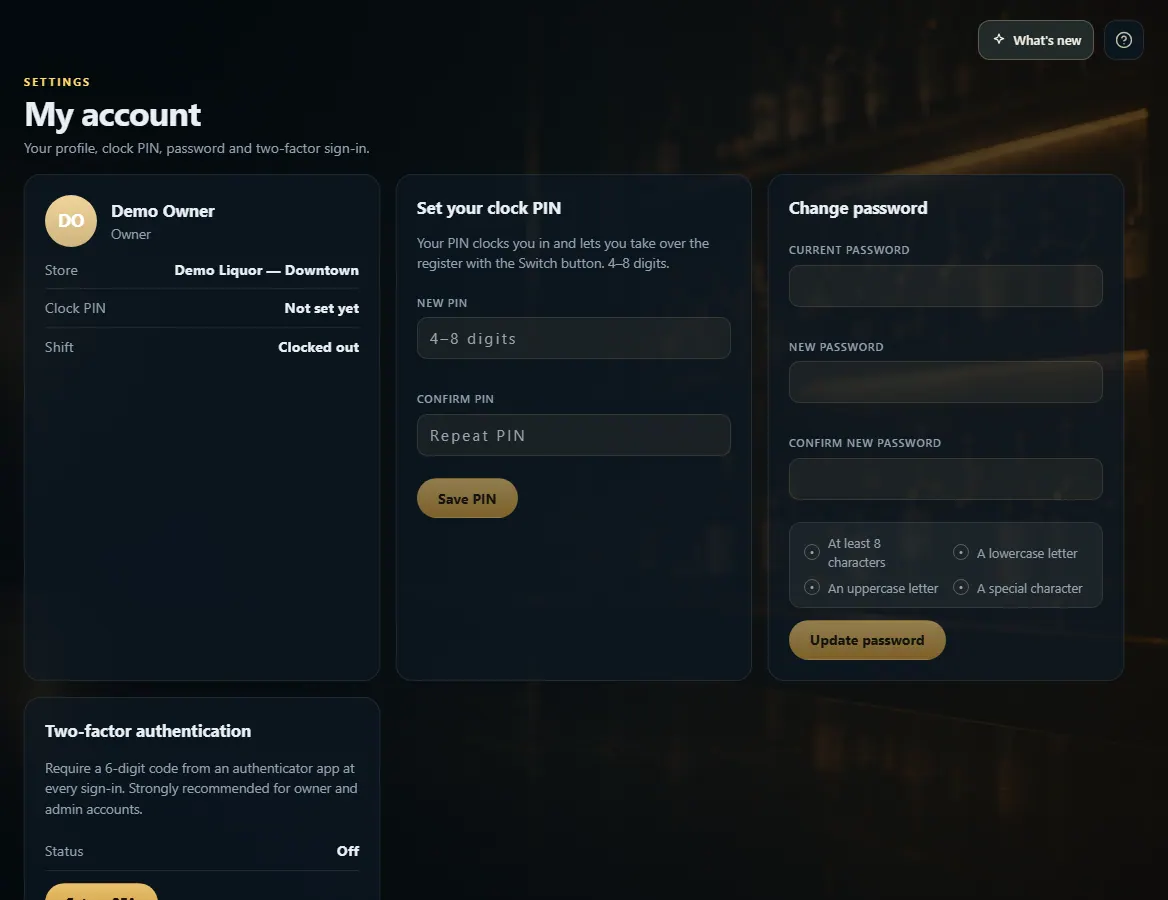
My account is where you set your clock PIN, change your password and turn on two-factor sign-in — click your name at the bottom of the menu.
Steps
- Click your name at the bottom of the menu to open My account.
- To set your clock PIN, type 4–8 digits in New PIN and again in Confirm PIN, then click Save PIN (or Change PIN).
- To change your password, type your Current password, then the New password twice, and click Update password.
- To turn on two-factor sign-in, click Set up 2FA, add the key to your authenticator app, and enter the code it shows.
Good to know
- Your PIN clocks you in and lets you take over a register with the Switch button.
- Your name and role are set by the owner in Employees — they can't be changed here.
- A new password needs at least 8 characters with an uppercase letter, a lowercase letter and a special character.
- Two-factor sign-in is strongly recommended for owner and admin accounts.
1. PIN and password
Set your clock PIN in the middle card and change your password on the right. Each card has its own button.
1234- 1Your name, role and store.
- 2Set or change your clock PIN.
- 3Change your password.
- 4Turn on two-factor sign-in.