ID Checks lists every ID scanned at the register, passed or failed, so you can show an ABC agent that your store cards.
A step-by-step walkthrough with real screenshots · FoolProof POS for alcohol retail
Steps
Open ID Checks from the menu, or from Compliance → Compliance records.
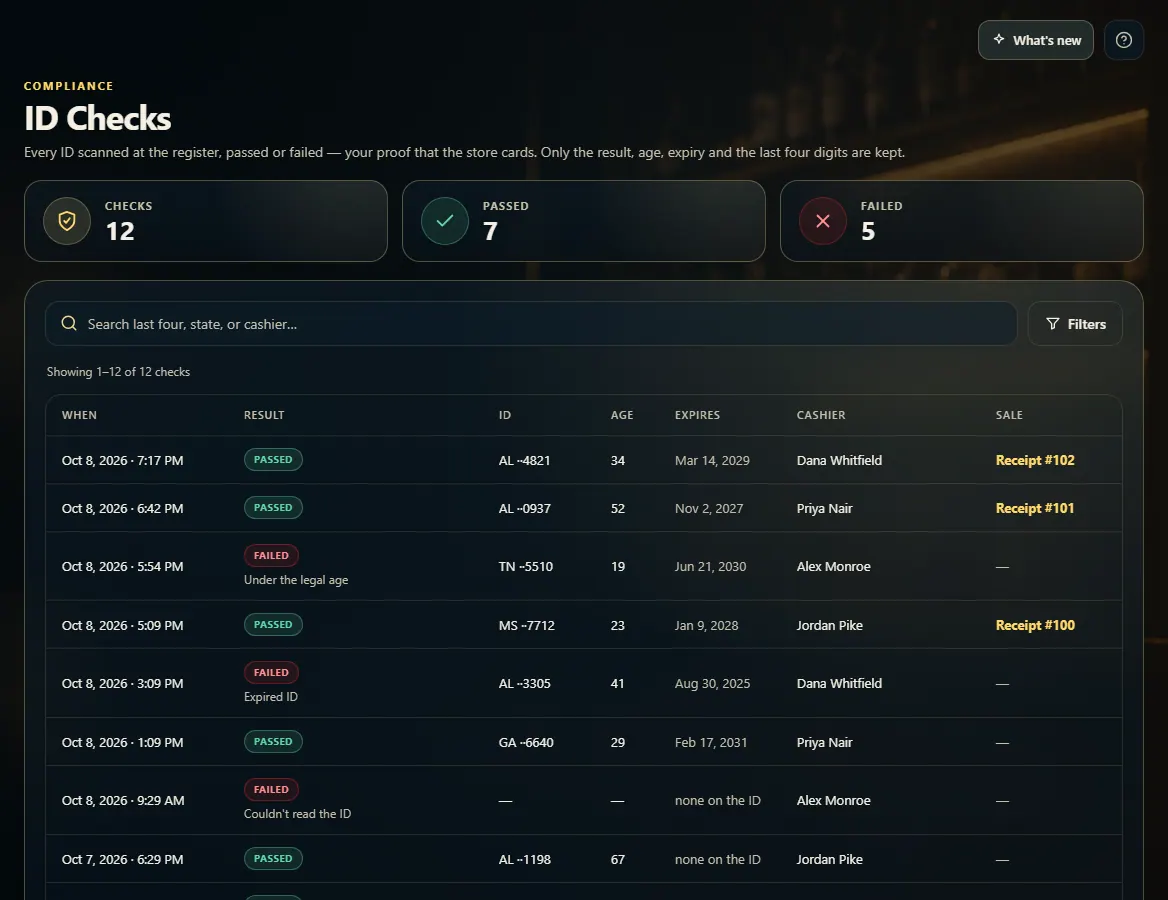
The tiles at the top count the checks, how many passed, and how many failed.
Each row shows when the ID was scanned, Passed or Failed (with the reason), the state and last four digits, the age, the expiry date, and the cashier.
Click Filters to show only Passed or Failed checks, or pick From and To dates.
Search by the last four digits, the state, or the cashier's name.
When a check was used for a sale, click its receipt number to open that sale.
Good to know
Failed checks also appear on Refused Sales, marked AUTO. ID Checks is the only place passed checks show.
Only the result, age, expiry, state, and last four digits are shown. The customer's name, birth date, and full license number are never kept.
1. The ID-check log
Every scan from the register lands here, newest first. Filter to Failed to review refusals, or pick dates to answer an inspector's question about a day.
123
1How many checks, and how many passed or failed.
2Search, or filter by result and date.
3One scan: when, the result, the ID, and who scanned it.
 123
123