On New Sale, scan or search each item into the cart, set quantities, then press Pay to take payment.
A step-by-step walkthrough with real screenshots · FoolProof POS for alcohol retail
Steps
Open New Sale from the menu.
Scan a barcode, or type in the "Scan barcode or search products" box and tap a result.
Or tap a product tile — Favorites, All or a category chip — to add one.
Use − and + on a cart line to change how many; at 1 the − becomes a trash can that removes the line.
Attach a customer with Find customer if you want — it's optional for an in-store sale.
Press Pay, pick how they're paying, then press Complete sale.
Good to know
If New Sale says "This register is closed", open the drawer on the Register page first. A phone or tablet asks which open register to ring into instead.
When one barcode is on more than one product (a single can and a store-made pack), a "Which one?" box asks you to tap the size the customer has.
Tap the ★ on a tile to pin it to Favorites. Build a cart and press Save as bundle to make a one-tap bundle.
"Ringing as" shows who the sale is recorded against; switch cashier asks for that person's PIN.
For a delivery-marketplace order (DoorDash, Uber Eats…), pick Third party at payment and choose the marketplace — the sale records at 0% tax because the marketplace collected it.
A check or money order goes under Other; type what it was in "What was it?" (e.g. Check #1042).
1. Find the item
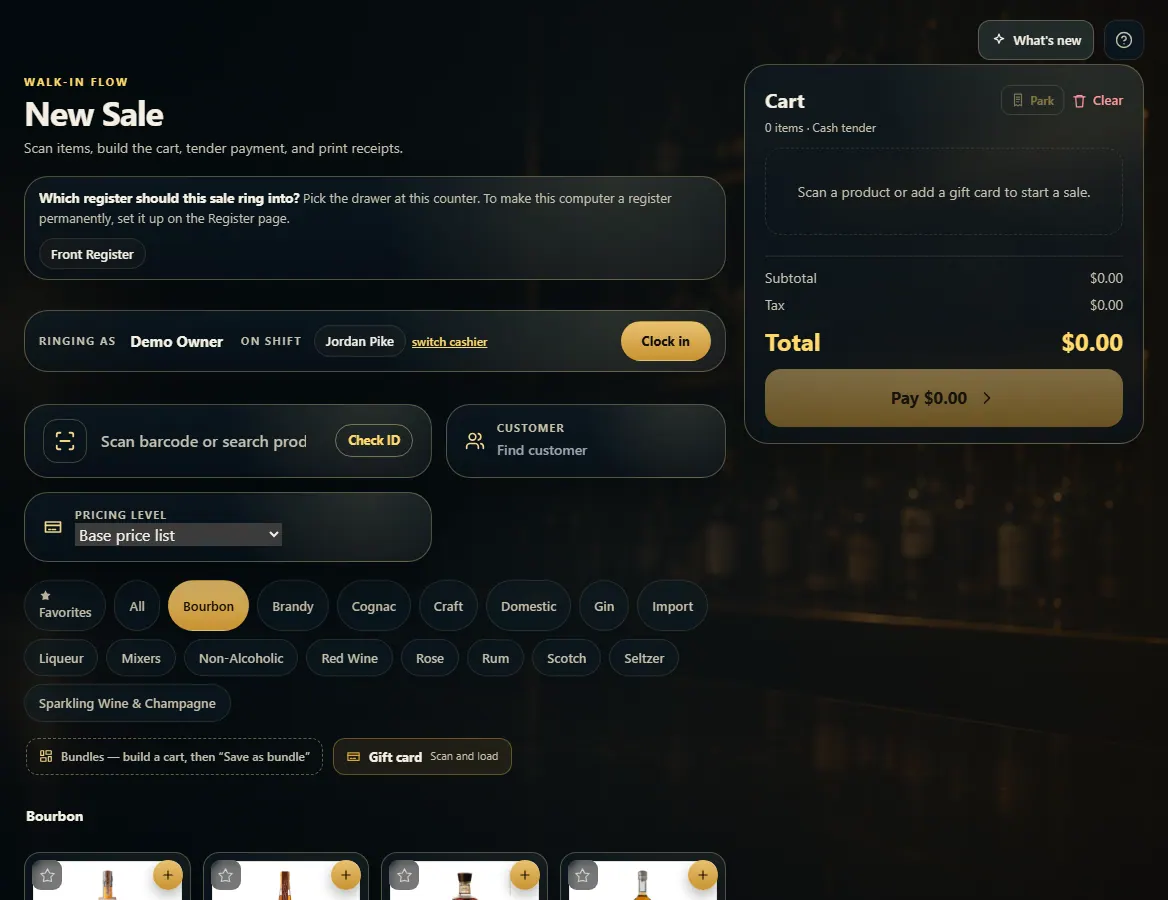
Scan the barcode or type part of the name in the search box. You can also tap a tile — Favorites shows your pinned items, and the chips filter by category.
1234
1Scan a barcode or search by name.
2Favorites, All, or a category.
3Tap a tile to add one.
4The cart builds here.
2. Check the cart, then Pay
Each line shows how many and the price. Use − and + to change the count. When it's right, press Pay — that only opens payment; nothing is charged yet.
12
1A line: − and + change how many; the price box is the price for this sale.
 1234
1234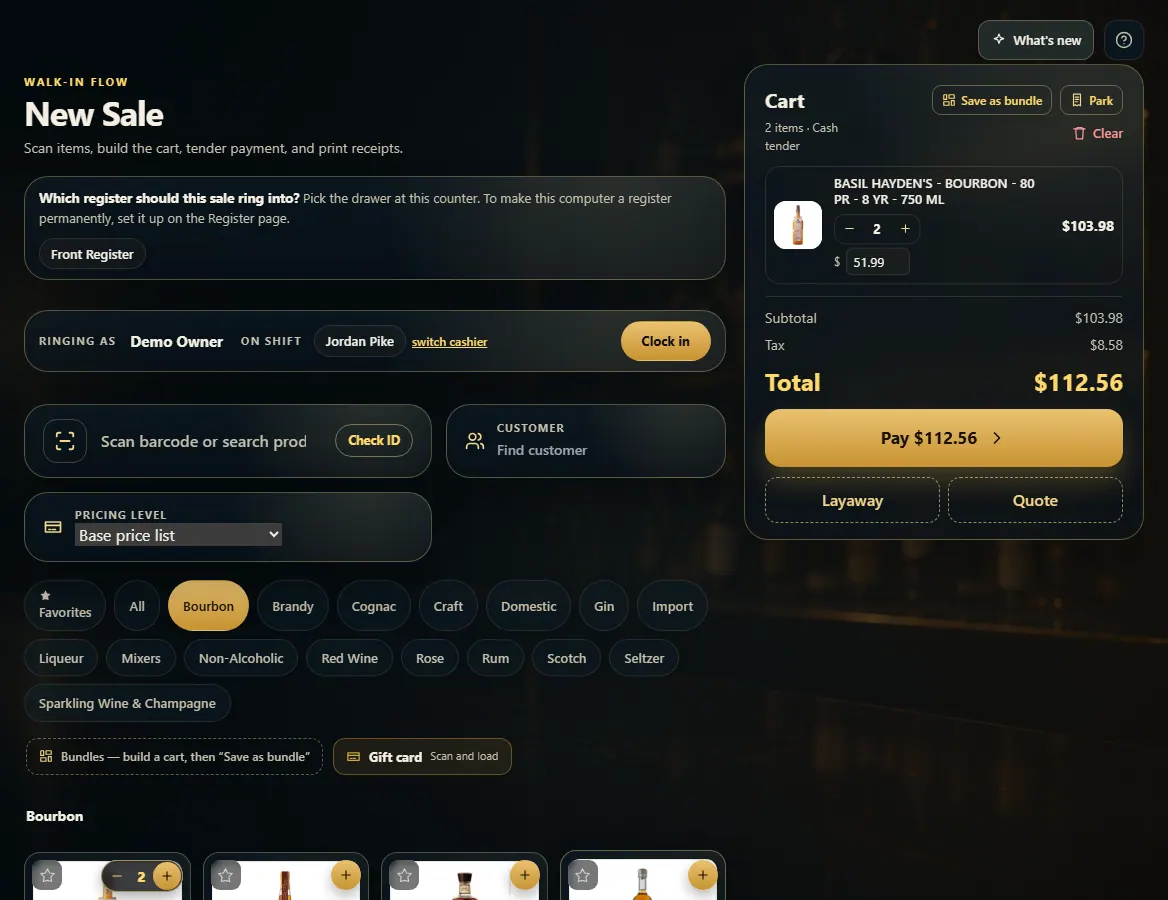 12
12