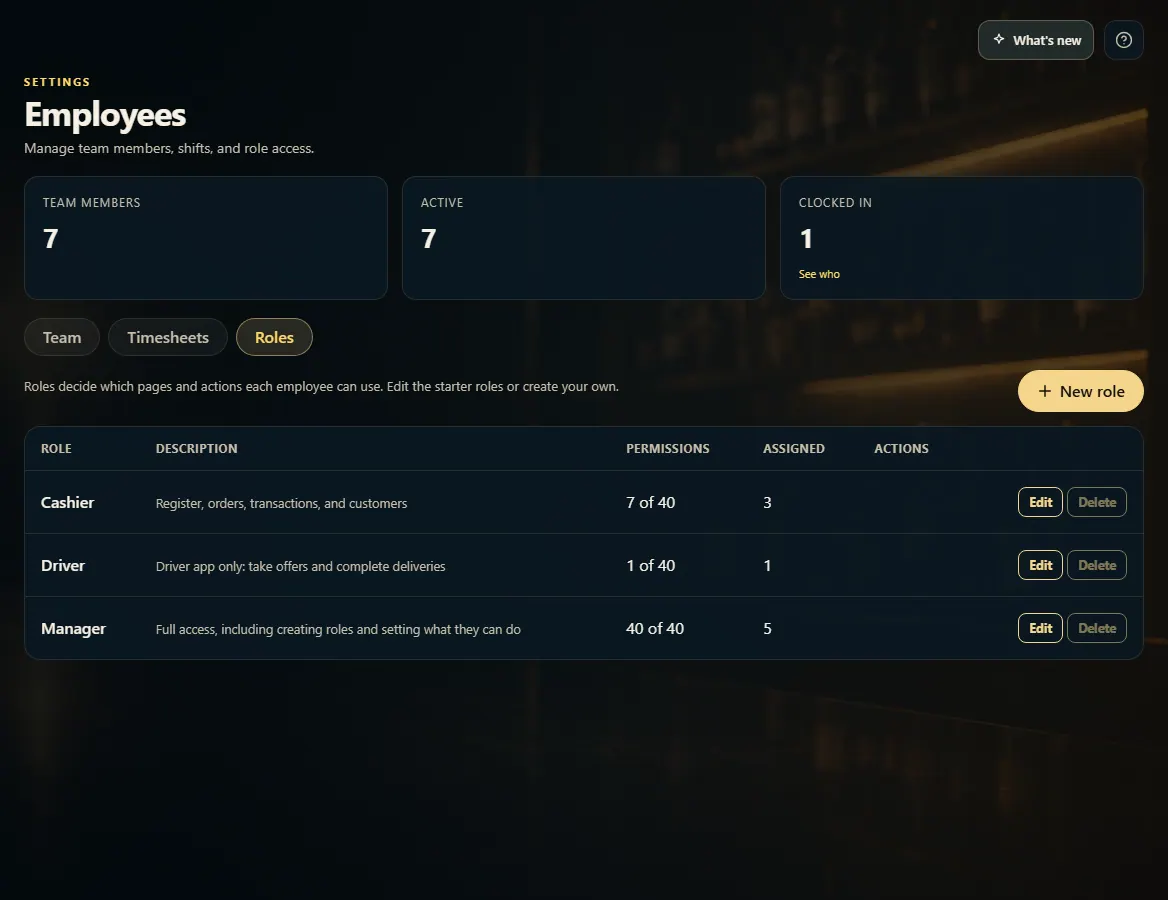
Roles decide which pages and actions each employee can use. Edit the starter roles or click New role to make your own.
A step-by-step walkthrough with real screenshots · FoolProof POS for alcohol retail
Steps
Open Employees and click the Roles tab.
Click New role, or Edit on an existing role.
Give it a Name and an optional Description.
Under Pages they can open, tick each page the role should see.
Under Actions, tick what they may do — for example Issue refunds and voids, Edit product prices, or View employee pay rates. Type in Find a permission to search.
Click Save role, then give people the role from the Team tab with Edit or Invite employee.
Good to know
Starter roles: Manager has everything; Cashier starts with the selling pages such as Register, New Sale, Orders, and Customers. A Driver role (driver app only) is added the first time you set up a driver.
A role can't be deleted while people have it — move them to another role first.
Role changes are recorded in Admin → Activity.
1. Your roles
The Roles tab lists each role, how many permissions it has, and how many people have it.
12
1Make a new role.
2A role, its permissions, and who has it.
2. Choose what the role can do
Tick the pages the role can open and the actions it can take, then Save role.
 12
12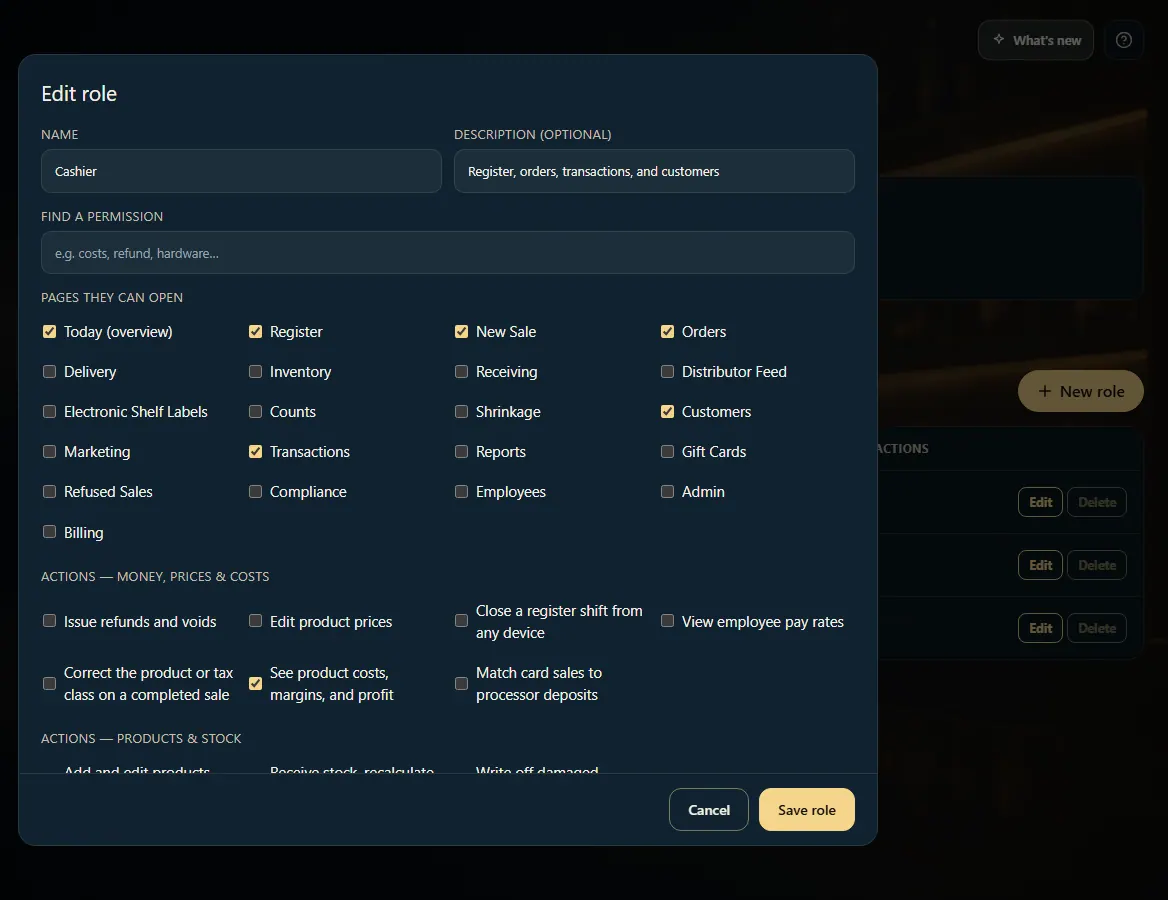 123
123