Team & roles
 1
1
See and set pay rates
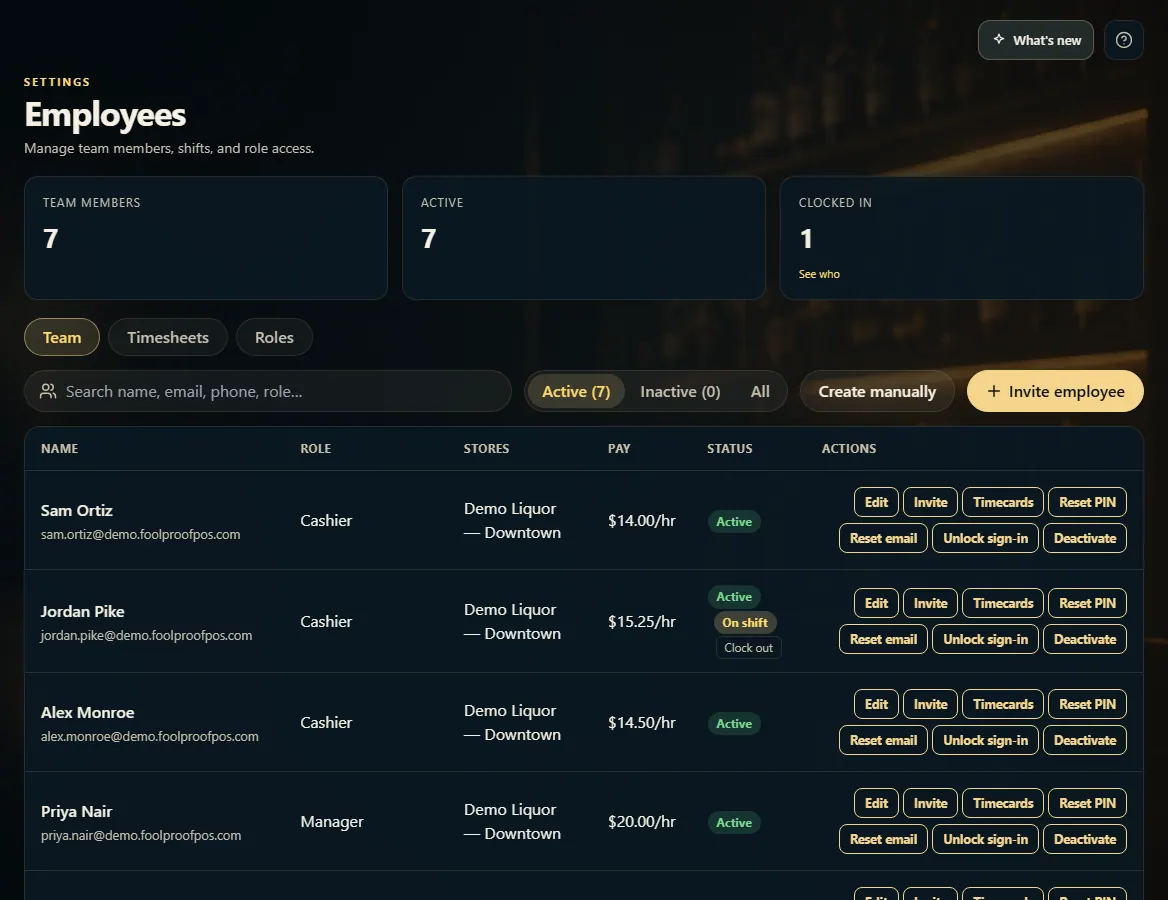
Hourly pay shows in a Pay column on Employees, and in each person's Edit window — only for roles allowed to view pay rates.
Steps
- Open Employees and stay on the Team tab.
- Read each person's hourly rate in the Pay column.
- To change it, click Edit on their row, enter the Pay rate ($/hr), and click Save.
- To let a role see pay, edit the role and tick View employee pay rates under Actions.
Good to know
- Without that permission the Pay column and the Pay rate field are hidden completely.
1. The Pay column
Each person's hourly rate shows here. A dash means no rate is set yet.
1- 1Hourly pay for each person.