On Employees, use Invite employee for someone with an email inbox, or Create manually for floor staff who only need a clock PIN.
A step-by-step walkthrough with real screenshots · FoolProof POS for alcohol retail
Steps
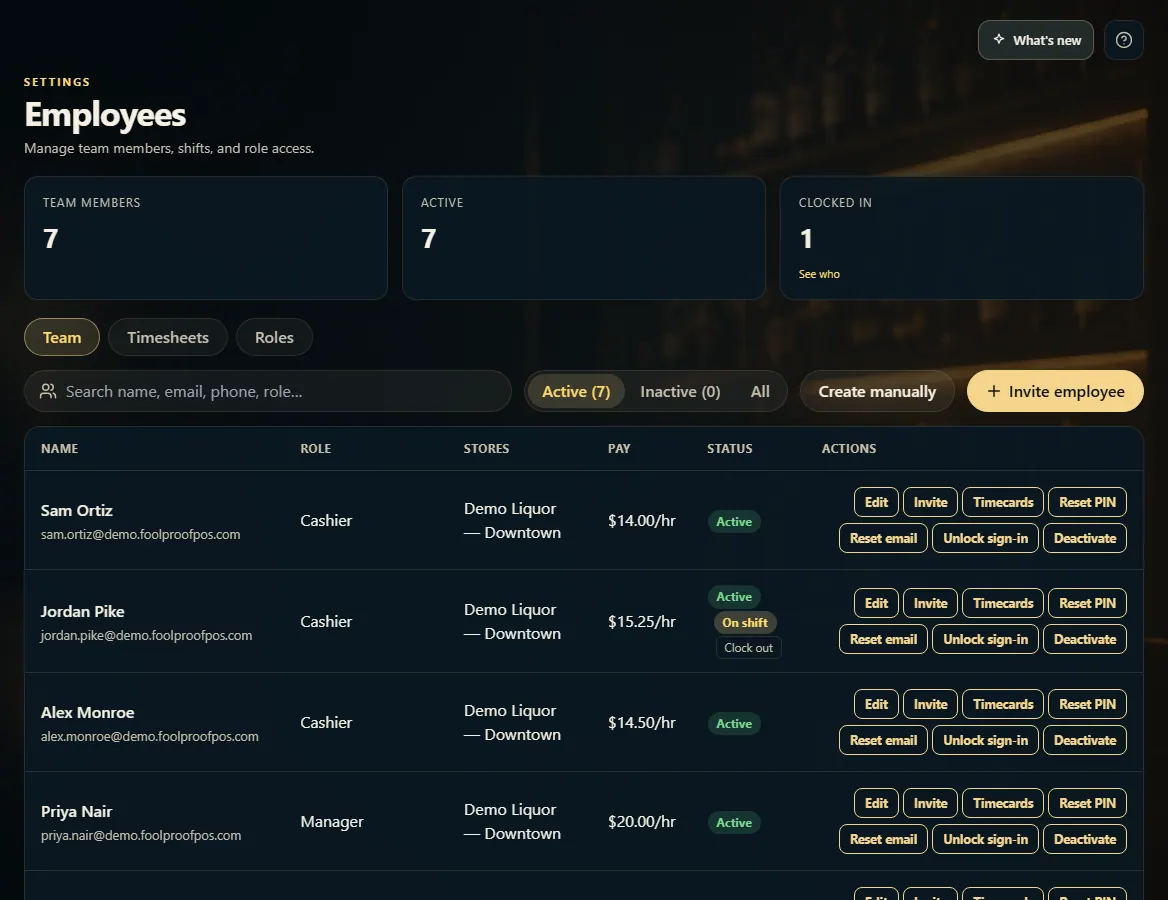
Open Employees. You start on the Team tab.
Click Invite employee, enter their email, pick a Role and their Stores, and click Send invite. They get an email link to set their own password.
Or click Create manually for staff without email: enter their name and phone, pick a role, set a Clock PIN (4–8 digits), leave the password blank, and click Save.
To give someone a PIN later, click Set PIN on their row. Reset PIN clears it so they set a new one.
Click Edit on a row to change their name, contact, role, stores, or pay, or to turn them on as a driver.
Click Deactivate when someone leaves. They can't sign in, but their history stays.
Good to know
Unlock sign-in lifts a lockout after too many wrong passwords or PINs — their password and PIN stay the same.
Co-owner (in Invite employee) gives full access to every store, now and in the future.
A staff member can also set or change their own clock PIN from their account page.
1. The Team tab
Add people from the top right. Each person's row has their role, stores, status, and the buttons to manage them.
123
1Add floor staff without email.
2Email someone an invite.
3Edit, set a PIN, timecards, deactivate, and more.
2. Invite by email
Enter their email, choose a role and the stores they can use, then Send invite.
123
1Where the invite goes.
2What they can do.
3Send it.
3. Or create PIN-only staff
For staff without email, enter their name and phone and set a clock PIN. Leave the password blank — they clock in and ring with their PIN.
 123
123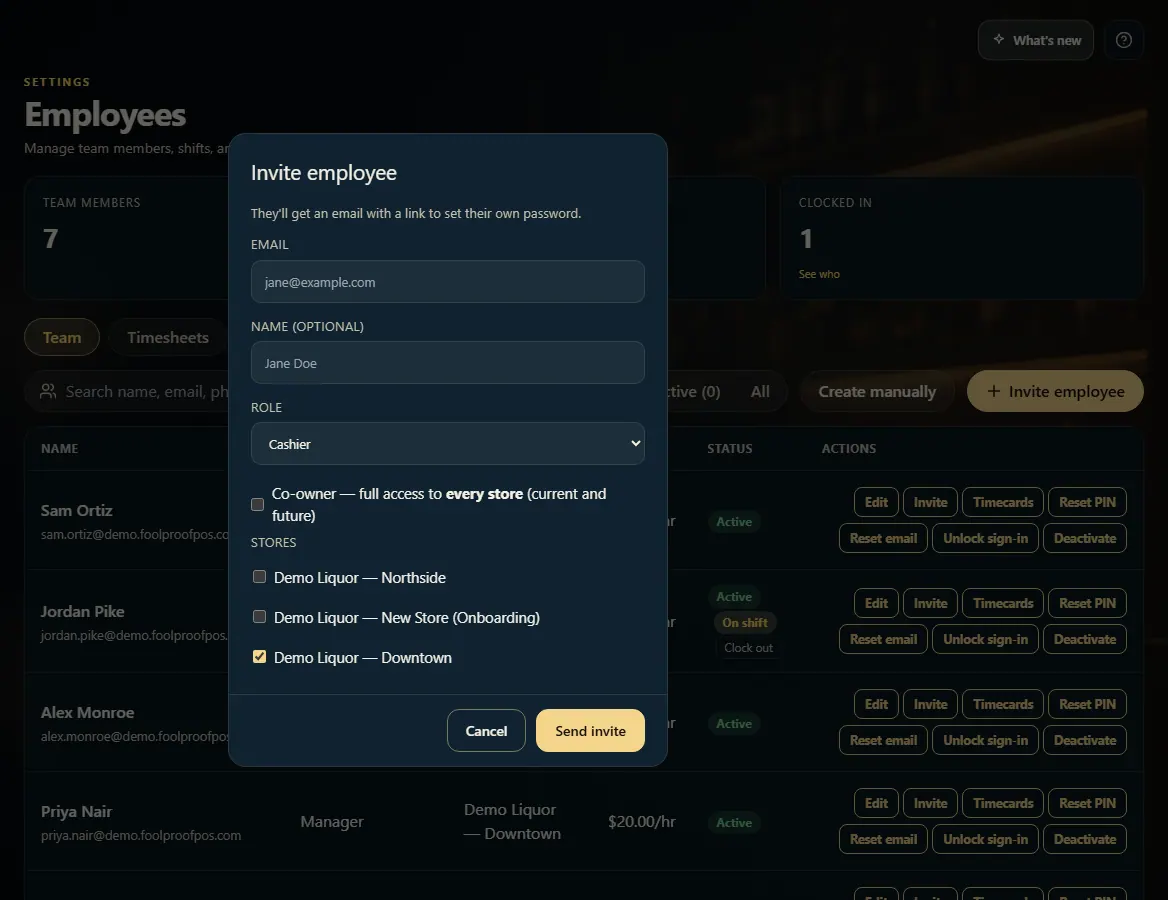 123
123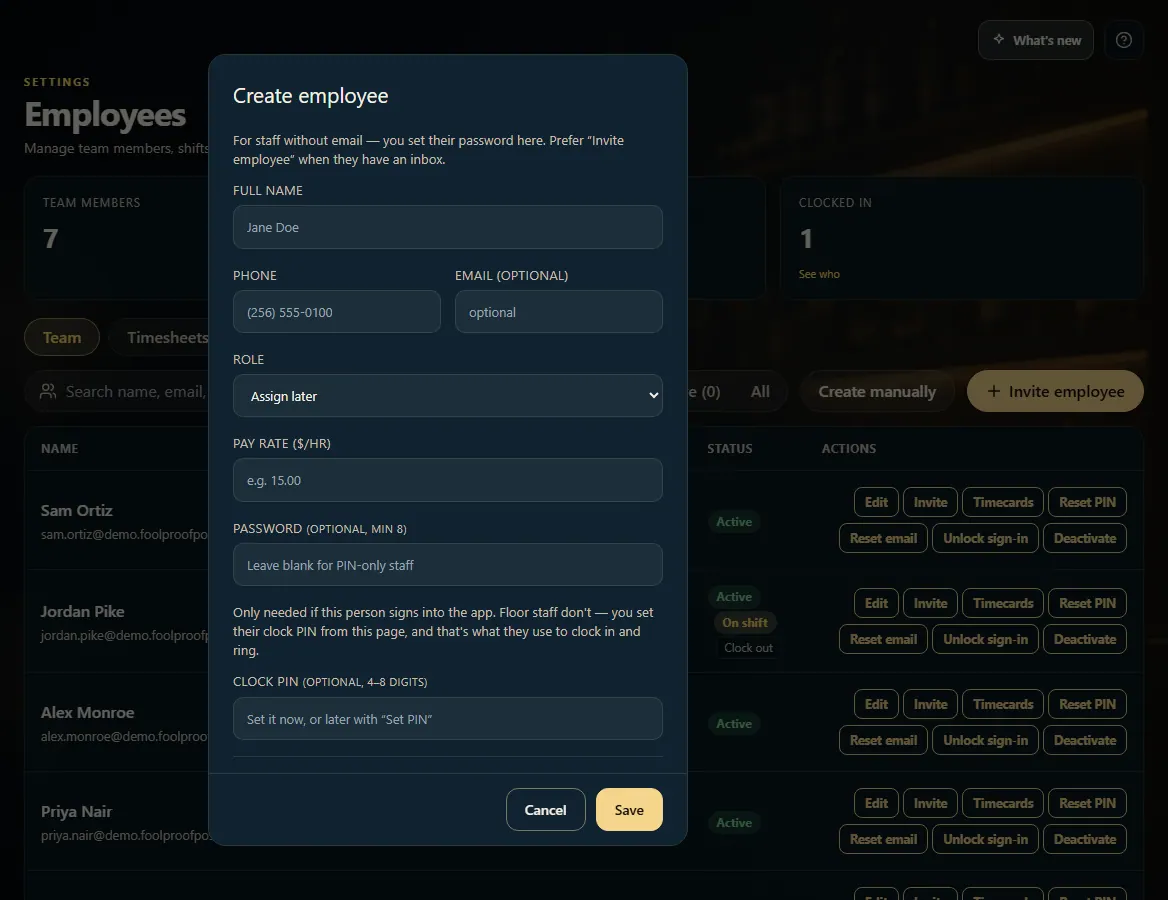 12
12