Team & roles
 12
12
Clock in, take breaks, and fix timesheets
Staff clock in and out from the Shift card or New Sale; managers review and fix hours on Employees → Timesheets.
Steps
- To clock in, click Clock in on the Shift card at the bottom of the menu. Click Start break and End break for breaks, and Clock out when you're done.
- To clock a teammate in or out without signing out, click Clock in or Clock out on New Sale and enter their PIN.
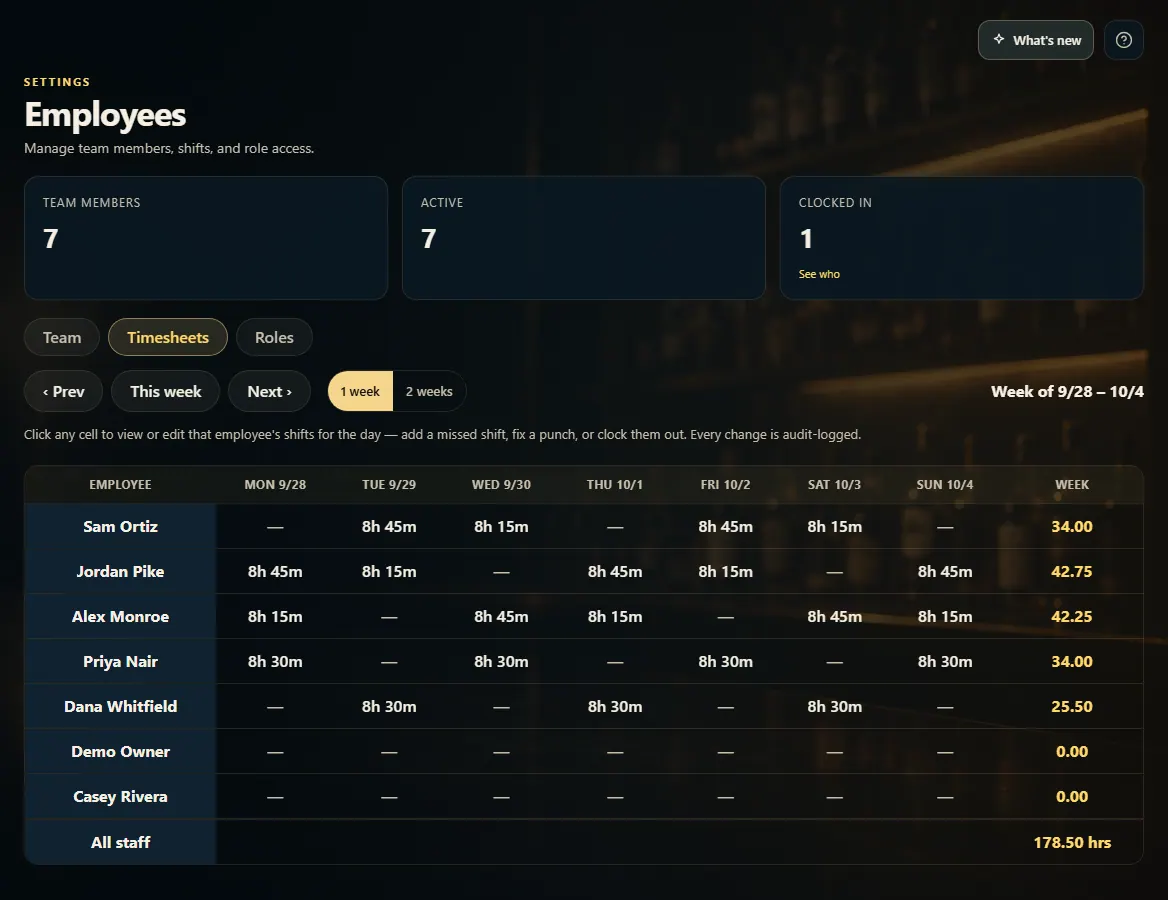
- To review hours, open Employees and click the Timesheets tab. Use ‹ Prev, This week, Next ›, or 2 weeks for a pay period.
- Click any day in the grid to open that person's shifts. Click Edit to fix a punch, or Add shift for a missed one, then save.
- If someone left without clocking out, click Clock out next to their name on the Team tab.
Good to know
- Every timesheet change is logged with who made it.
- Click the Clocked in tile on Employees to see who is on shift right now.
1. The weekly grid
Each row is a person and each column a day. Click a cell to view or edit that day's shifts.
12- 1Move between weeks, or show 2 weeks.
- 2Click a day to view or fix its shifts.