Click Add item on the Inventory page to create a product of your own — a name and price are all it needs; add its barcode and picture as you go.
A step-by-step walkthrough with real screenshots · FoolProof POS for alcohol retail
Steps
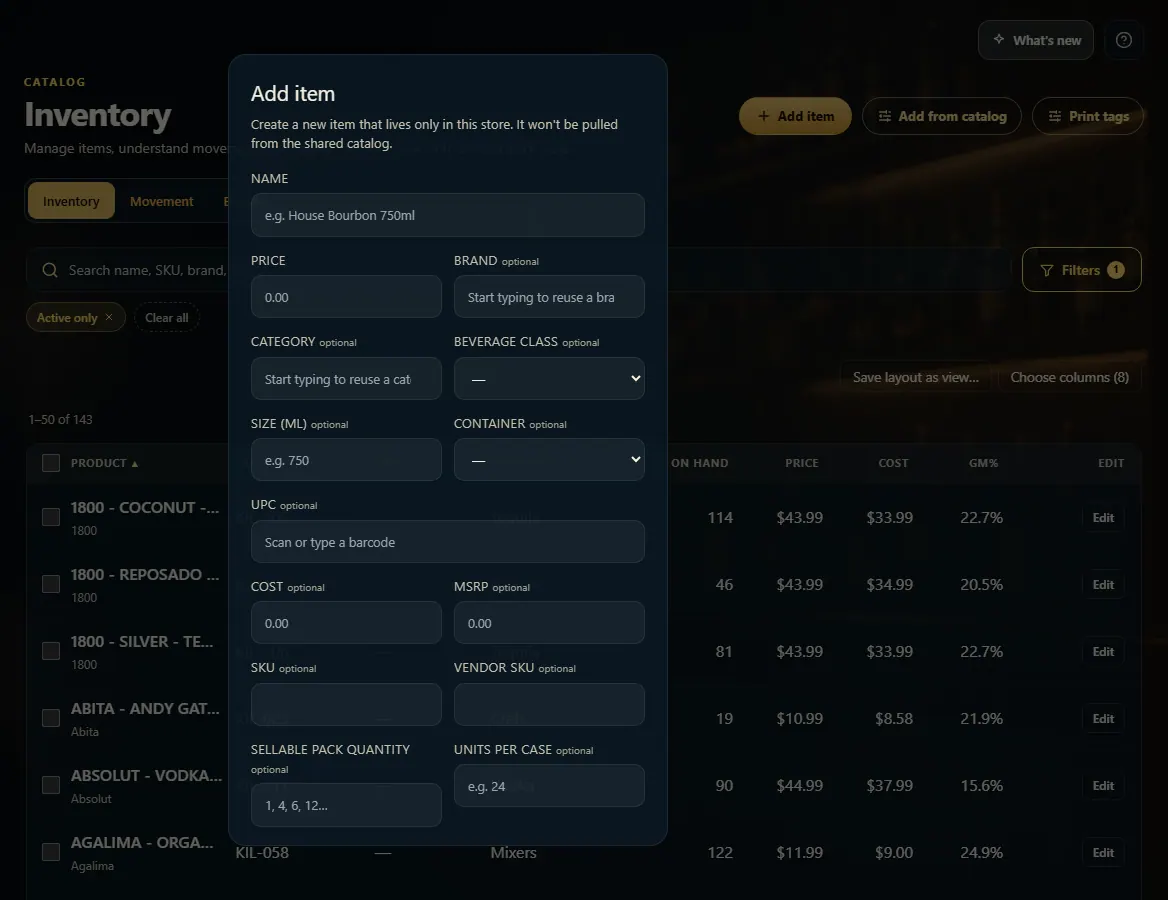
Open Inventory and click Add item.
Type the Name and Price.
Scan or type the barcode into UPC so it rings up at the register.
Fill in anything else you know (brand, category, size, cost, on-hand to start), then click Add item.
To add a picture, open the product and click Take & clean photo or Upload existing.
Good to know
Add item makes a product for this store only. If the product is already in FoolProof's catalog, Add from catalog is quicker — the details and picture come with it.
Take & clean photo uses your camera and tidies the background for you.
On Photo Studio you can work through many products: scan a barcode (or search), snap one photo, and it's cleaned and attached — then scan the next.
Need more than one barcode on an item? Open the product and use Manage UPCs.
1. Fill in the Add item form
Name and Price are the only fields you need. Everything marked optional can be added now or later from the product's page.
123
1Name the product.
2Set the shelf price.
3Scan its barcode.
2. Add a picture
Open the product from Inventory. Under its picture, Take & clean photo uses the camera, and Upload existing picks an image file.
 123
123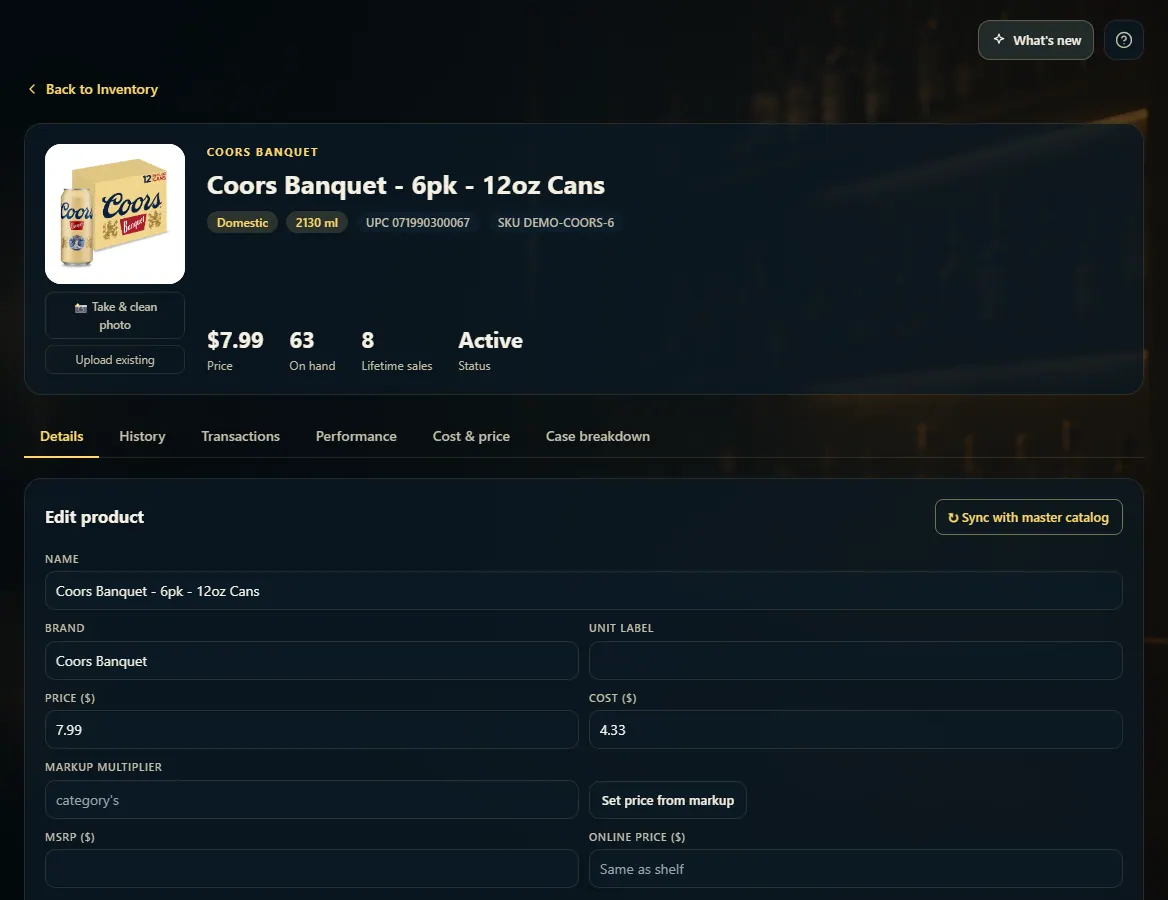 1
1