Inventory lists every product you carry — search or scan to find one, filter and sort the list, and pick the columns you want to see.
A step-by-step walkthrough with real screenshots · FoolProof POS for alcohol retail
Steps
Open Inventory from the menu.
Type in the search box — name, SKU, brand or UPC — or scan a barcode.
Click Filters to sort, pick a category, show In stock or Low stock, or add a condition on any column.
Click Choose columns to show, hide or reorder columns, then Save layout as view… to keep that layout.
Click a product's name to open its page.
Good to know
The list shows Active only by default — remove that chip to see inactive products too.
Search, filters and sorting run over your whole catalog, not just the page you can see.
The Movement tab ranks Fastest movers, Running low and Dead stock from your sales; Brands groups everything you carry by brand.
1. Search the whole catalog
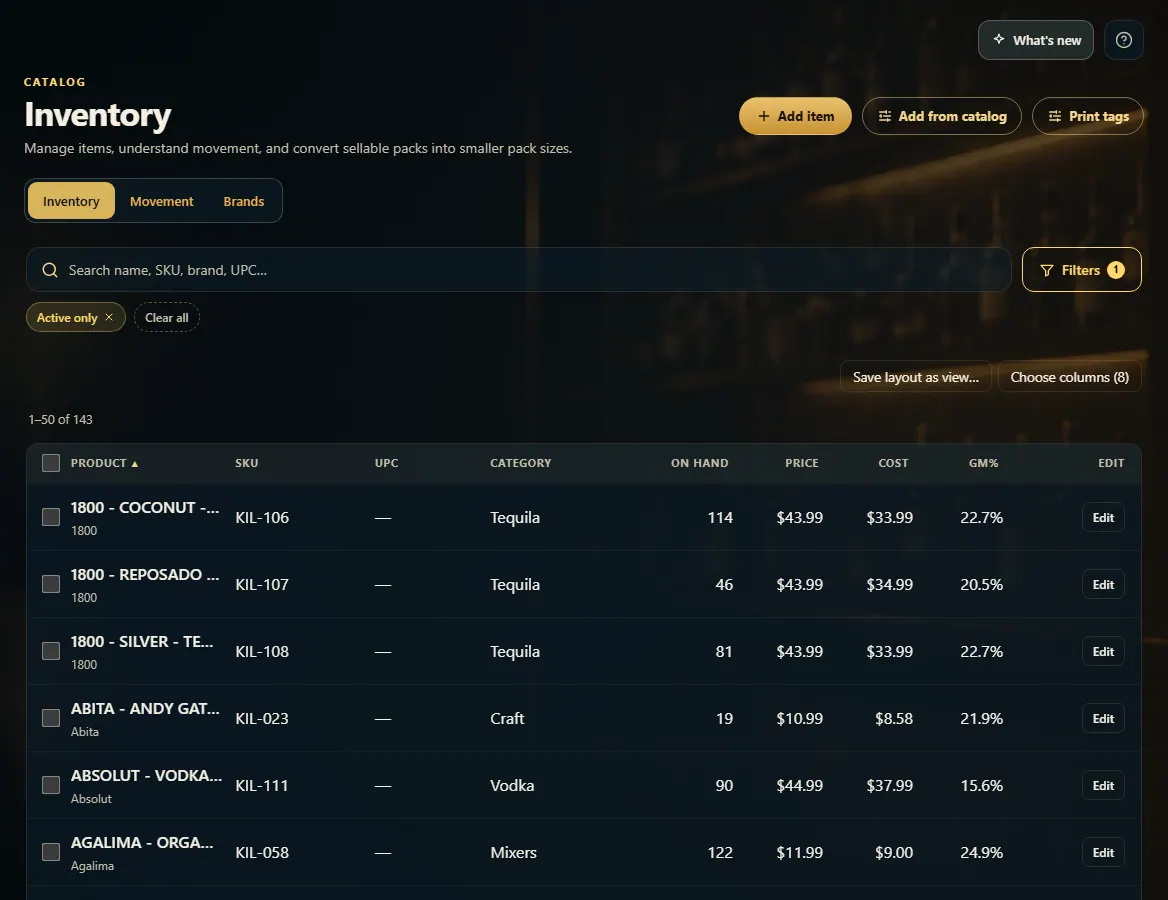
Search by name, SKU, brand or UPC — or scan a barcode. The count above the table is the real total, and the pager at the bottom moves through it.
1234
1Search any product, or scan a barcode.
2Filters: sort, category, stock level and status.
3Pick the columns you want.
4Switch to Movement or Brands.
2. Narrow it down
Filters sorts the list and narrows it by category, stock and status. Under Match on any column, + Add filter builds a condition on any column — for example Price greater than 50.
 1234
1234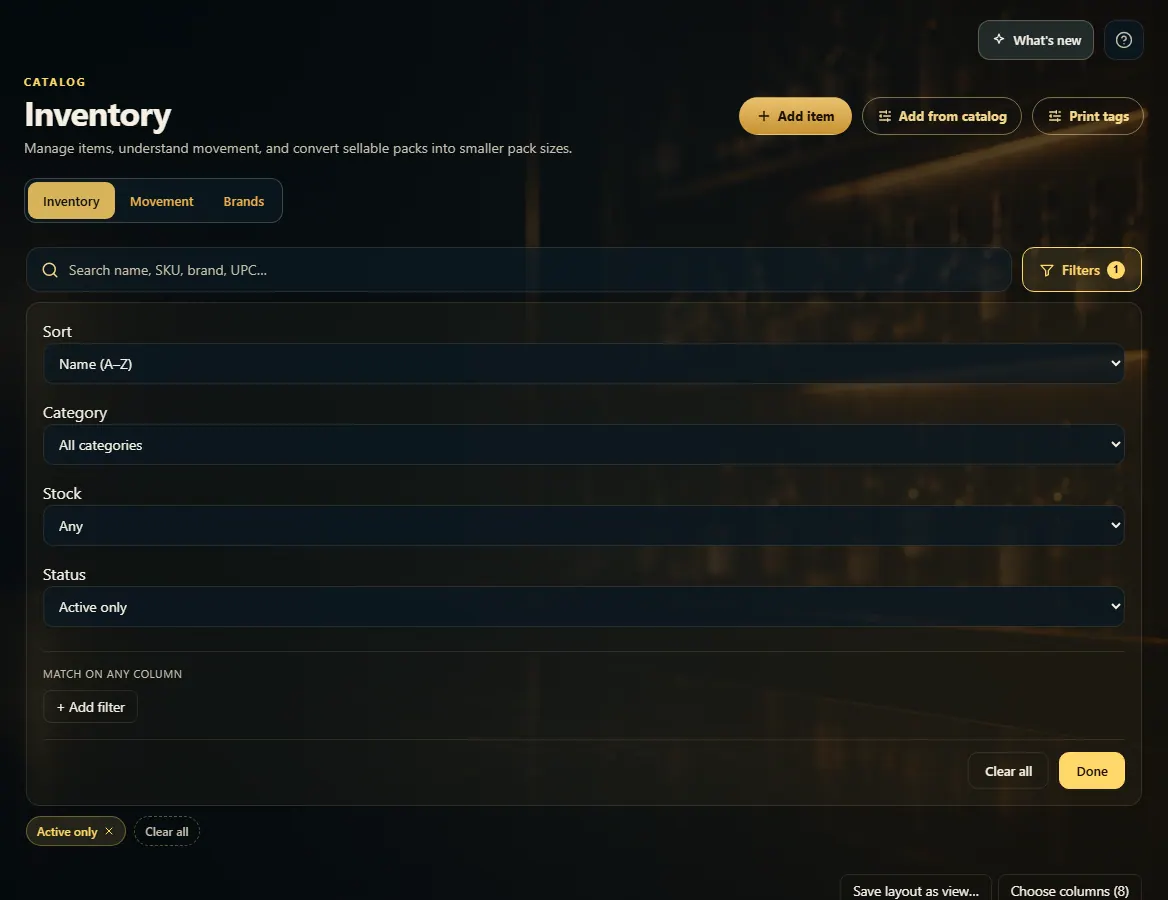 123
123