Open a product from Inventory to change its details, barcodes and picture, and to see its history, sales and performance.
A step-by-step walkthrough with real screenshots · FoolProof POS for alcohol retail
Steps
Open Inventory and click the product's name.
On the Details tab, change what you need — name, brand, price, category, tax class, reorder point…
Click Manage UPCs to add, remove, or star the main barcode.
Untick Active to stop selling an item without deleting it.
Click Save changes.
Good to know
The other tabs: History (every stock and price change), Transactions (every sale of it), Performance (sales speed and money), Cost & price, and Case breakdown.
Sync with master catalog pulls the catalog's name and details onto this item — price, cost, tax and distributor are never changed.
To change several products at once, tick their rows on Inventory and use the bar that appears to set Category, Active status or Reorder point.
Available online controls whether the item shows on your online store.
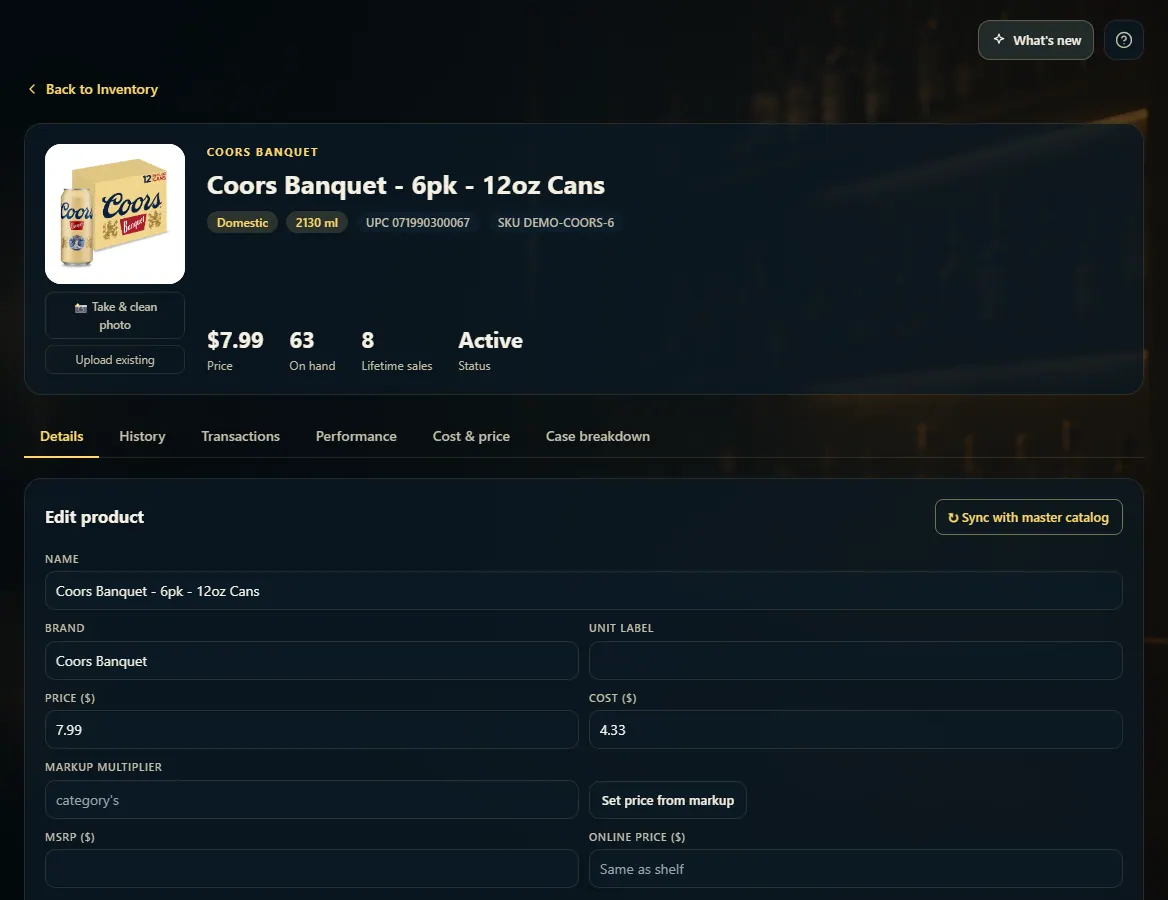
1. The product page
The top shows the price, on-hand, lifetime sales and status. The tabs below hold everything else about the item.
123
1Price, on hand, lifetime sales and status.
2Details, History, Transactions, Performance and more.
3Compare with FoolProof's catalog.
2. Barcodes
An item can scan under several codes. Manage UPCs lists them all — add one by scanning, star the main one, or remove an old one.
12
1Every code this item scans under; ★ is the main one.
 123
123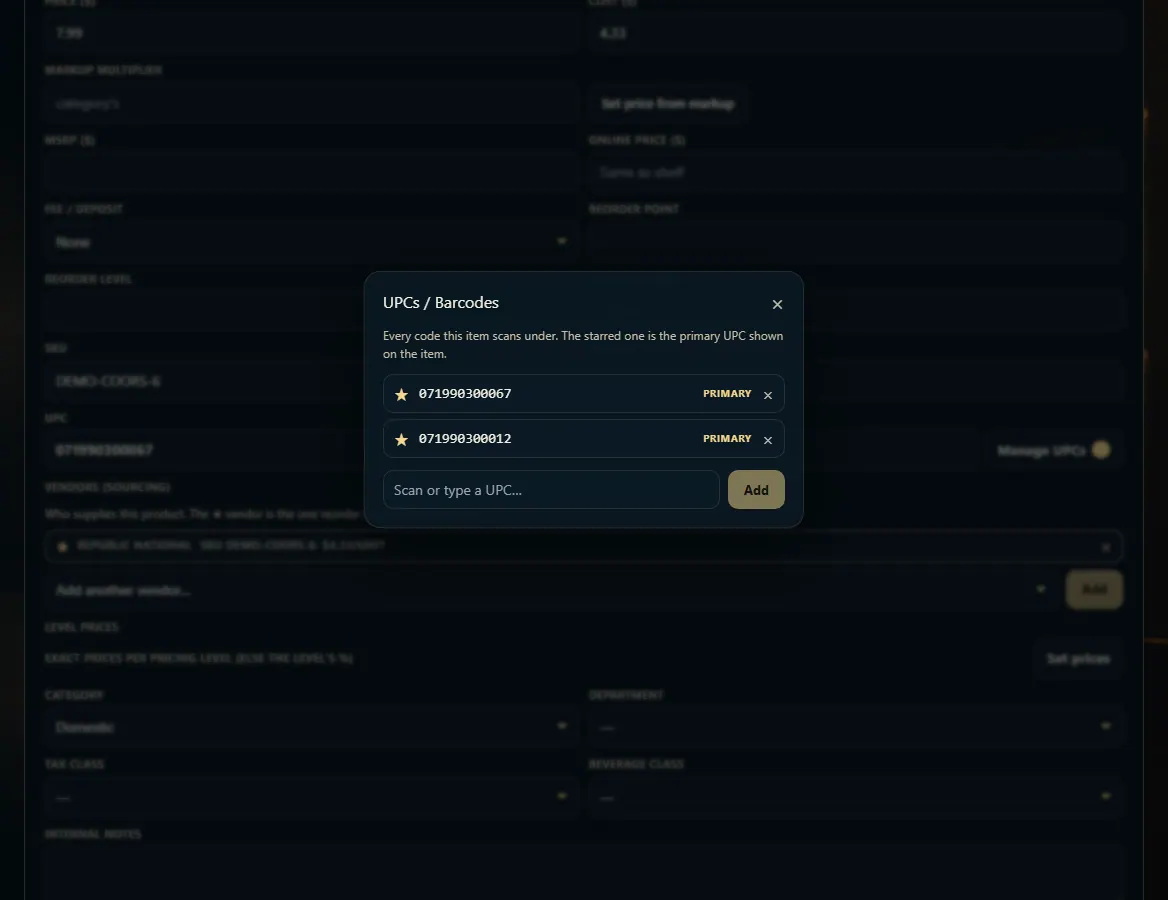 12
12