Change one price right in the Inventory list or on the product's page; use Markup to price from cost, and Pricing levels for wholesale or member prices.
A step-by-step walkthrough with real screenshots · FoolProof POS for alcohol retail
Steps
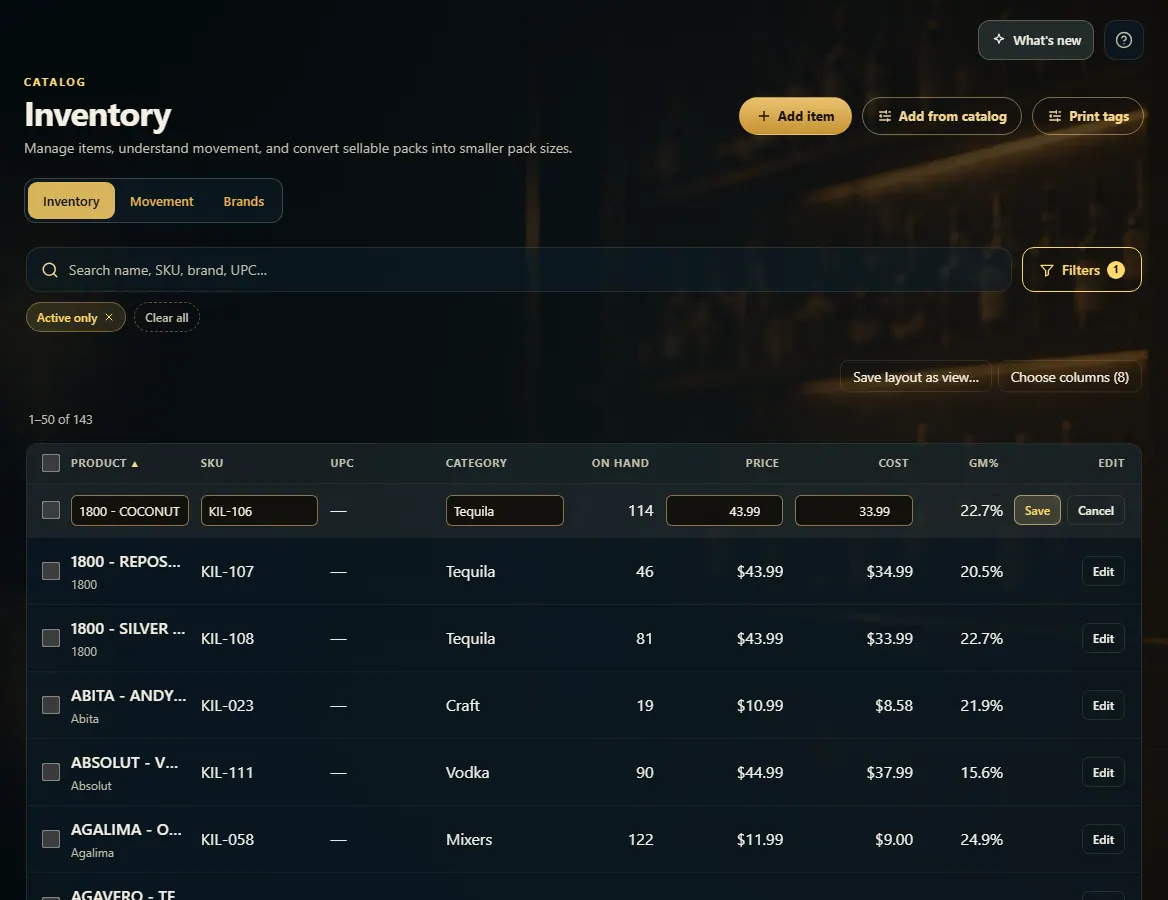
Open Inventory, find the product, and click Edit at the end of its row.
Type the new Price (and Cost, if it changed), then click Save.
Or open the product, change Price ($) on the Details tab, and click Save changes.
To price from cost, set a markup per category in Admin → Markup, then press Set price from markup on a product.
For wholesale, member or staff prices, add a level in Admin → Pricing levels.
Good to know
Every price change is logged on the product's History tab.
If the price boxes are greyed out, your role can't edit prices — ask the owner or a manager.
Markup never changes a price on its own: Set prices… on Admin → Markup shows what would change before anything is updated.
Online price ($) lets your website charge differently; leave it blank to use the shelf price.
Once a pricing level exists, the product editor shows Level prices for exact per-item prices.
Changed some prices? Print tags → Repriced recently prints new shelf tags for them.
1. Edit a price in the list
Click Edit on a row and its cells open for editing. Type the new price and click Save.
12
1Type the new price.
2Save the row.
2. Or price from cost on the product
On the product's Details tab, Set price from markup fills the price as cost × markup, rounded the way you chose. Press Save changes to keep it.
123
1The shelf price.
2This item's own markup (optional).
3Fill the price from cost × markup.
3. Set markups by category
On Admin → Markup, pick how prices round and type a multiplier per category — 1.18 is 18% over cost. Save markups, then Set prices… shows what would change before you update anything.
 12
12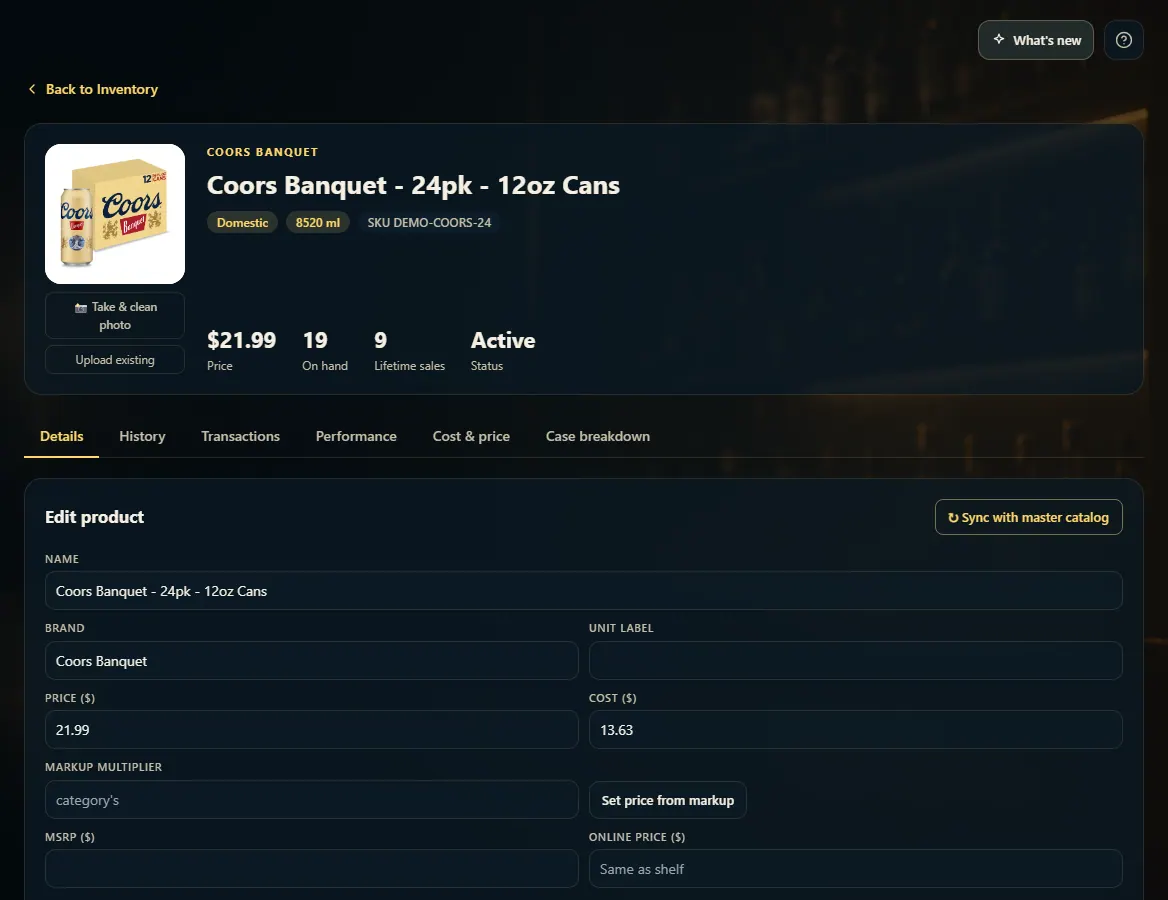 123
123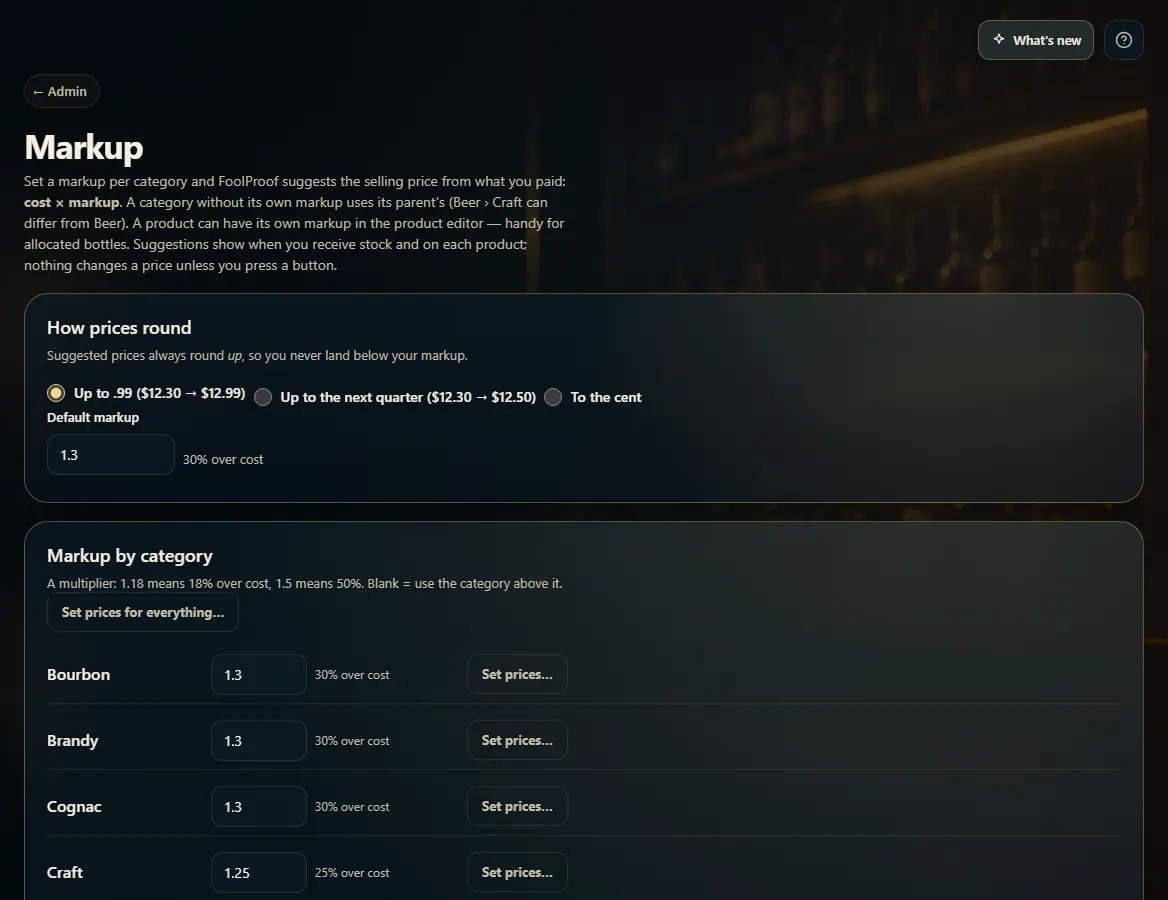 123
123