Inventory & products
 1234
1234
Add products from the FoolProof catalog
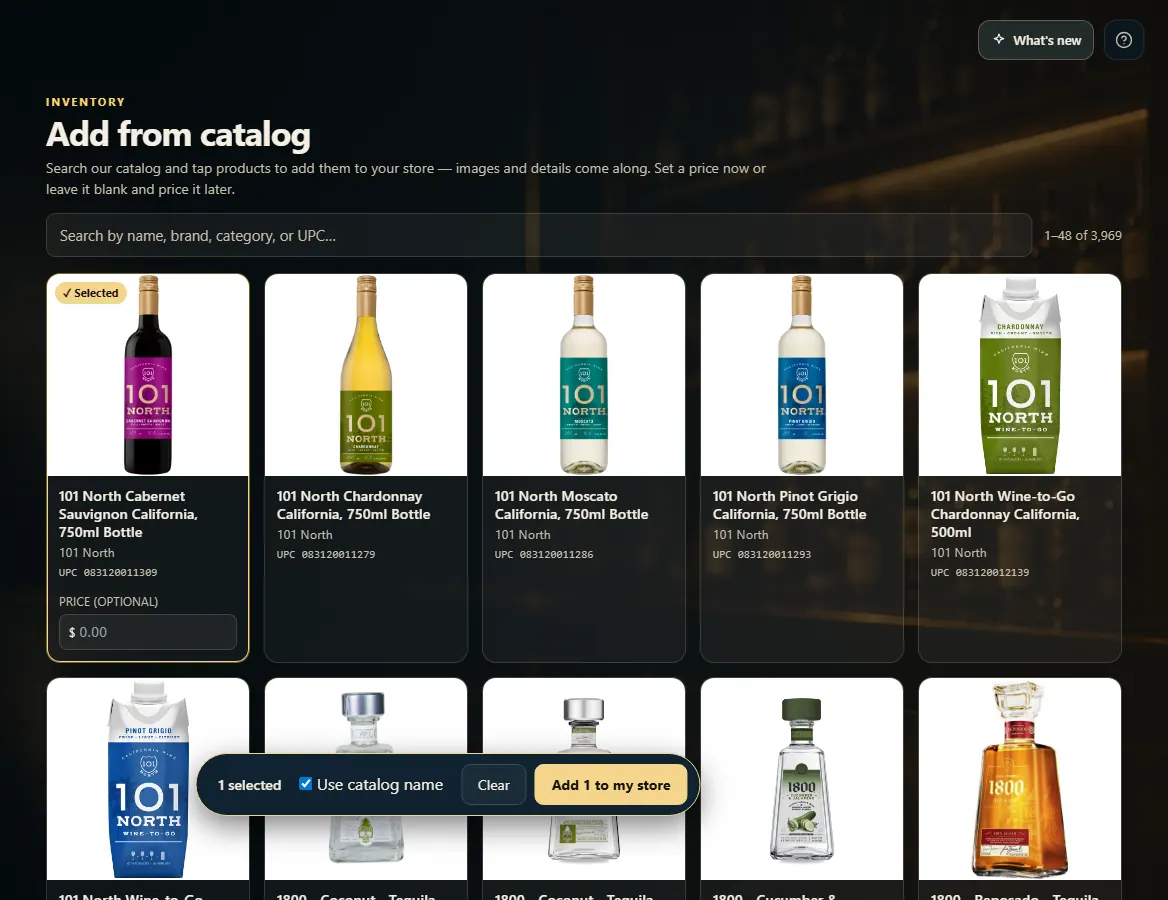
Add from Catalog lets you search FoolProof's catalog and add products in a few taps — name, barcode, size and picture come along; you set the price.
Steps
- Open Add from Catalog from the menu (or click Add from catalog on the Inventory page).
- Search by name, brand, category or UPC — or scan a barcode.
- Tap each product you want; type a price on the card now, or leave it blank to price it later.
- Untick Use catalog name if you'd rather keep your own product names.
- Click Add to my store.
Good to know
- Products you already carry show ✓ In your store.
- Prices and distributors are never copied from the catalog — those are yours to set.
1. Pick products and add them
Tap a card to select it — a price box appears on the card. When you've picked everything, the bar at the bottom adds them all at once.
1234- 1Search the catalog, or scan a barcode.
- 2Tap a product to select it; set a price if you like.
- 3Keep or replace your own names.
- 4Add everything you picked.