Team & roles
 123
123
Lock idle registers and allow PIN sign-in
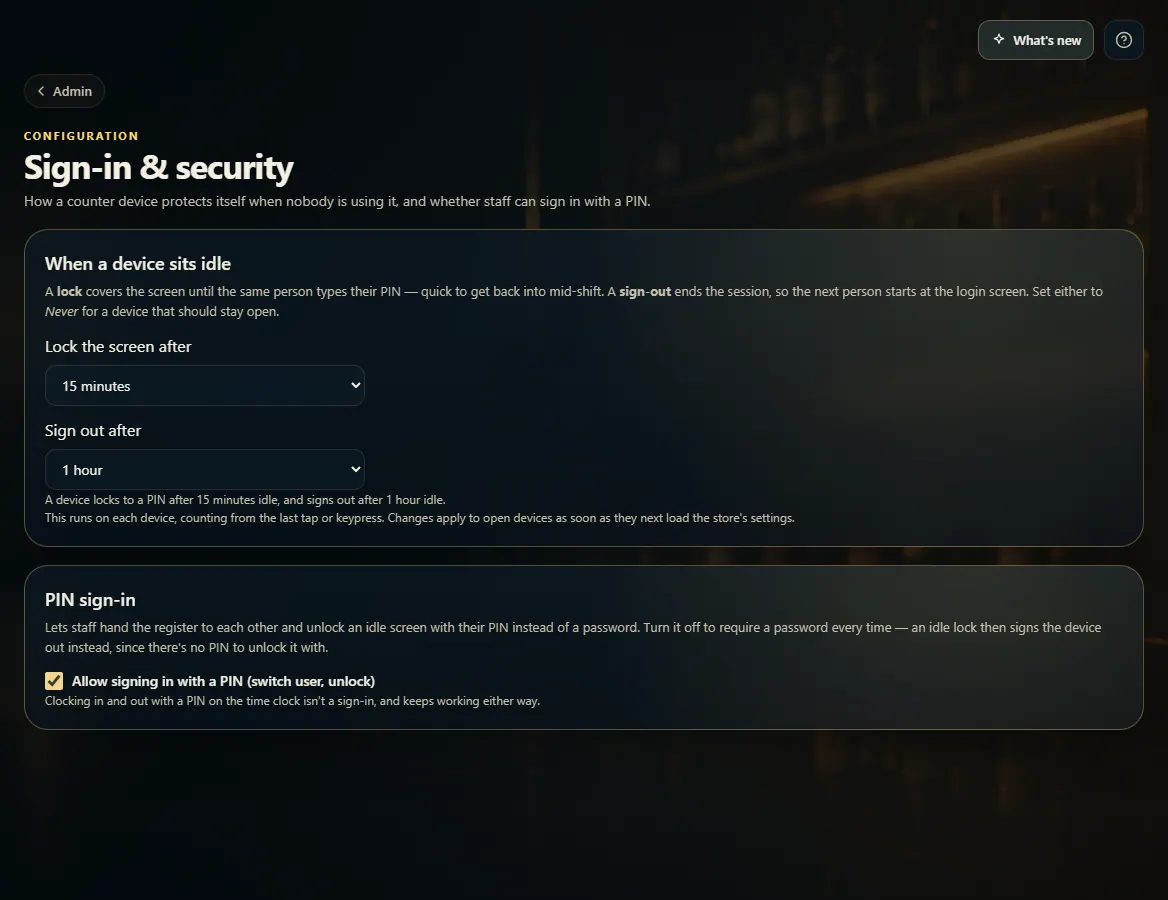
Admin → Sign-in & security sets when an idle device locks or signs out, and whether staff can switch users with a PIN.
Steps
- Open Admin and click Sign-in & security.
- Choose Lock the screen after — the same person unlocks it with their PIN.
- Choose Sign out after — the next person starts at the login screen. Pick Never to keep a device open.
- Tick or untick Allow signing in with a PIN (switch user, unlock).
- Changes save as soon as you make them.
Good to know
- With PIN sign-in off, everyone signs in with a password, and an idle lock signs the device out instead.
- Clocking in and out with a PIN keeps working either way.
1. Idle lock and PIN sign-in
Set how long a device waits before it locks or signs out, and whether staff can use a PIN.
123- 1Lock, unlocked by PIN.
- 2Full sign-out.
- 3Allow PIN sign-in.