Admin → Reference lists holds the categories, brands, departments, tax classes and containers you pick from on a product; Admin → Pack units holds the sizes your packs are counted in.
A step-by-step walkthrough with real screenshots · FoolProof POS for alcohol retail
Steps
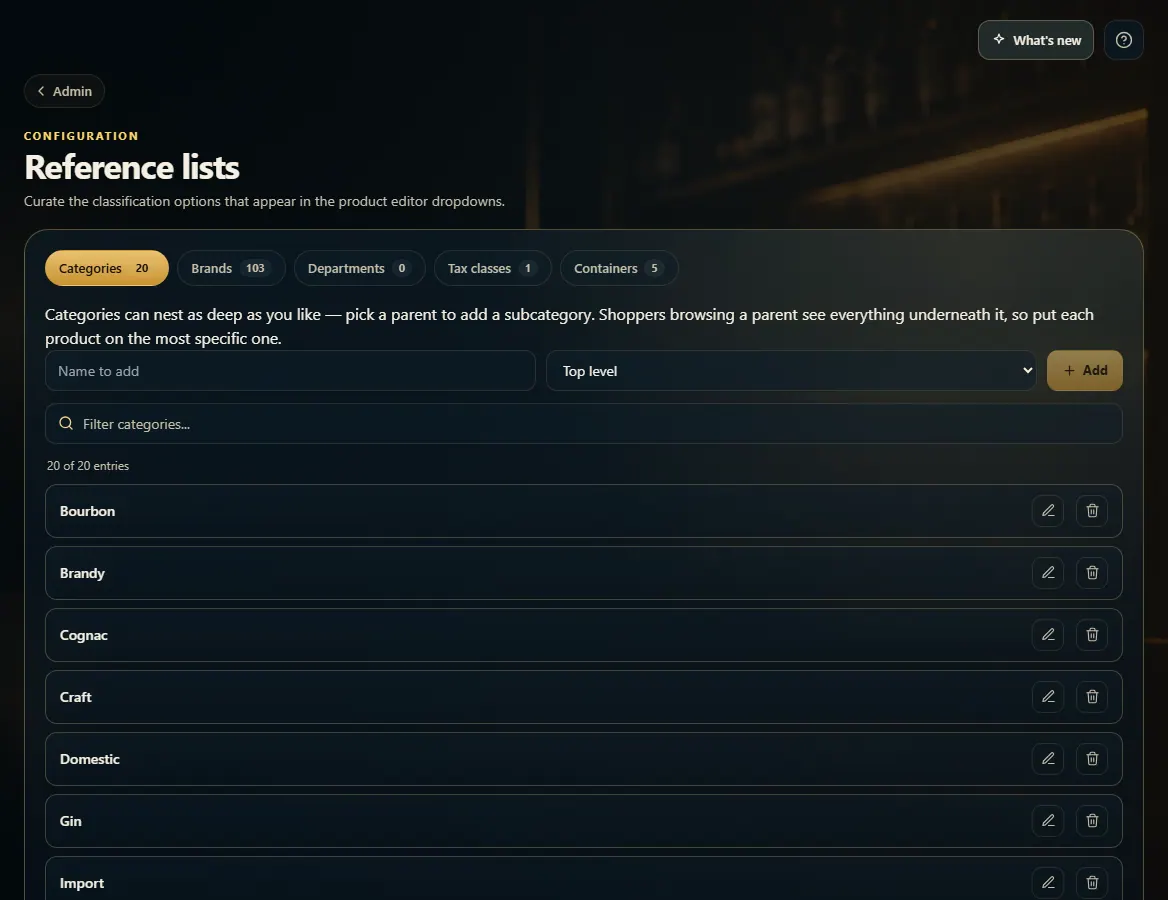
Open Admin and click Reference lists.
Pick a tab — Categories, Brands, Departments, Tax classes or Containers.
Type a name and click Add; use the pencil to rename one.
For a subcategory, pick its parent before you click Add.
For pack sizes, open Admin → Pack units, pick the Vessel, enter One unit is, and click Add unit.
Good to know
Shoppers browsing a category see everything under it, so put each product on the most specific one.
A pack unit is one container you sell — a 12 oz can, a 750 ml bottle. Case breakdown counts packs in these units.
1. Reference lists
Each tab is one list. Add, rename, or filter to find an entry.
12
1Pick a list.
2Add a new entry.
2. Pack units
Add the single sizes you sell. Packs are counted in them, so a 24-pack is 24 of one unit.
 12
12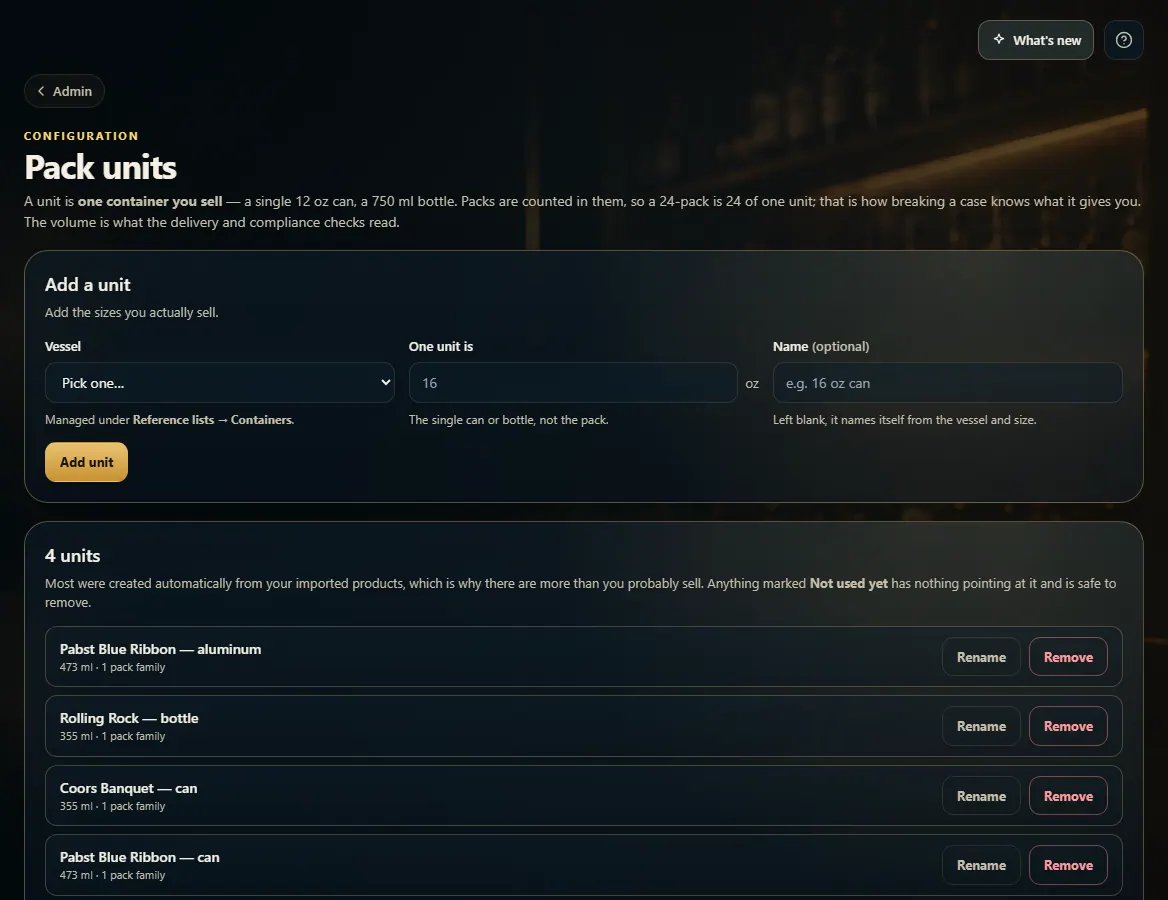 12
12