Inventory & products
 123
123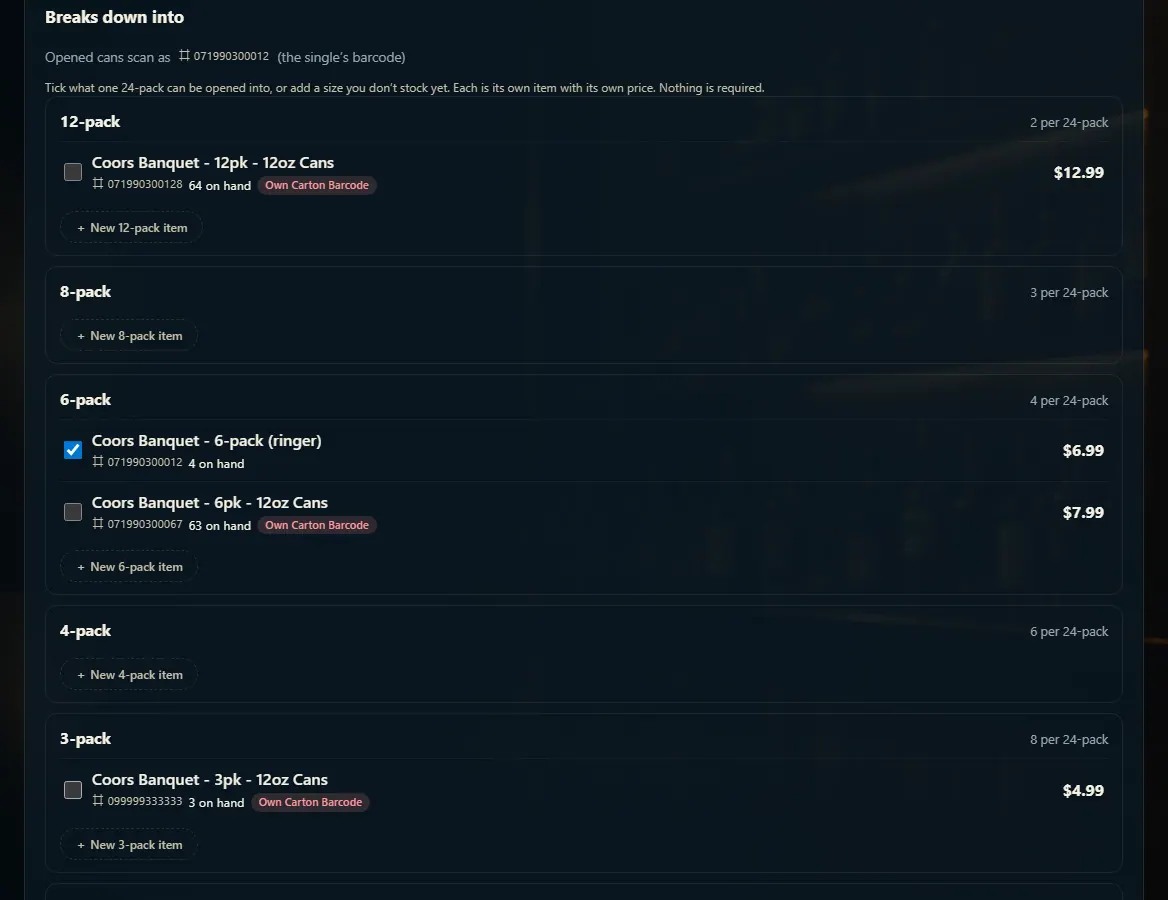 12
12
Set up what a case breaks into
On a pack's Case breakdown tab, you choose what it can be opened into — ringer 6-packs, singles, or any size that divides evenly.
Steps
- Open the pack (say, the 24-pack) from Inventory and click the Case breakdown tab.
- If it isn't in a case group yet, click Set up case breakdown and pick its group.
- Under Breaks down into, click Set up breakdown (or Edit setup).
- Tick each item it can be opened into, or click + New … item to add a size you don't stock yet and give it a price.
- Click Save setup.
Good to know
- Nothing is set up for you — you decide what each pack opens into.
- A case group is the same drink in the same container and size — the single, 6-pack and 24-pack of one beer.
- Store-made packs (ringers and singles) scan with the single can's barcode, so scanning a can at the register asks which one.
- Items marked own carton barcode look like a factory carton — opened cans won't scan as them.
- Case Breakdown → Suggested setups lists packs that look ready to set up; review each before you press Set up.
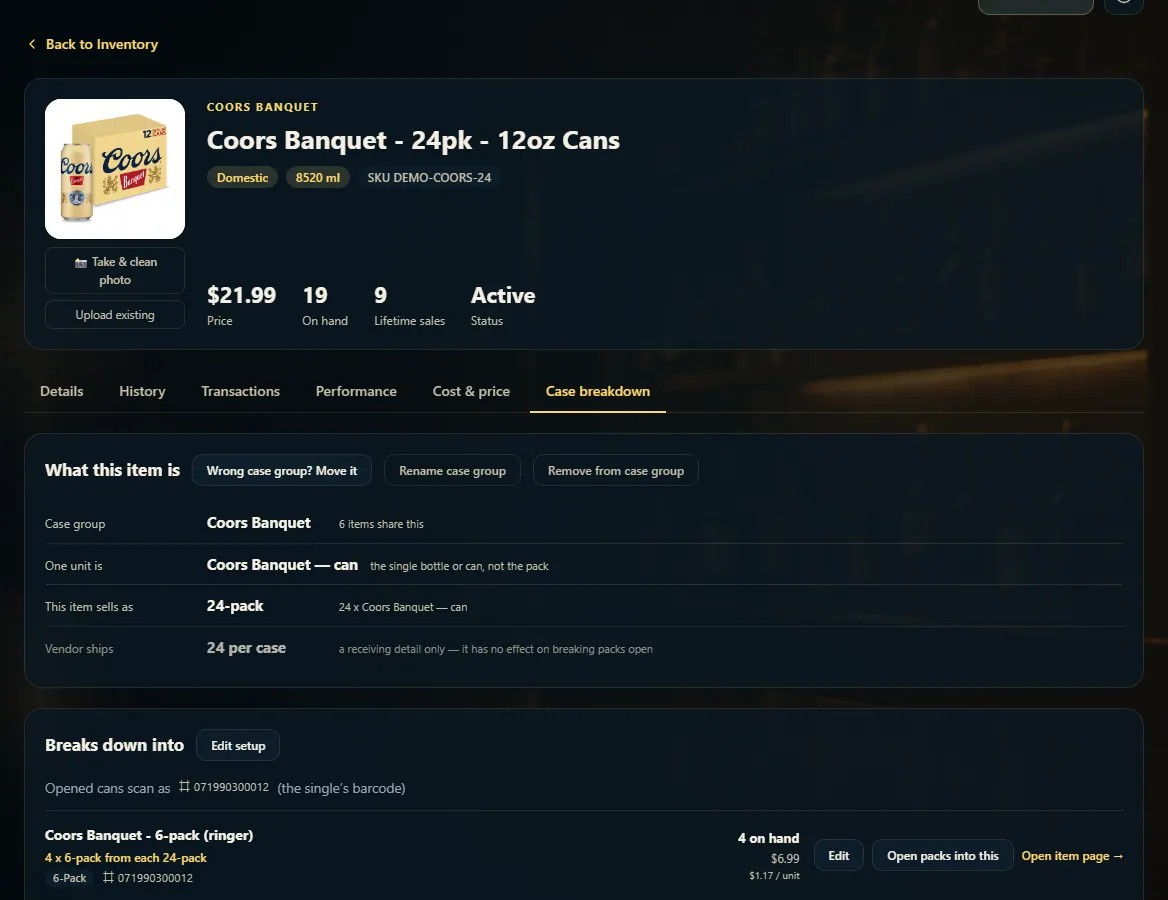
1. Open the pack's Case breakdown tab
What this item is shows its case group and what one unit is. Breaks down into lists each item it opens into today, with how many come out of one pack.
123- 1Choose what it opens into.
- 2The barcode opened cans scan as.
- 3An item it opens into, with its price and on-hand.
2. Tick what it opens into
Every size that divides the pack evenly is listed. Tick the items it can become, or add a new size with its own price. Then Save setup.
12- 1Ticked: it opens into this.
- 2Add a size you don't stock yet.