Build a purchase order on Receiving → Orders (or from the reorder suggestions), save it as a draft, then place it.
A step-by-step walkthrough with real screenshots · FoolProof POS for alcohol retail
Steps
Open Receiving and choose the Orders tab.
Click New order, pick the Distributor, and add an Expected date or Note if you like.
Scan or search to add each item, then type how many to order and the unit cost.
Click Create draft.
Check the draft, then click Place order.
Good to know
Shortcut: on the Suggestions tab click Group by distributor, untick anything you don't want, and click Create PO on a distributor's group. Items with no vendor show under Unassigned and can't be ordered until you give them a vendor.
Suggestions are forecast from what sells and the time of year, rounded up to whole cases, minus anything already on order.
Order quantities are single units (bottles, cans, packs), not cases.
Placing an order doesn't send it to the distributor — call it in or use their portal as usual. Placing it is what counts it as on order, so it stops being suggested again.
A draft can still be changed: edit a line and click Save, Remove a line, or add items. After it's placed you can only receive against it or Cancel order.
1. See what to reorder
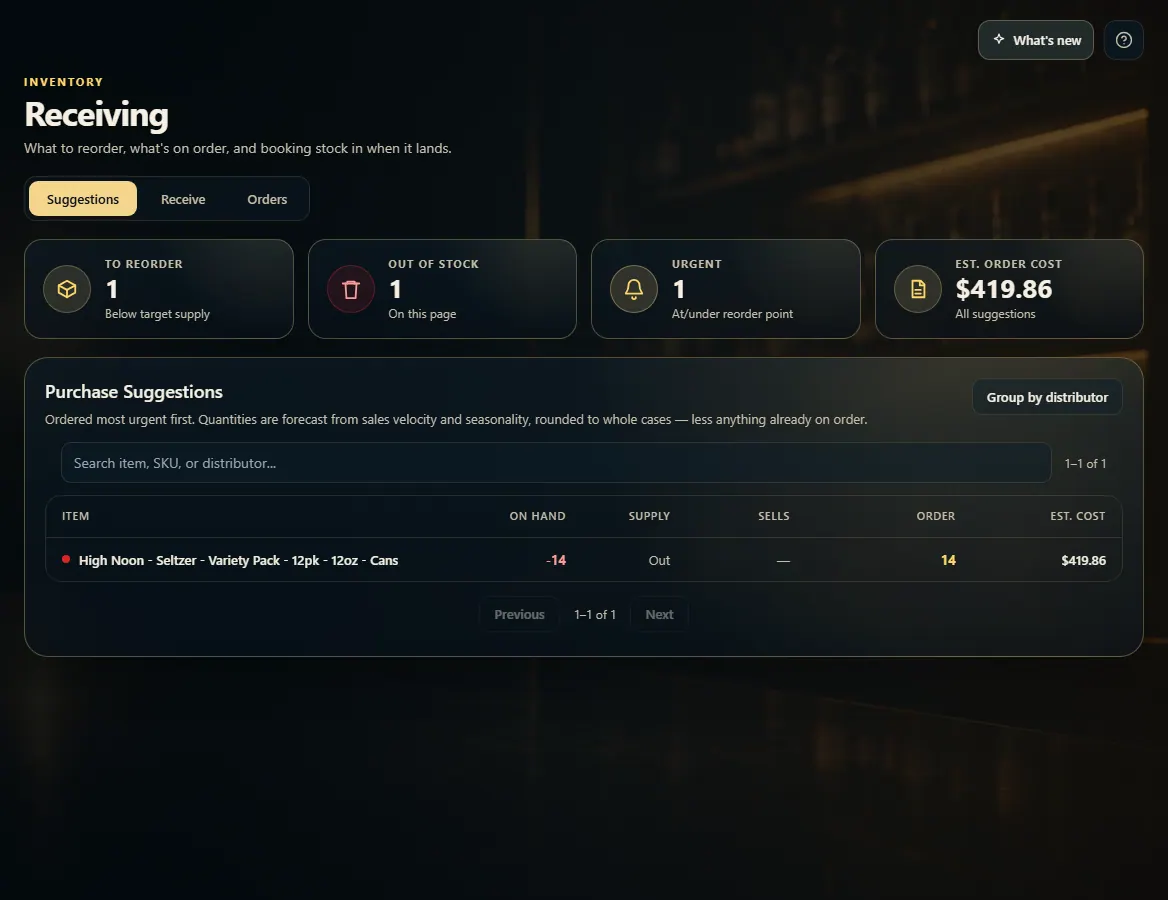
Suggestions lists what's running low, most urgent first, with how much to order. Group by distributor turns each distributor's list into one order.
123
1How much needs reordering.
2Each item, with the suggested Order quantity.
3Group by distributor to make one order per distributor.
2. Build the order
On Orders, click New order. Pick the distributor, scan or search to add items, and set the quantity and cost on each line. Create draft saves it.
1234
1Pick the distributor.
2Scan or search to add items.
3Set how many and the unit cost.
4Save it as a draft.
3. Place it
Open the draft from the Orders list, check the lines, then Place order. From then on it counts as on order and you can receive against it.
 123
123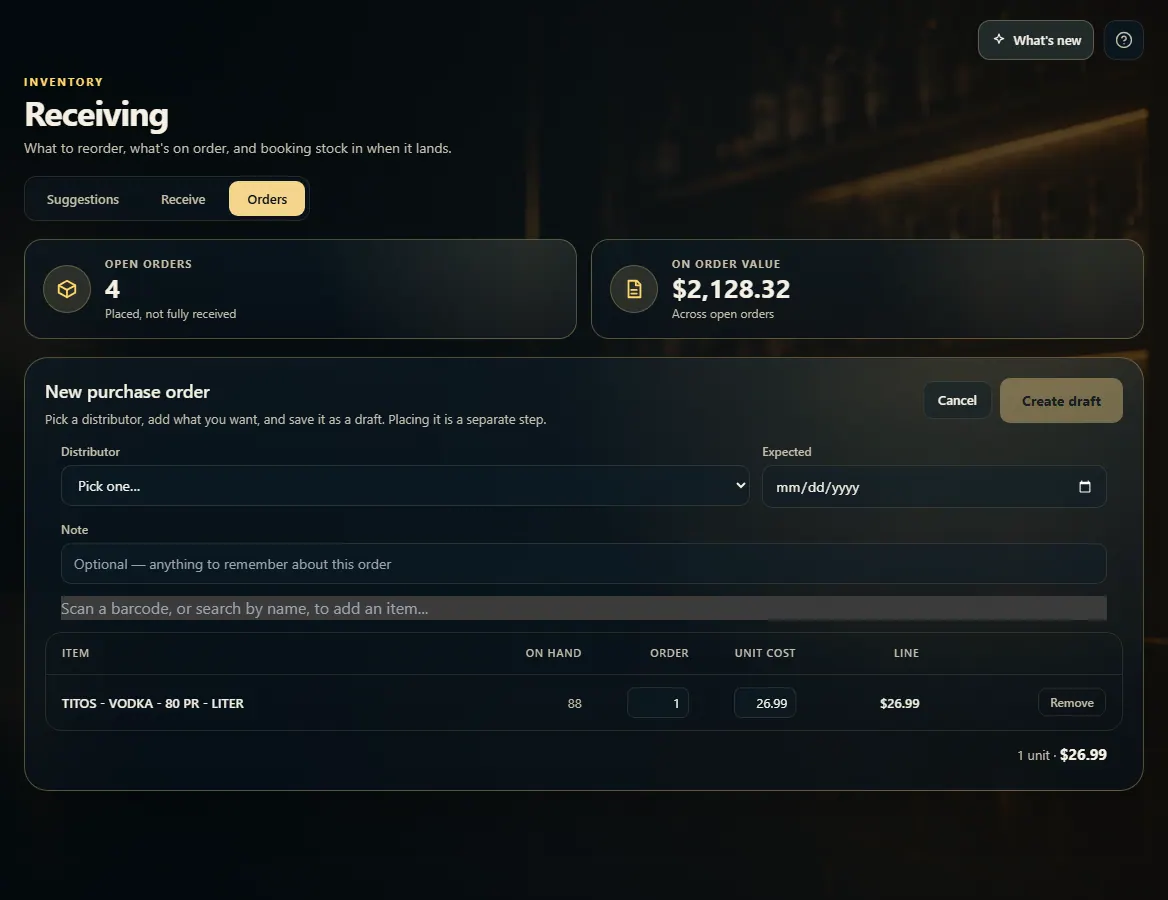 1234
1234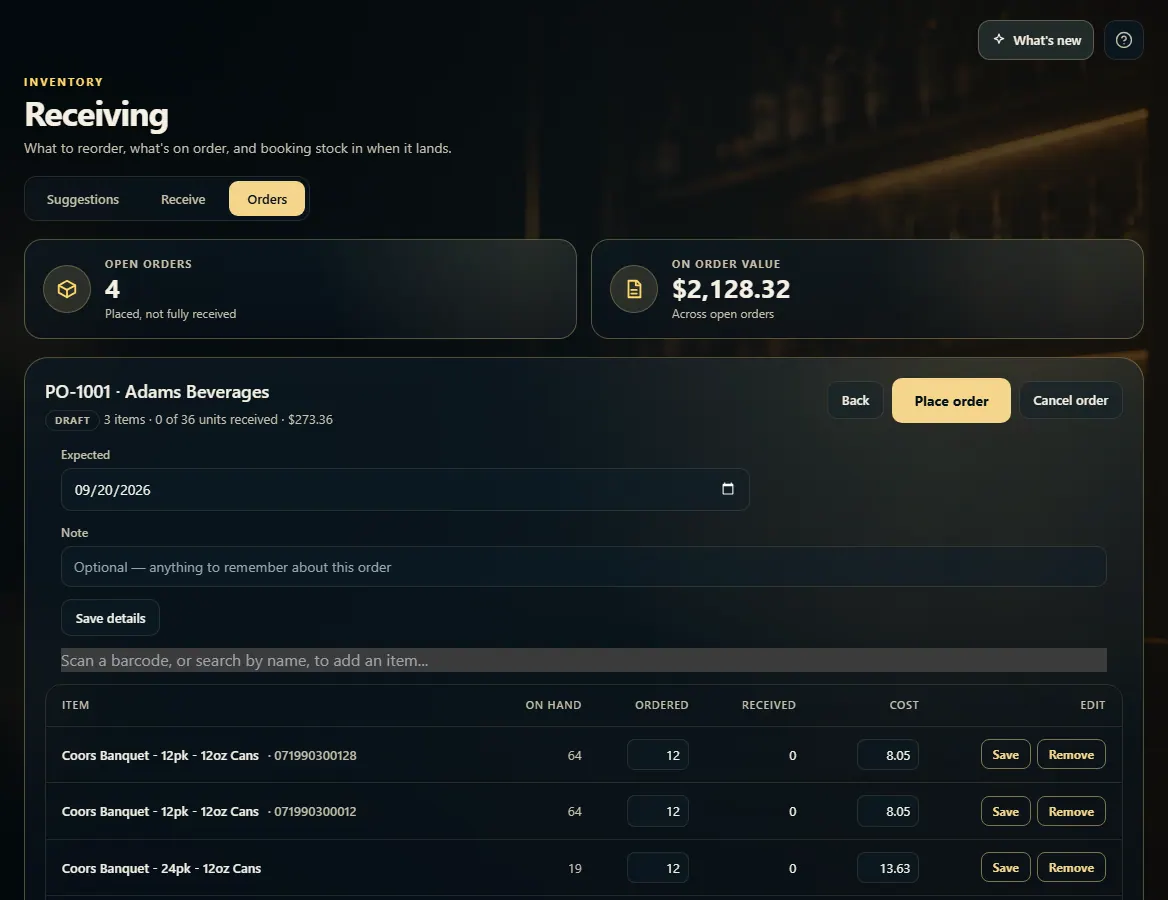 12
12