Book stock in on Receiving — scan each item and enter how many arrived, or open the purchase order and mark what came in.
A step-by-step walkthrough with real screenshots · FoolProof POS for alcohol retail
Steps
Open Receiving from the menu (under Inventory).
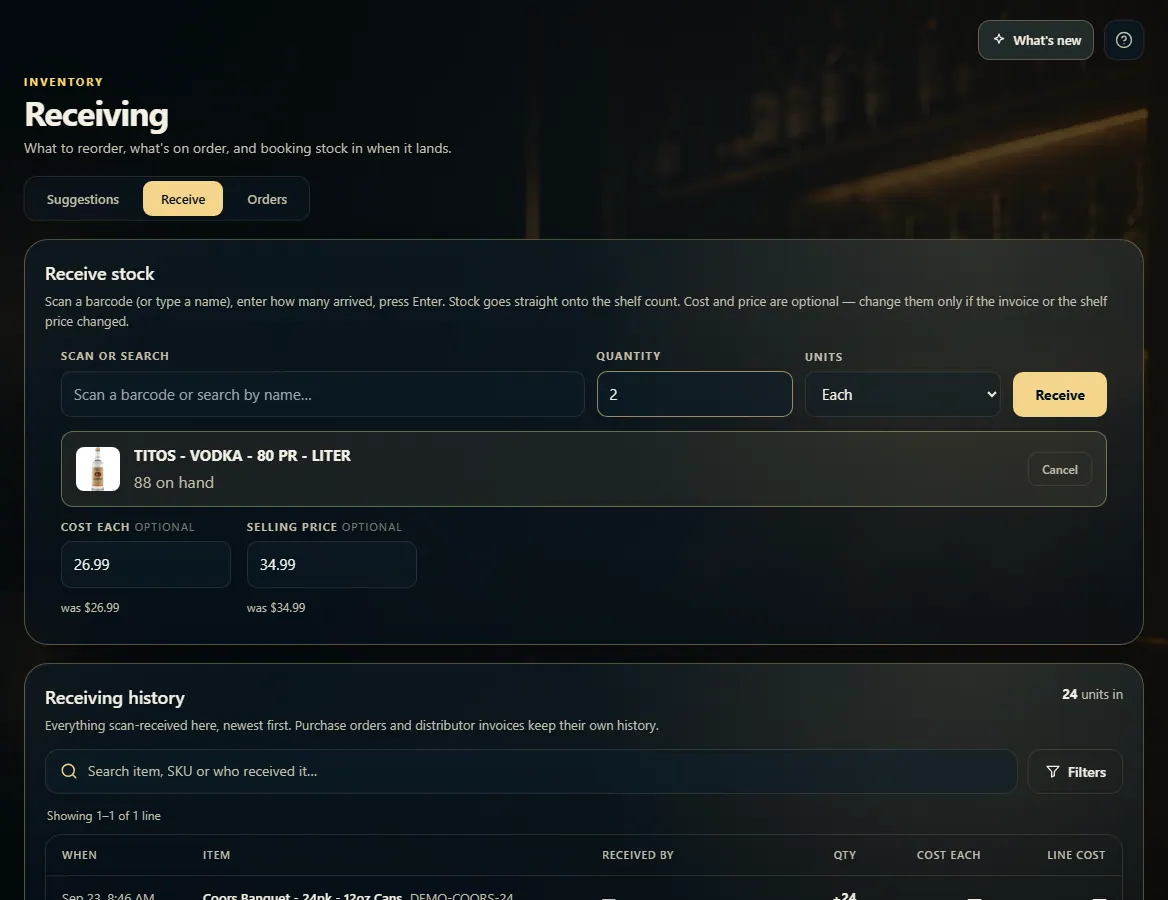
No order? Choose the Receive tab, scan the barcode (or type the name) and pick the item.
Type how many arrived in Quantity, pick Each or Cases under Units, then press Enter or click Receive.
Have a purchase order? Choose the Orders tab and open it.
Click Receive all if everything arrived, or type the real count for a line under Set actual and click Save.
Good to know
Cases multiplies by the item's units per case — 2 cases of a 12-pack item adds 24. If the item has no units per case set, receive it in Each.
Purchase order quantities are always counted in single units (bottles, cans, packs), not cases.
Cost and Selling price on the Receive tab are optional. Change them only if the invoice or the shelf price changed. A suggested price from your markup appears with a Use button — nothing changes until you press it.
Made a mistake? Click Undo on the line under Received this session. It posts a correcting entry; the history is never rewritten.
Receiving history at the bottom of the Receive tab lists everything scan-received, with who did it.
1. Receive without an order
On the Receive tab, scan or search for the item, enter how many arrived and whether that's single units or cases, then Receive. It goes straight onto the shelf count.
1234
1Scan a barcode or type a name.
2How many arrived.
3Each or Cases.
4Book it in.
2. Receive against a purchase order
Open the order from the Orders tab. Receive all marks every line as fully received. If a line came in short, type what actually arrived under Set actual and click Save on that line.
12
1Everything arrived — receive the whole order.
2Or set what really arrived for one line, then Save.
 1234
1234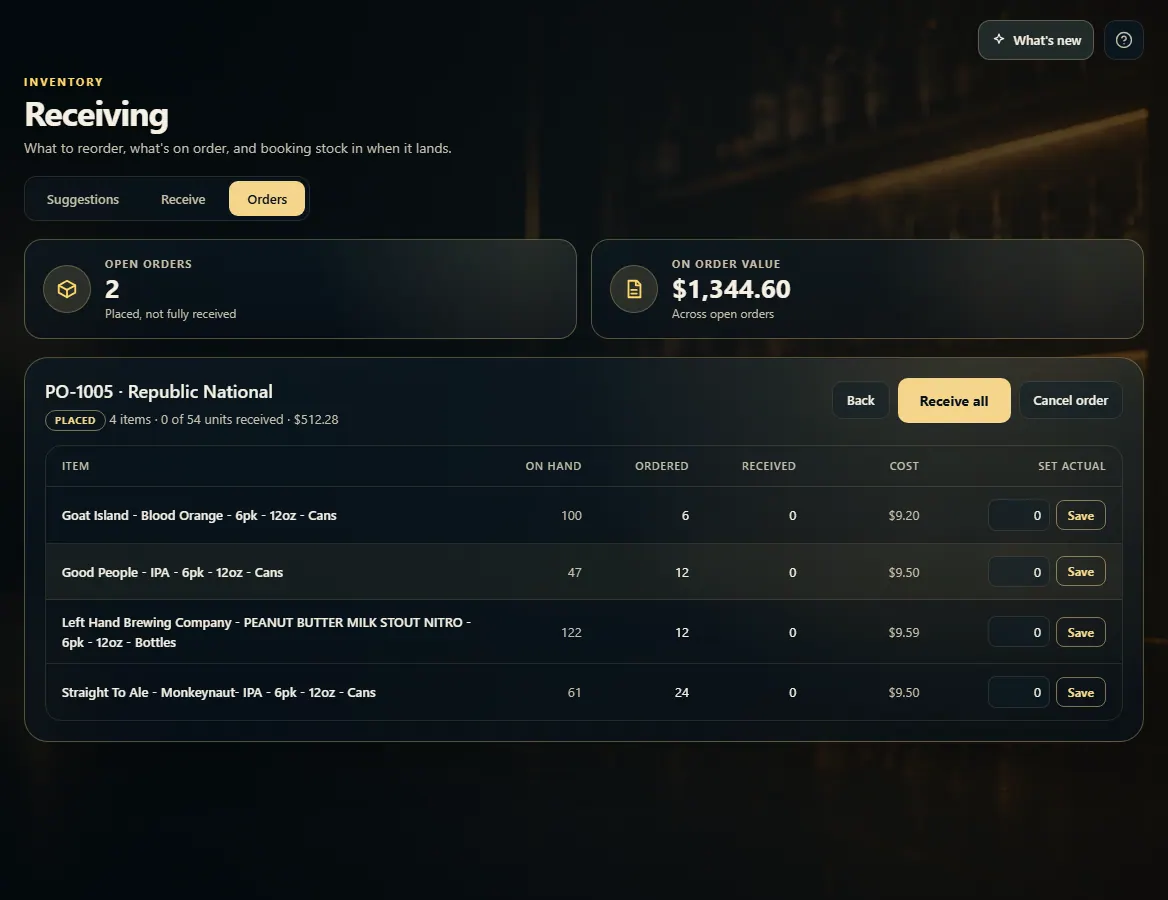 12
12