Distributor invoices land on the Distributor Feed by themselves — open one, tie each line to your product, and receive what arrived right on the invoice.
A step-by-step walkthrough with real screenshots · FoolProof POS for alcohol retail
Steps
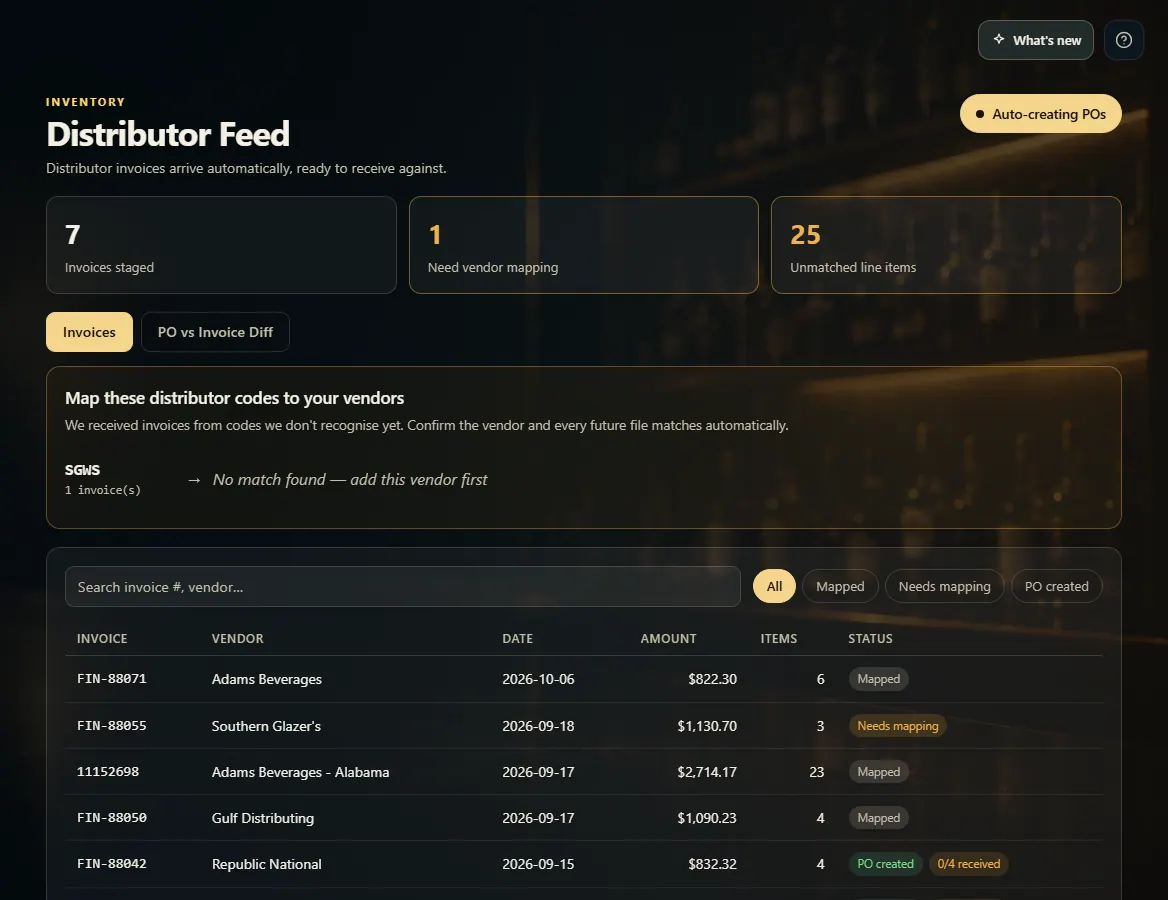
Open Distributor Feed from the menu (under Inventory).
If a code is listed under Map these distributor codes to your vendors, click Confirm next to the suggested vendor.
Click an invoice to open it.
On any line marked unmatched, click Match to a product (or Create new item).
If a line says Pick the pack first, click Confirm pack & cost, choose what one of your items is, and click Apply.
Check the number in each line's box — it's in your single units — then click Receive.
Good to know
Most lines are billed by the case: the line shows the pack (for example 2×12 = 24/case) and the receive box is already converted to units, e.g. 2 cases × 24 = 48.
Some distributors bill single bottles. Those lines read like Billed by the bottle · 3 bottles × $6.27 = $18.81 — the number billed is already your units, so there's no case math and no pack to confirm.
Receiving on the invoice and receiving on its purchase order are the same record — use whichever you prefer, nothing is counted twice. View the order → opens the order it created.
Auto-creating POs (top right) turns each new invoice into a purchase order for you; click it to switch it off.
No feed yet? The page says so — connecting your distributor's feed is set up with your FoolProof rep.
Matching lines and confirming packs need permission to edit products; the dollar amounts need permission to see costs.
1. Your invoices, as they arrive
The tiles show what needs attention. Map any new distributor code once, then click an invoice to work it.
1234
1Invoices waiting, codes to map, lines to match.
2Tie a new distributor code to your vendor once.
3Click an invoice to open it.
4Auto-create purchase orders from invoices.
2. Match lines to your products
A line marked unmatched isn't tied to one of your products yet. Match it to an existing product or create a new item from it — next time it matches by itself.
123
1The pack as billed and the real cost per unit.
2Tie it to your product.
3Or make a new item from it.
3. Confirm the pack when asked
When the invoice doesn't say how many of your item are in one case, pick it here. The box shows the cost per unit and how many units will be received before you Apply.
123
1How many of your items are in one case.
2The cost per unit and units to receive.
3Save the pack.
4. Receive on the invoice
Each matched line shows the product it will receive into. Check the number in the box (your units), then click Receive.
123
1The purchase order this invoice created.
2The product it will receive into.
3Units arrived, then Receive (pick the pack first if asked).
 1234
1234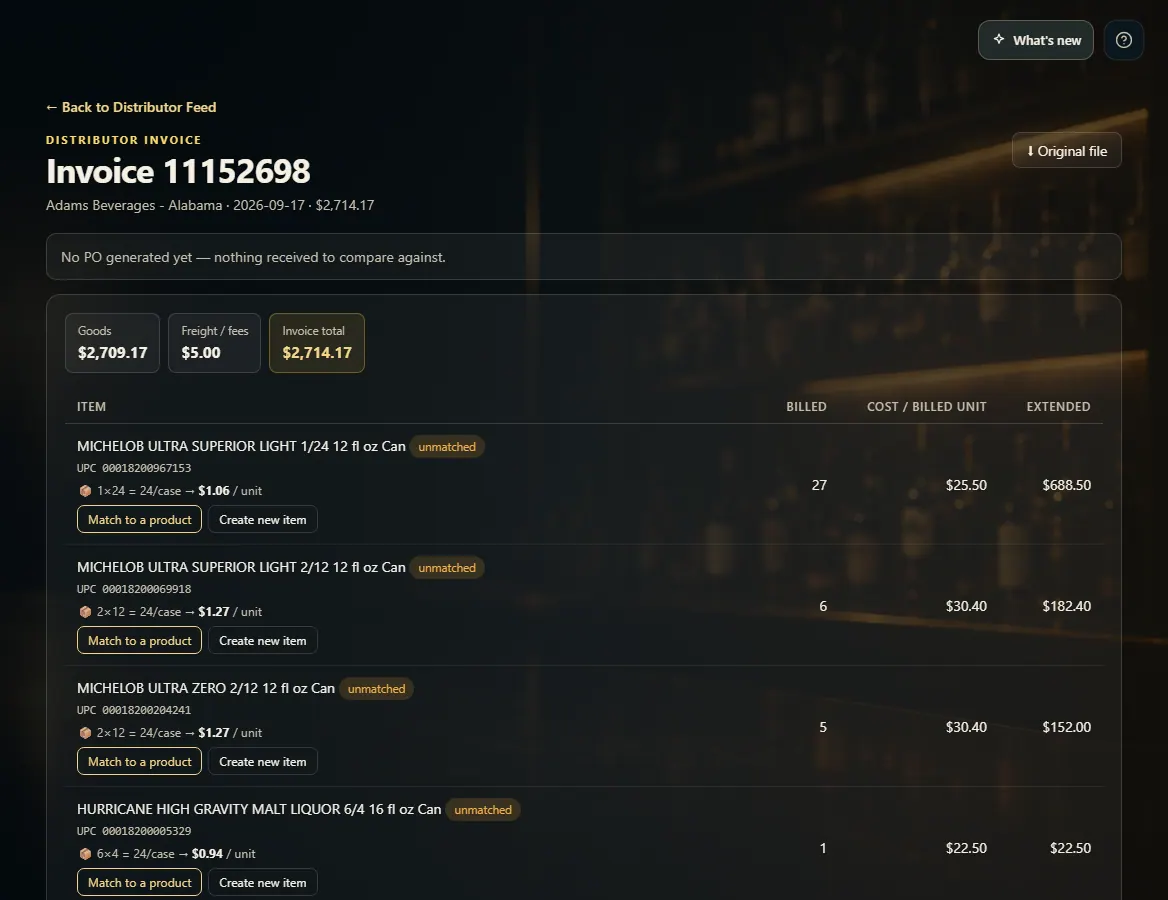 123
123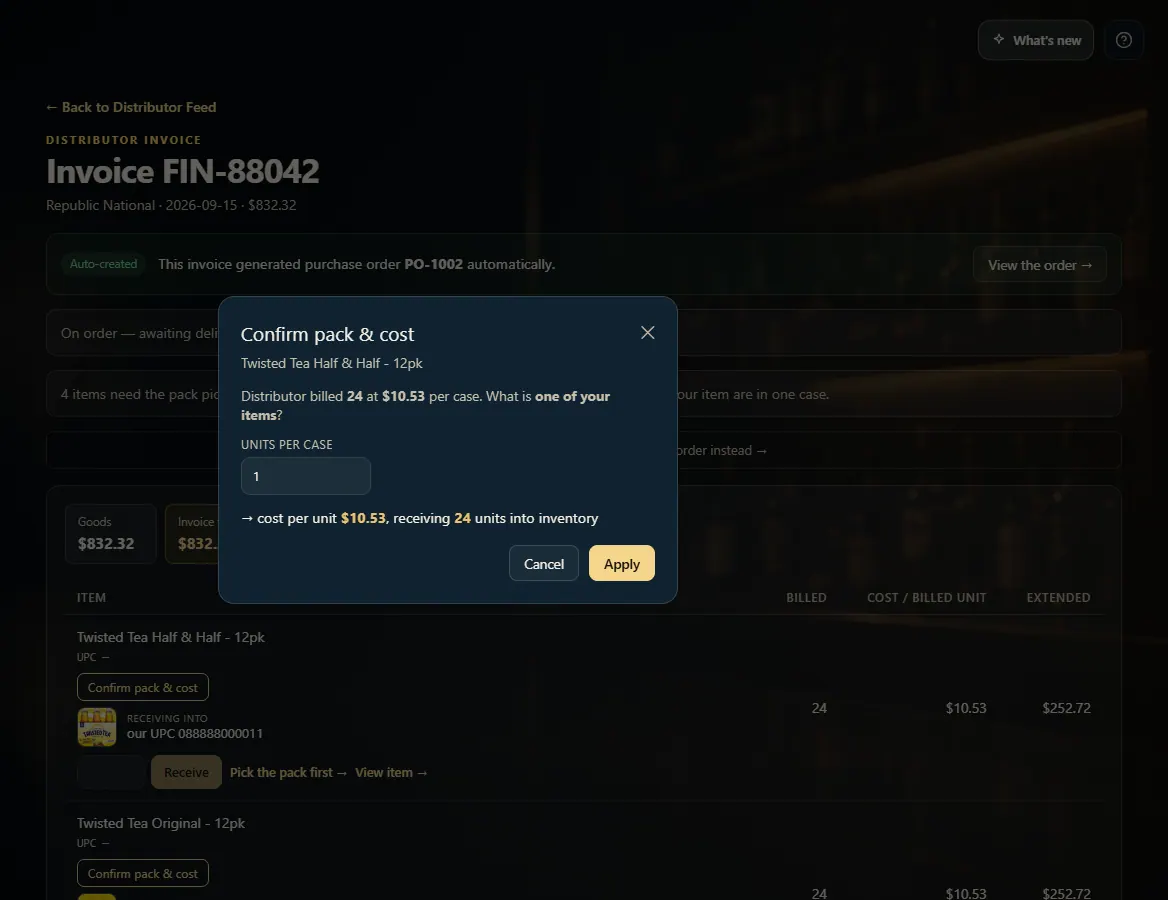 123
123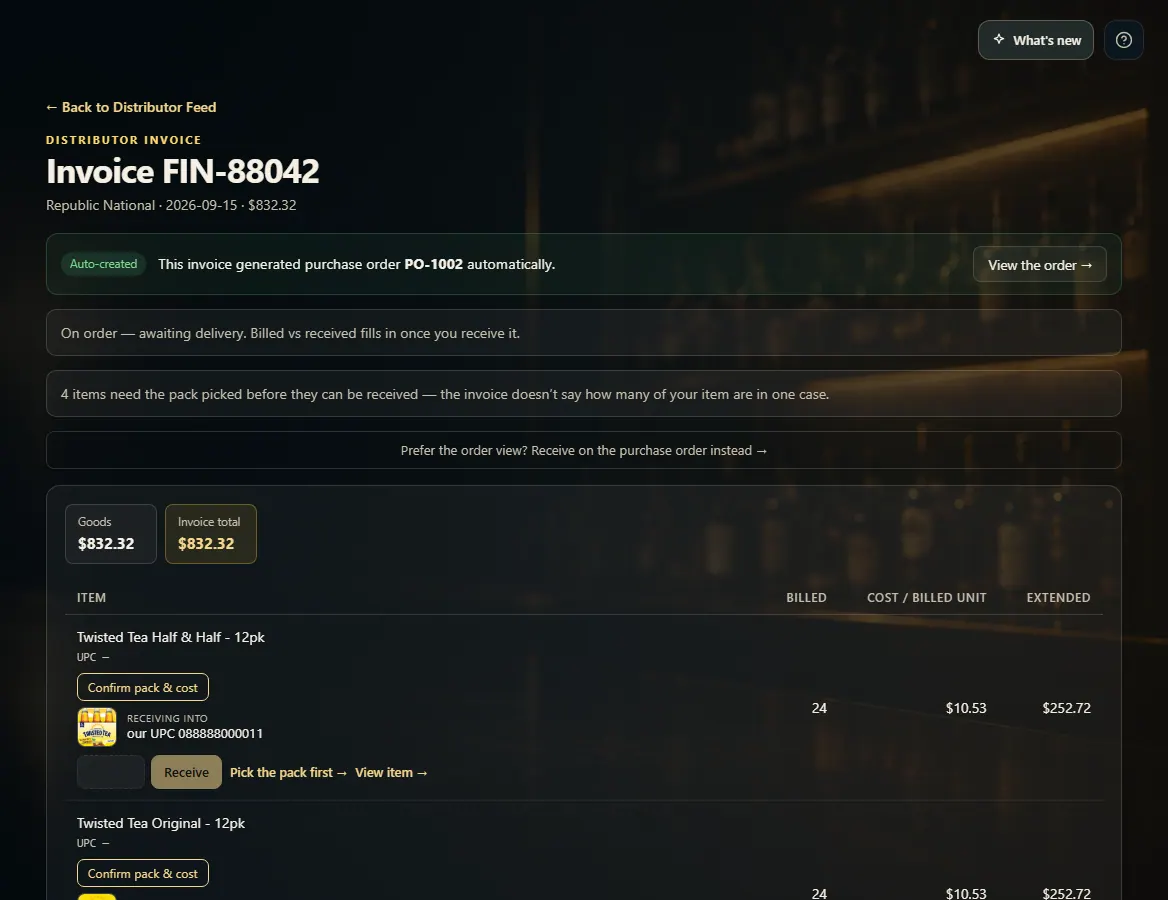 123
123