Card Deposits puts each day's card sales next to what your processor paid into the bank, and says Matched, Short, Over, Fees deducted, Pending or Overdue.
A step-by-step walkthrough with real screenshots · FoolProof POS for alcohol retail
Steps
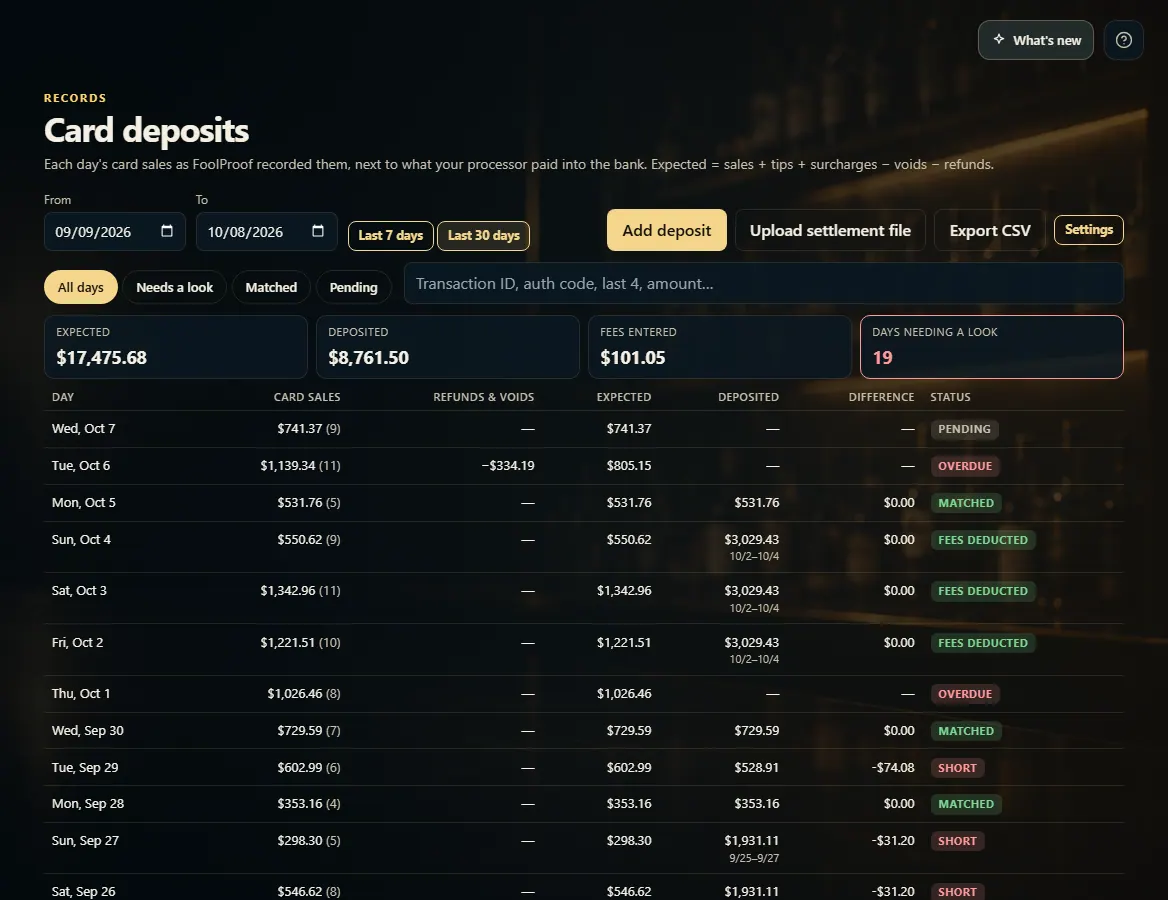
Open Card Deposits (under Records). Each row is one day: card sales, refunds and voids, and the deposit to expect.
When a deposit lands in the bank, click Add deposit. Type the amount, any fees the processor took out, the bank date, and which days it pays for, then click Save deposit.
Or click Upload settlement file and choose the CSV from your processor's website. Pick which column is which, then click Import and match.
Use Needs a look to see the days that don't add up, and click a day to see every card sale behind it.
Click Export CSV to download the days shown.
Good to know
Expected = card sales + tips + surcharges − voids − refunds. A void never reaches the bank; a refund comes off the day it was given.
Type the processor's fees when you add a deposit — the day then reads Fees deducted instead of Short.
An uploaded file is matched to each sale by transaction ID first, then by amount and time. Tick Remember these columns for next time so you only map them once.
Settings sets how close counts as Matched and how many business days your processor takes to pay; a day with no deposit reads Pending until then, and Overdue after.
Only owners and managers can open this page unless you give another role "Match card sales to processor deposits". Every deposit added, changed or deleted is logged.
1. Each day, side by side
Every day's card money as FoolProof recorded it, next to what was deposited, with a status. Needs a look filters to the days to check.
1234
1Type in a deposit from your bank.
2Or upload the processor's CSV.
3Show all days, or just the ones that need a look.
4Matching tolerance and payout delay.
2. Add a deposit
Type what the bank received and the fees taken out, the bank date, and the sale days it pays for.
1234
1What landed in the bank.
2Fees the processor kept, if any.
3The sale days it covers.
4Save deposit.
3. Or upload the processor's file
Download the transaction or settlement report from your processor's website as a CSV and choose it here. FoolProof asks which column is the date, amount and so on, then matches each row.
 1234
1234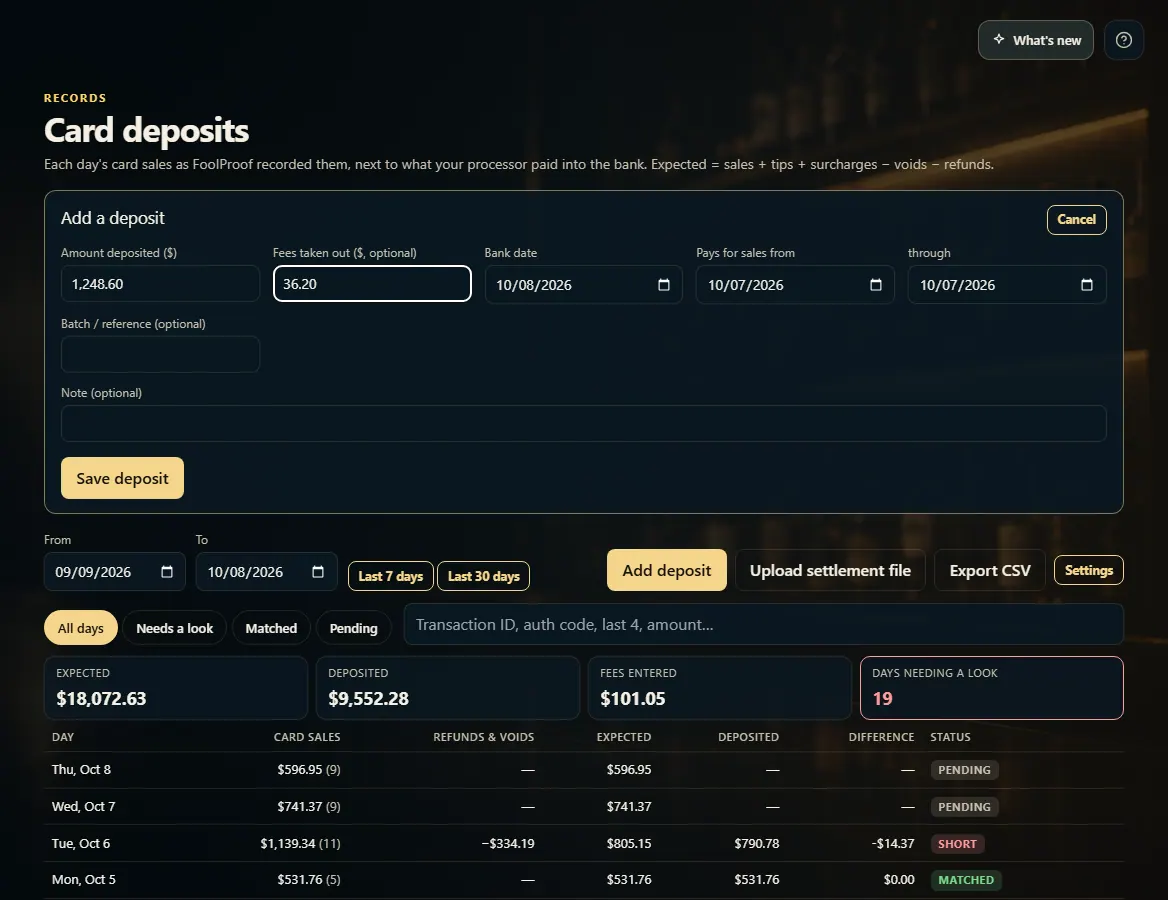 1234
1234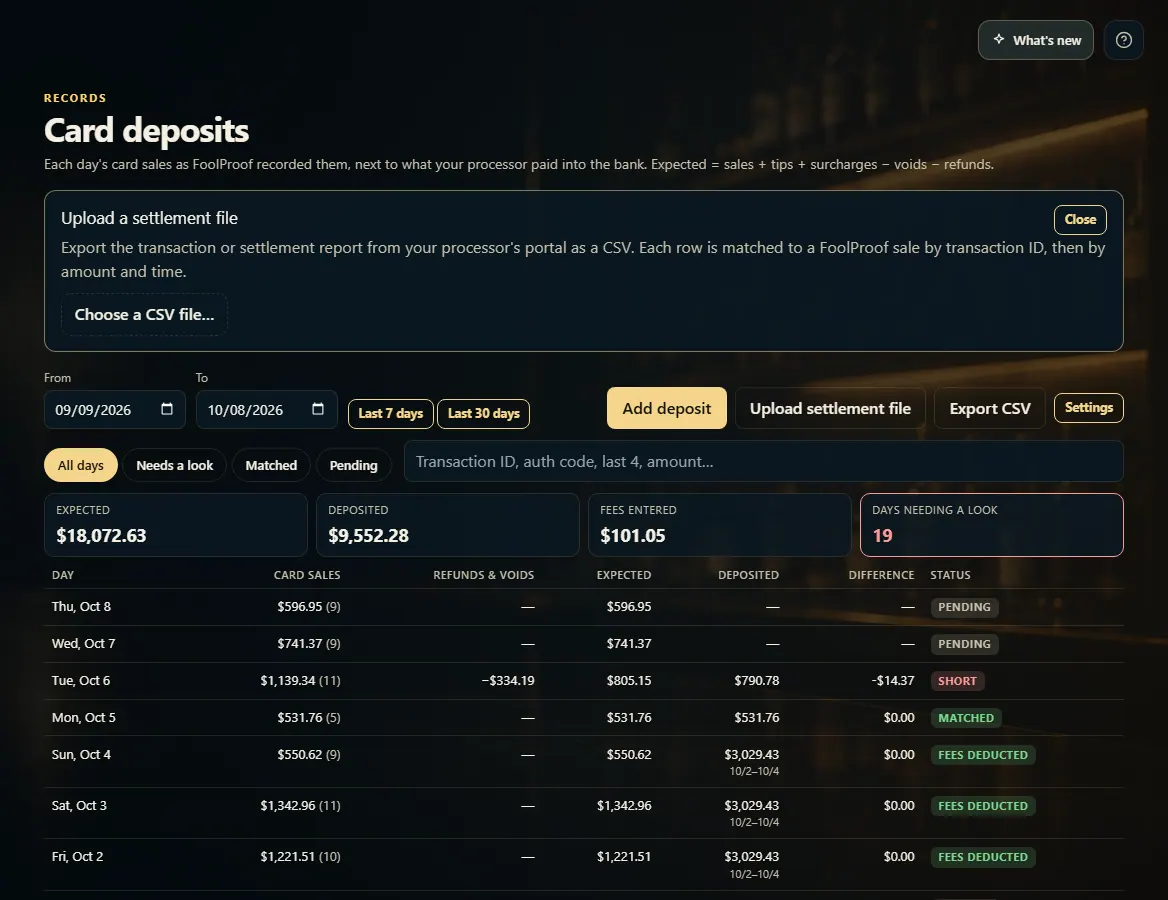 1
1