Today is the store at a glance: whether the register is open, today's sales, orders waiting, and anything that needs attention.
A step-by-step walkthrough with real screenshots · FoolProof POS for alcohol retail
Steps
Open Today from the menu (it's the first page under Sell).
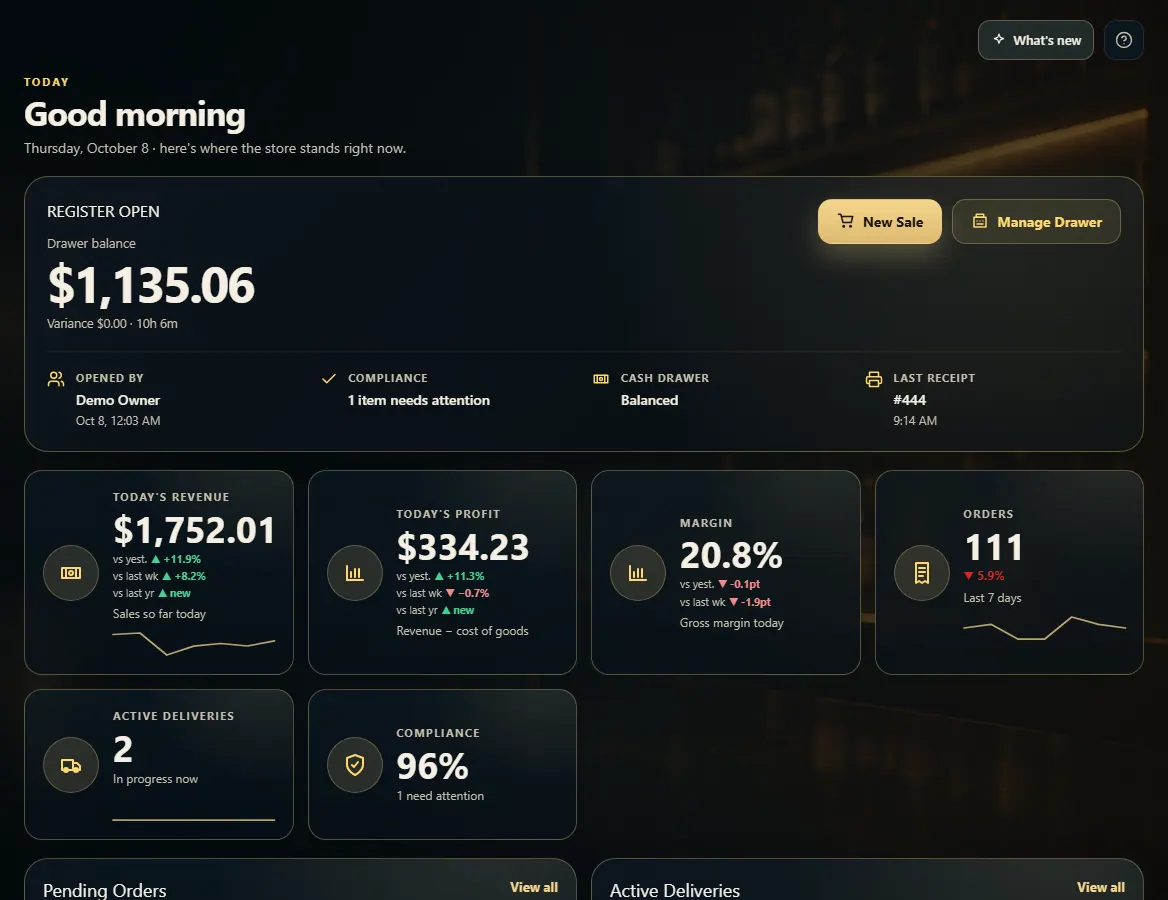
Check the top card: whether the register is open, the drawer balance, who opened it, and the last receipt. Use New Sale or Open Register (Manage Drawer once it's open) to jump straight there.
Read the tiles: Today's Revenue, Today's Profit and Margin compare with yesterday, last week and last year; Orders covers the last 7 days.
Work the lists below: Pending Orders, Active Deliveries, Critical Alerts, Low Stock and Today's Tasks.
Click a tile, a row or View all to open that page.
Good to know
Choose which tiles and lists show under Admin → Today dashboard.
Today's Profit and Margin only show for people whose role can see product costs.
1. The register and today's numbers
The top card shows the drawer. The tiles below it are today's sales so far, compared with yesterday, last week and last year.
1234
1Register open or closed, and the drawer balance.
2Jump to New Sale or the register.
3The last receipt — opens Transactions.
4Today's sales vs past days.
2. What needs doing
Below the tiles are the work lists: orders waiting, deliveries on the road, compliance alerts, items running low, and a short checklist.
 1234
1234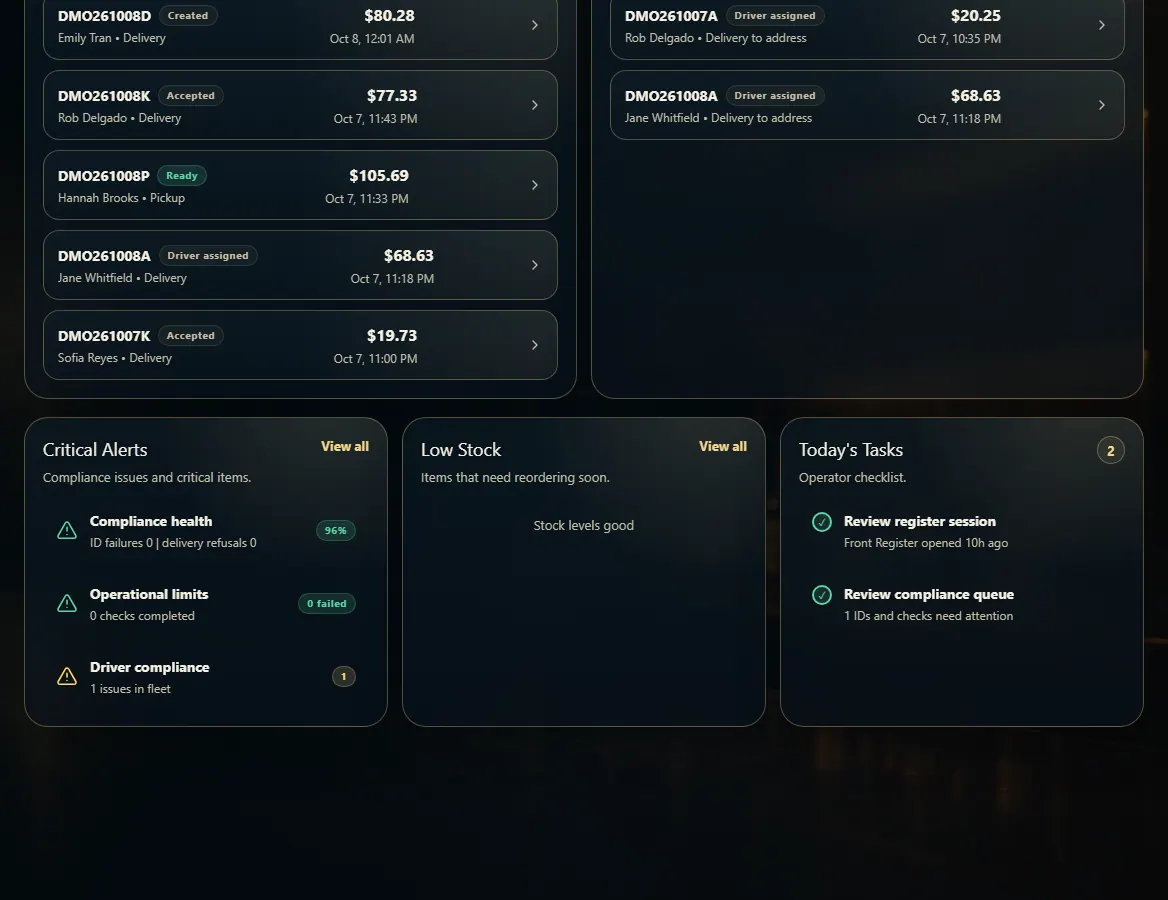 123
123