On Write-offs & Damage, pick a reason, scan the item, enter how many, and click Write off — it comes off your on-hand and shows on your Shrinkage report.
A step-by-step walkthrough with real screenshots · FoolProof POS for alcohol retail
Steps
Open Write-offs & Damage from the menu.
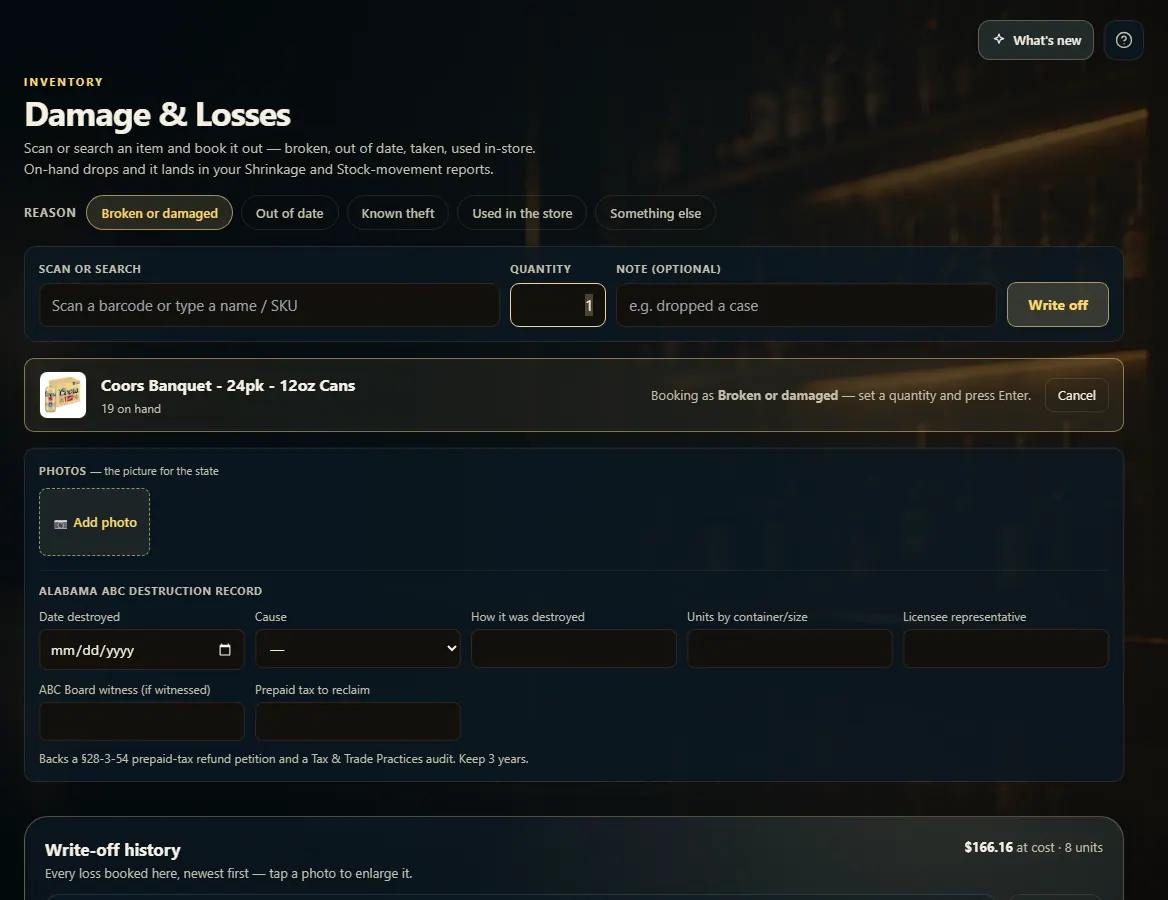
Pick a Reason — Broken or damaged, Out of date, Known theft, Used in the store or Something else.
Scan the item, or type a name or SKU and pick it.
Enter the Quantity and an optional Note; add a photo if you have one.
Click Write off (or press Enter).
Good to know
The reason stays picked, so you can book a run of the same kind of loss.
Made a mistake? Click Undo next to it under Booked this session.
Your state's destruction record fields show under the item — fill them in when the state needs them.
Write-off history at the bottom lists every loss; search it or filter by reason, date or photos.
If the form is greyed out, your role can't write off stock — ask the owner or a manager.
1. Book the loss
Pick the reason first, then scan. The item appears below with its on-hand; set the quantity and press Enter or Write off.
 1234
1234