Inventory & products
 123
123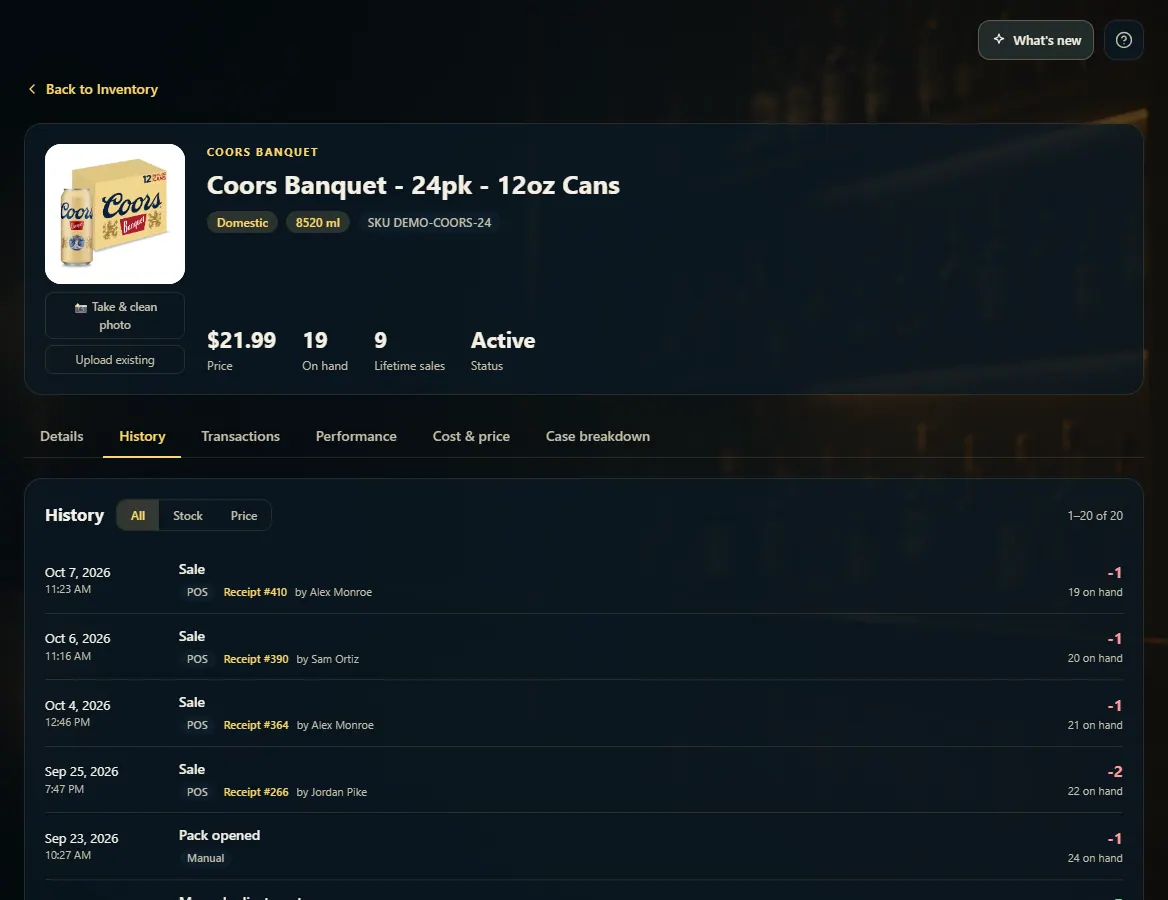 12
12
Adjust stock by hand
Fix one item's on-hand from its Case breakdown tab — add, remove or set the amount, with a reason that's saved in its History.
Steps
- Open Inventory and click the product's name.
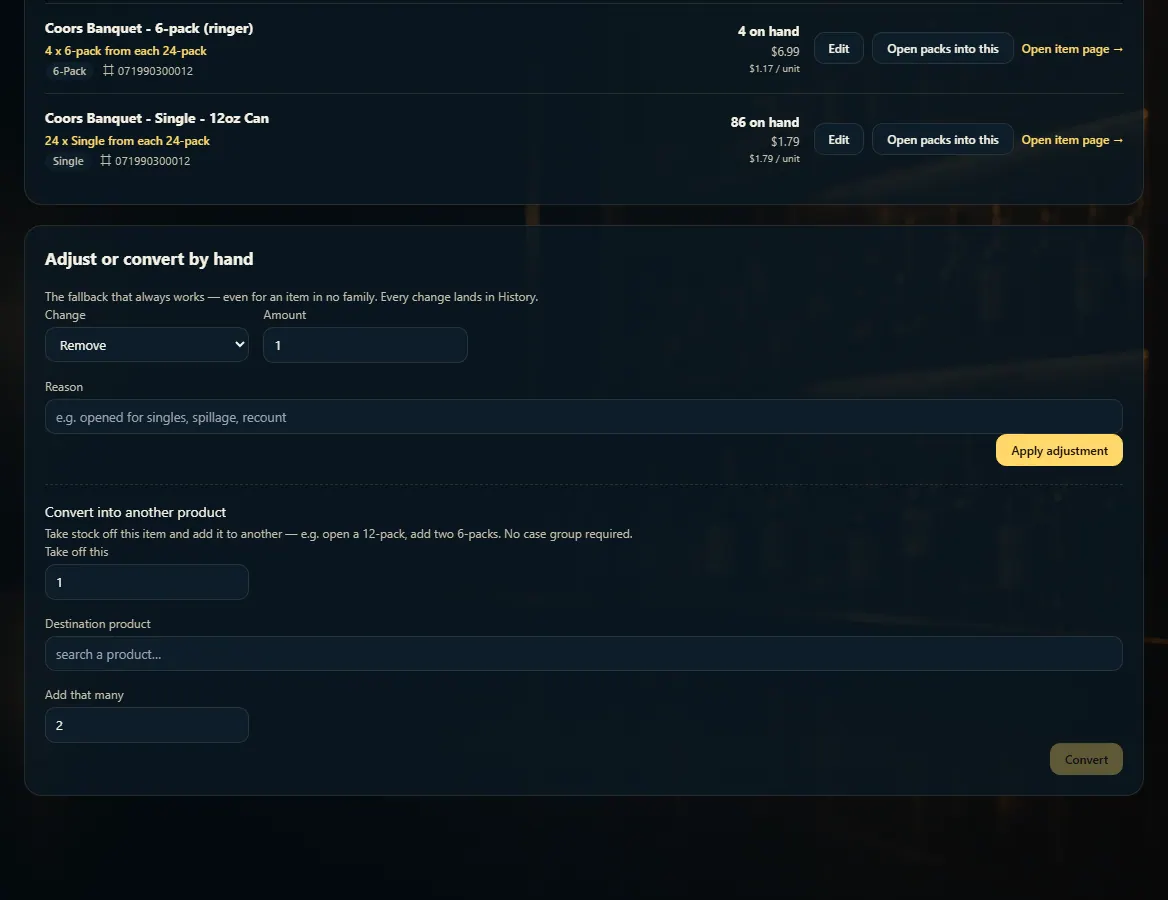
- Open the Case breakdown tab and scroll to Adjust or convert by hand.
- Under Change pick Remove, Add or Set to, then type the Amount.
- Type a Reason (for example spillage or recount) and click Apply adjustment.
- Check the History tab — the change is listed there with your name.
Good to know
- Damaged, out-of-date or stolen stock belongs on Write-offs & Damage instead, so it shows on your Shrinkage report.
- Correcting a whole shelf? Run a count on Counts — it's quicker and shows what was off.
- Convert into another product moves stock from this item to another (for example a 12-pack into two 6-packs) — no case breakdown setup needed.
- Admin → Inventory maintenance → Recalculate rebuilds every product's on-hand from its history. It is rarely needed.
1. Make the adjustment
This works for any item. Choose what to do, how many, and why, then Apply adjustment.
123- 1Remove, Add, or Set to.
- 2Say why.
- 3Apply it.
2. See it in History
Every change to stock and price — sales, receiving, counts and hand adjustments — is listed on the History tab with who did it and the new on-hand.
12- 1Show All, Stock or Price changes.
- 2What changed, who did it, and the new on-hand.