Inventory & products
 123
123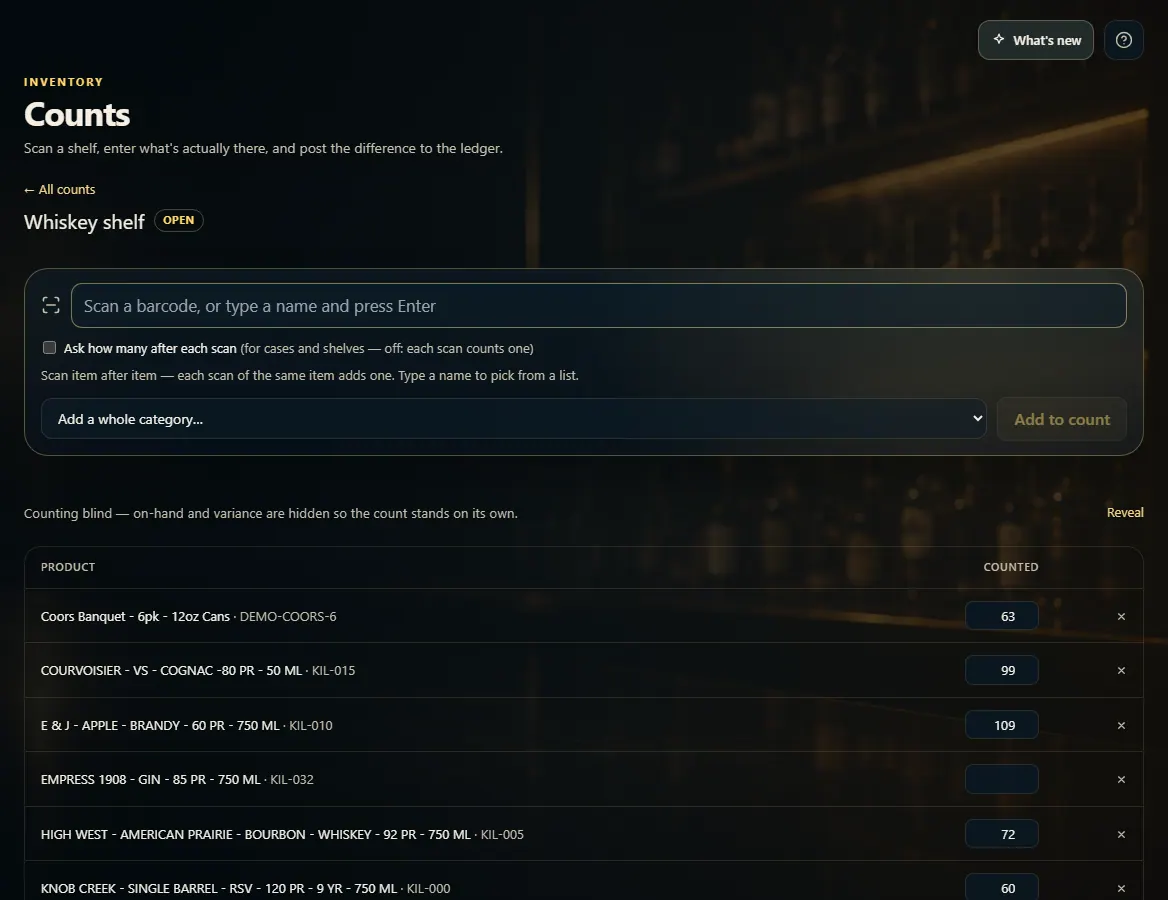 123
123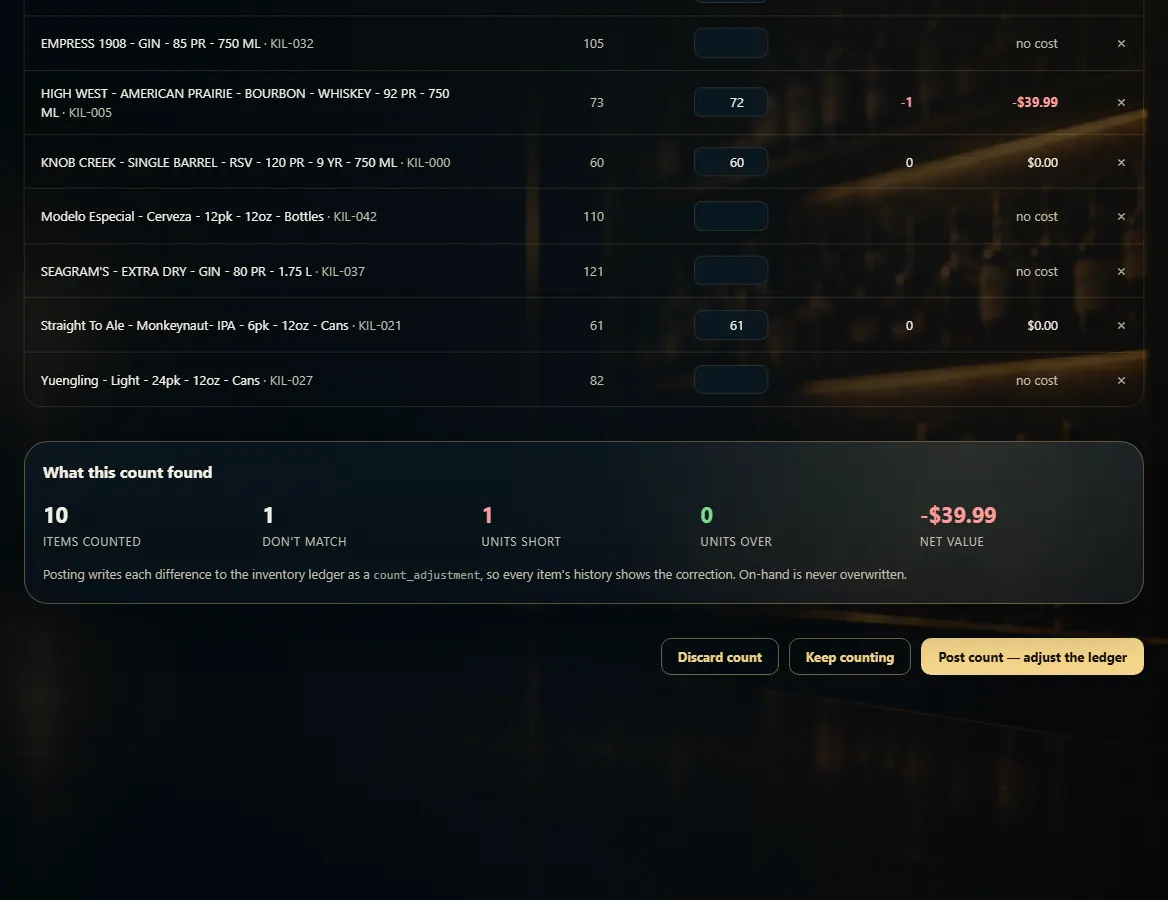 12
12
Count your inventory
On Counts, start a count, scan what's on the shelf, then review and post — only the differences change your on-hand.
Steps
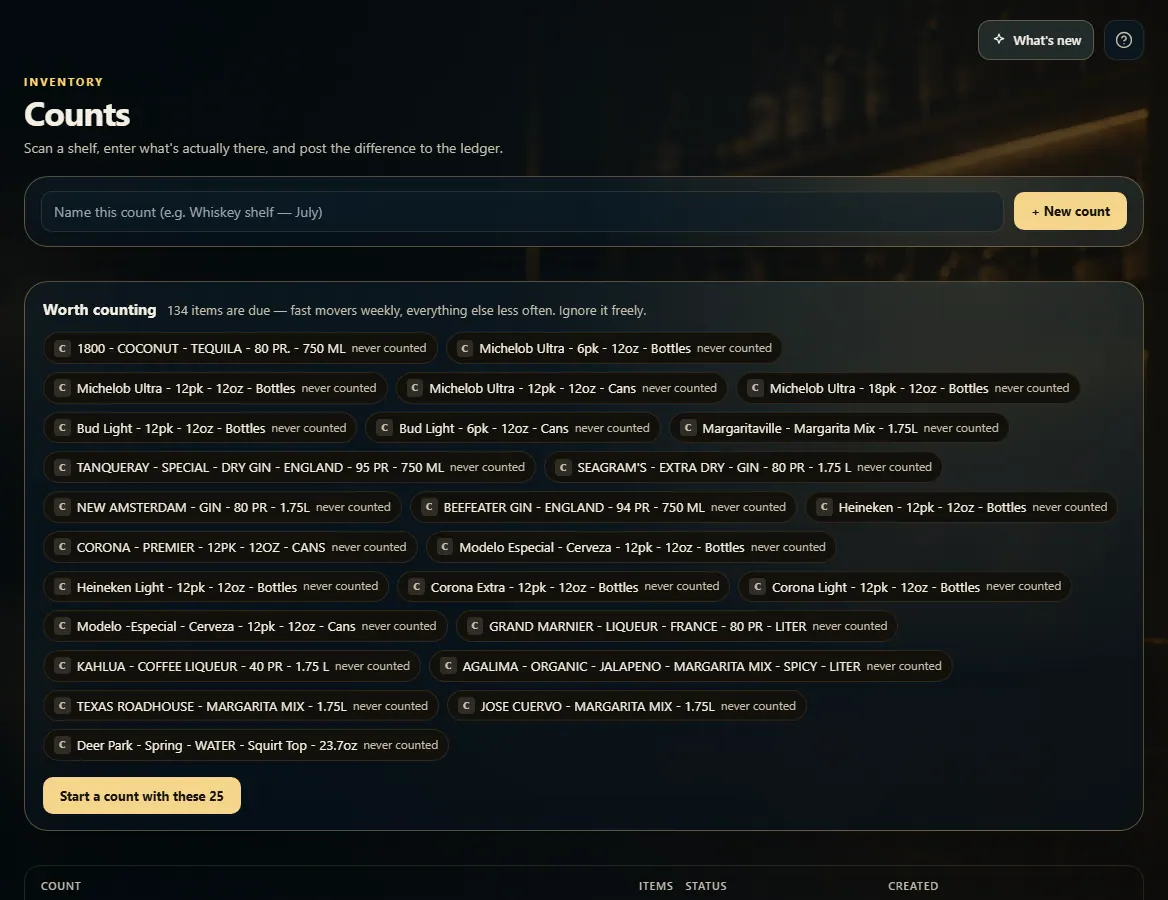
- Open Counts, name the count (for example Whiskey shelf) and click + New count — or click Start a count with these under Worth counting.
- Scan each item; every scan counts one. Tick Ask how many after each scan to type a number instead.
- To count a whole category, pick it under Add a whole category… and click Add to count.
- Click Review & post → to see what doesn't match.
- Click Post count — adjust the ledger. Discard count throws it away and changes nothing.
Good to know
- Counts are blind: what the system expects stays hidden while you count. Reveal shows it if you need to check.
- Type a name instead of scanning to pick the item from a list.
- A count stays open until you post or discard it, so you can come back to it.
- Posting records each difference on the item's History; anything you didn't reach is left alone.
- Missing stock a count finds shows on Shrinkage as Unaccounted for.
1. Start a count
Name a count for one shelf or section, or start from Worth counting — the items that have gone longest without a count, fast sellers first.
123- 1Name the count.
- 2Start it.
- 3Or count the suggested items.
2. Scan the shelf
Keep the cursor in the scan box and scan item after item. Counted quantities can be corrected in the list.
123- 1Scan, or type a name and press Enter.
- 2Type a quantity after each scan.
- 3Add a whole category to count.
3. Review and post
Review shows on-hand, counted and the difference for each item, and what the count found. Post count saves the differences.
12- 1Items that don't match, short and over.
- 2Post it.