Shrinkage shows what you lost over a date range — split into losses somebody wrote off and stock a count found missing — with the worst items and register activity to look into.
A step-by-step walkthrough with real screenshots · FoolProof POS for alcohol retail
Steps
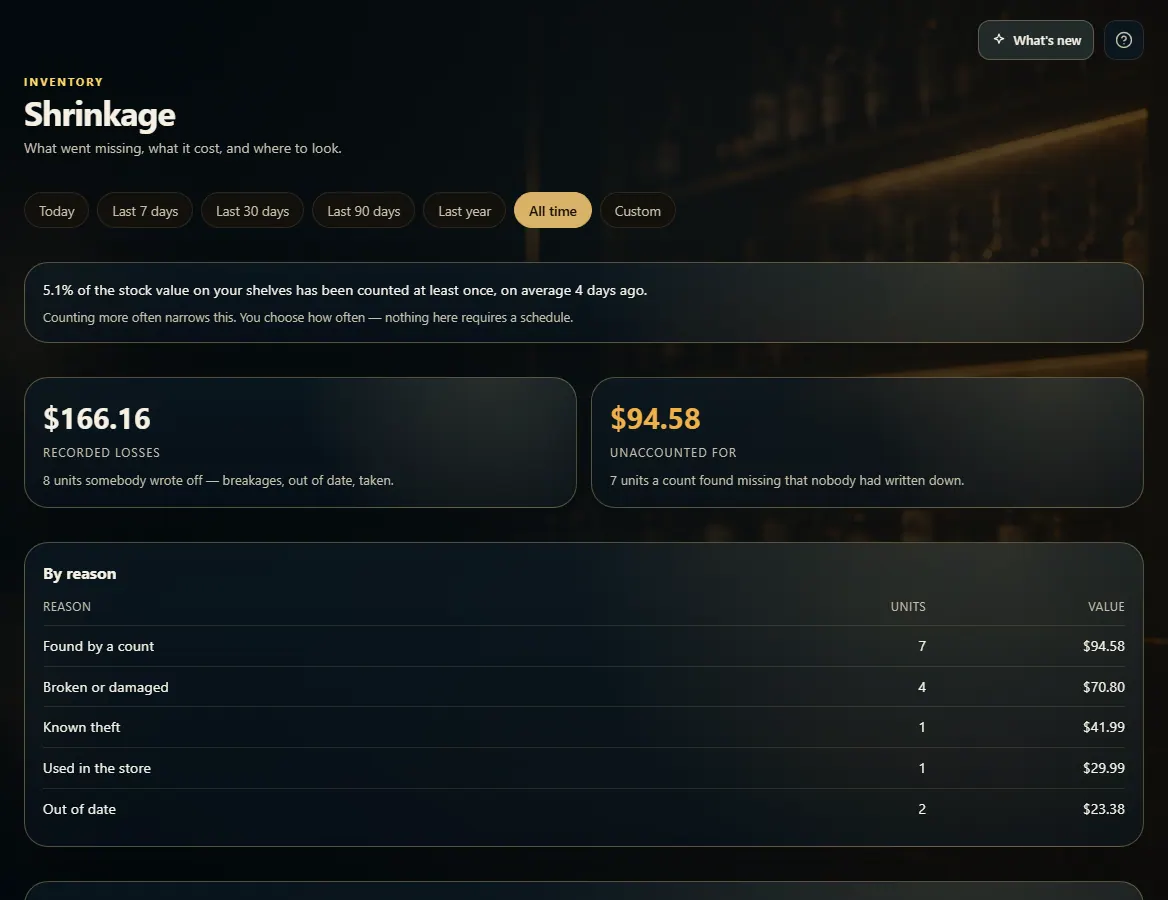
Open Shrinkage from the menu.
Pick a date range — Today, Last 7 days, Last 30 days, Last 90 days, Last year, All time or Custom.
Compare Recorded losses (written off) with Unaccounted for (found missing by a count).
Check By reason and Worst items to see where it's coming from.
Scroll to the "At the register" section for voids, refunds and price overrides by person.
Good to know
The numbers only cover what's been counted — the note at the top says how much of your stock that is. Counting more often makes them more complete.
Worst items is ranked by money, not units.
The "At the register" section shows where to ask a question, not what happened — every void or refund can have an ordinary reason.
1. Two kinds of loss
Recorded losses are what staff wrote off. Unaccounted for is what a count found missing that nobody wrote down — usually what people mean by shrinkage.
 123
123