Click Print tags on the Inventory page, choose which products, and print to your label printer — or on plain paper.
A step-by-step walkthrough with real screenshots · FoolProof POS for alcohol retail
Steps
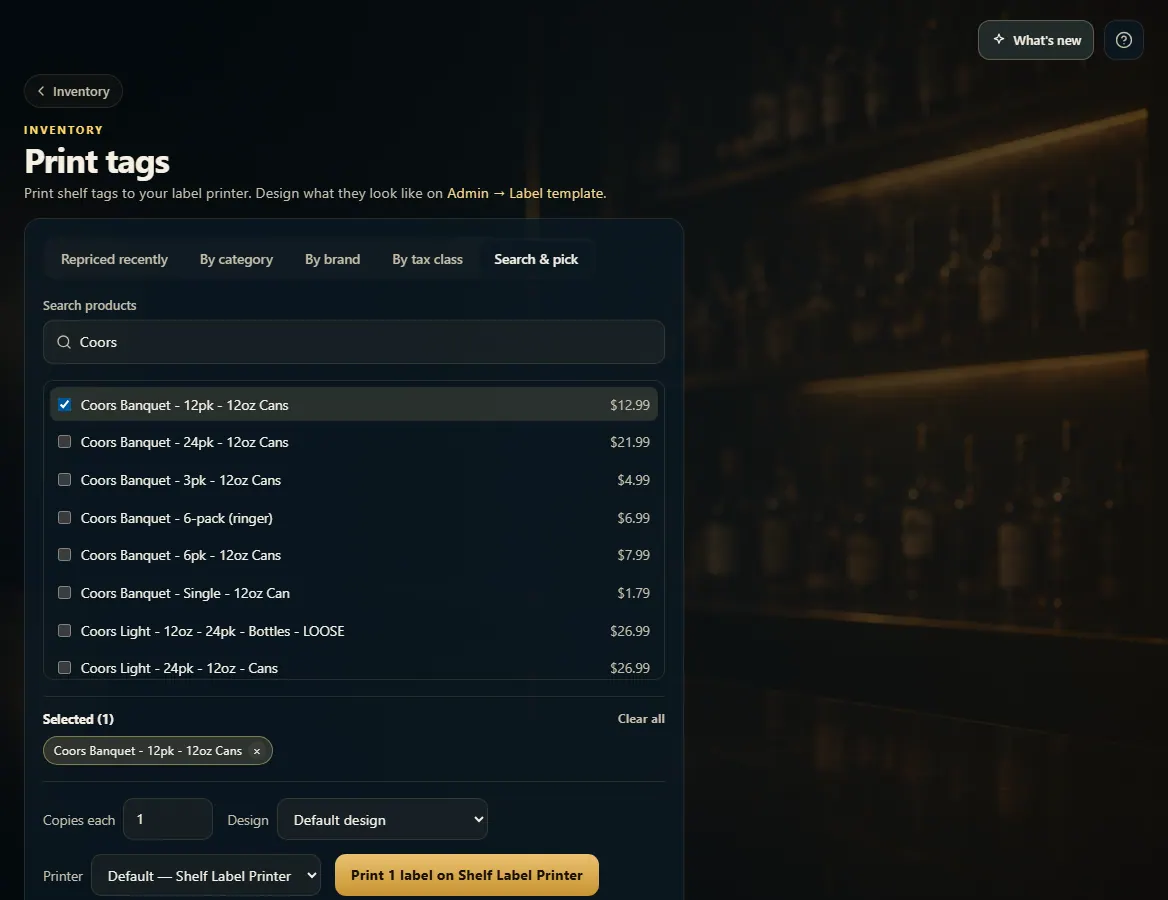
Open Inventory and click Print tags.
Choose what to print: Repriced recently, By category, By brand, By tax class, or Search & pick.
Set Copies each, and pick a Design and Printer if you have more than one.
Click Print — or Print to sheet (no printer) to print on regular paper.
To change how tags look, open Admin → Label templates.
Good to know
Repriced recently picks up real price changes from the last few days — handy after a price update.
No label printer yet? Add one in Admin → Hardware and give it the print labels capability.
On Label templates, drag product name, price, size, SKU, store name, barcode or your own text onto the tag. The preview is exactly what prints.
1. Pick the products and print
Search & pick builds a list one product at a time; the other choices print everything that matches. The button shows how many labels will print and on which printer.
1234
1Choose which products.
2The tags you've picked.
3Copies of each tag.
4Print to your label printer.
2. Design your tags
Admin → Label templates has ready-made designs. Pick one to edit, drag things where you want them, and save. The default design prints unless you choose another.
 1234
1234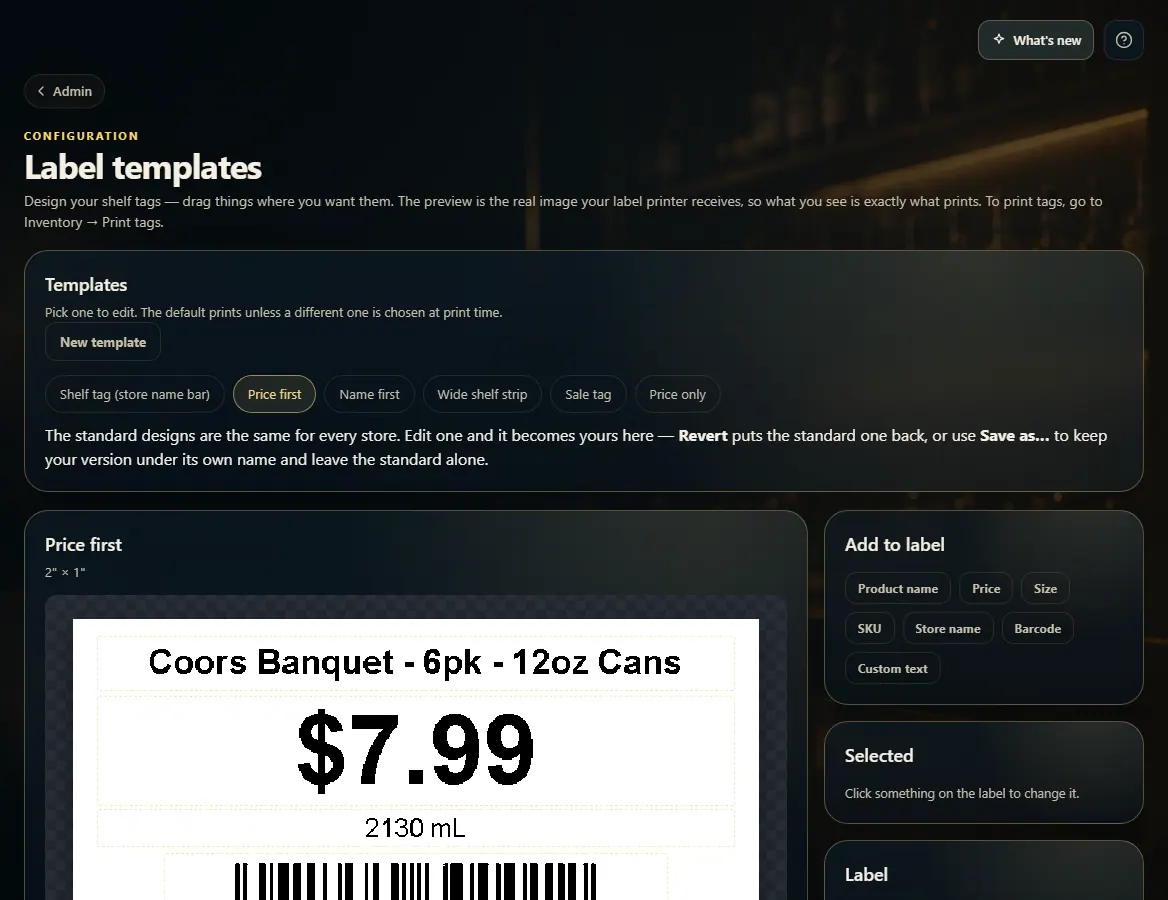 12
12