Selling at the register
 123
123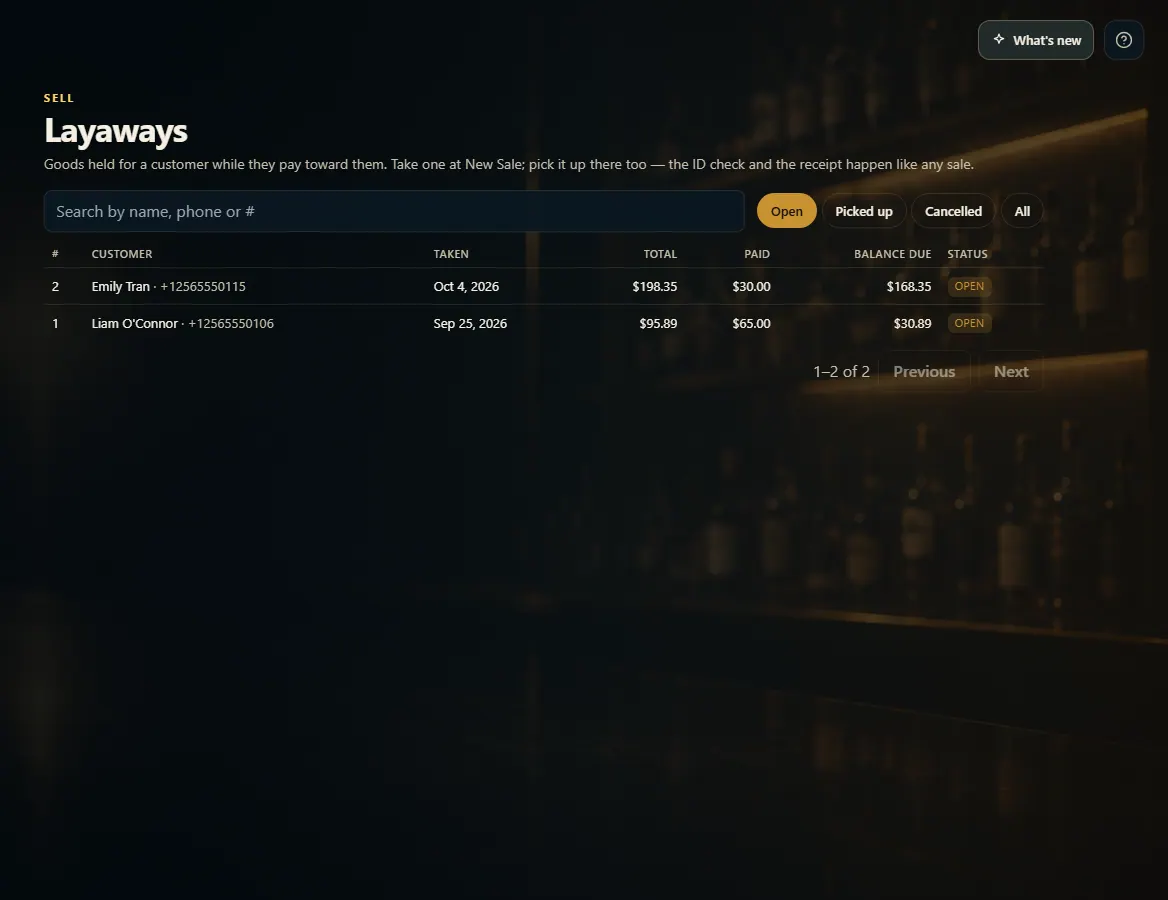 123
123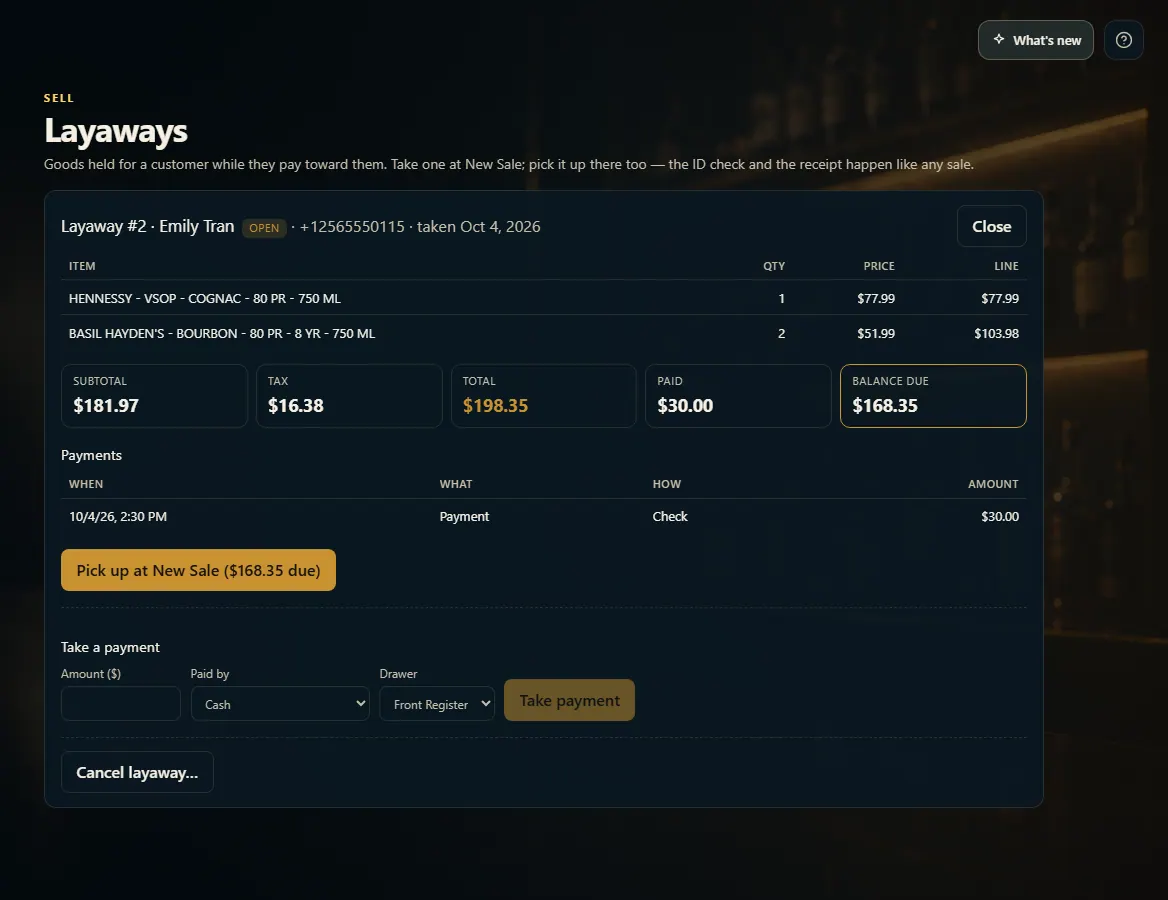 12
12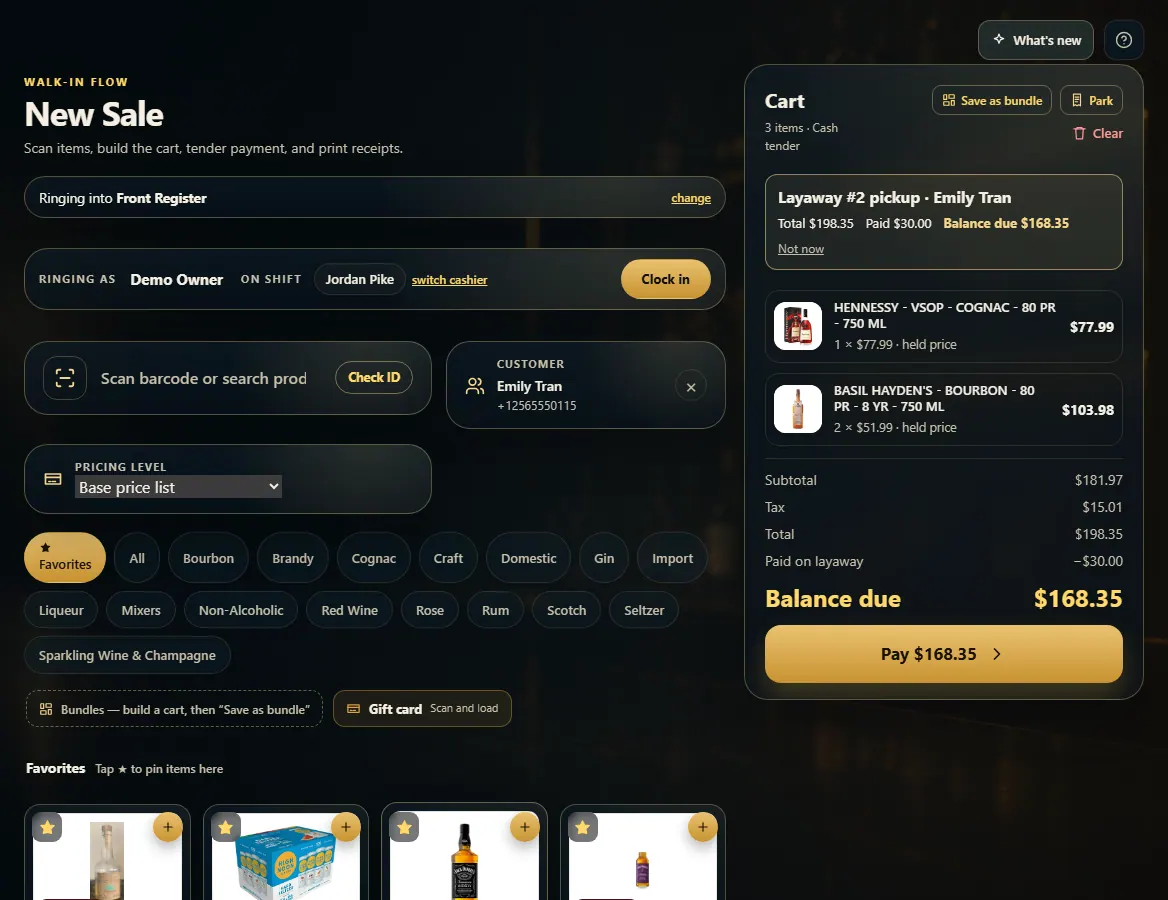 123
123
Put items on layaway
At New Sale, add the items, attach the customer and press Layaway to take a deposit; pickup is a normal register sale for the balance.
Steps
- Ring up the items and attach the customer with Find customer.
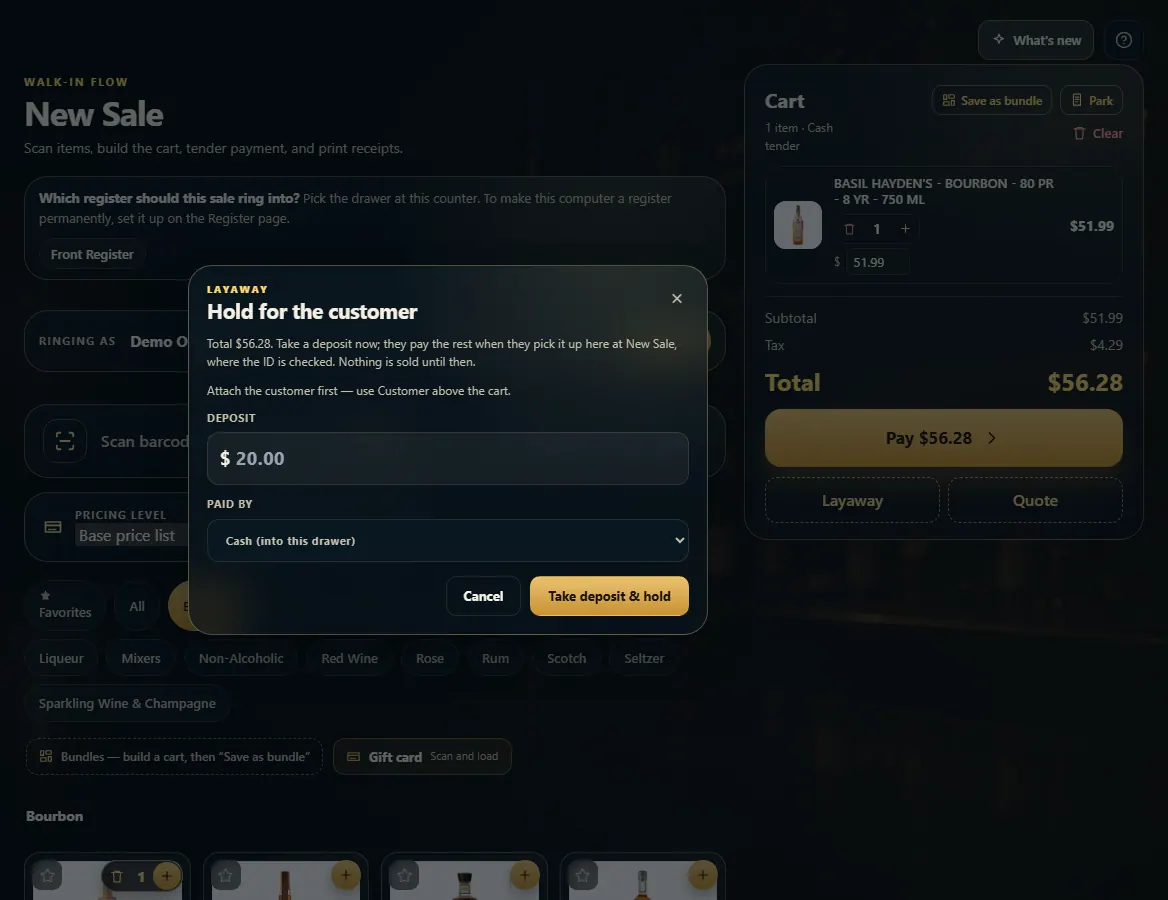
- Press Layaway under Pay, enter the Deposit, pick Paid by, and press Take deposit & hold.
- To take another payment, open Sell → Layaways, open the layaway, enter the amount and press Take payment.
- When they collect, press Pick up at New Sale. The items load with what's been paid; take the balance like any sale.
- To cancel, press Cancel layaway… — each deposit is given back the way it was paid.
Good to know
- Layaway has to be turned on for your store (Admin → New Sale → Layaway). If you don't see it, ask FoolProof to enable it.
- Card deposits are recorded, not charged: run the card on the terminal as its own charge. Cash goes into an open drawer.
- Nothing is sold until pickup — the ID check, stock and the receipt happen then, like any sale.
- The last payment is always the pickup sale; a payment that would pay it off in full is refused on the Layaways page.
- Gift cards can't go on layaway.
1. Take the deposit
Layaway sits under Pay once there are items in the cart. The customer has to be attached first.
123- 1How much they're paying now.
- 2Cash, card, check or other.
- 3Hold the items.
2. Find it under Sell → Layaways
Open layaways show what's been paid and the balance due. Search by name, phone or number.
123- 1Search by name, phone or #.
- 2Open, Picked up, Cancelled or All.
- 3Open one.
3. Take a payment, or pick it up
Take a payment records money toward the balance. Pick up at New Sale loads it to ring the rest.
12- 1Ring up the balance at New Sale.
- 2Record a payment toward it.
4. Pickup is a normal sale
The cart shows the total, what was paid on the layaway and the balance due. Take payment and the ID check happens like any sale.
123- 1The layaway being picked up.
- 2Total, paid, and balance due.
- 3Take the balance.