Send damaged, expired, recalled or extra stock back to a distributor from Vendor Returns — sending the return takes it out of inventory.
A step-by-step walkthrough with real screenshots · FoolProof POS for alcohol retail
Steps
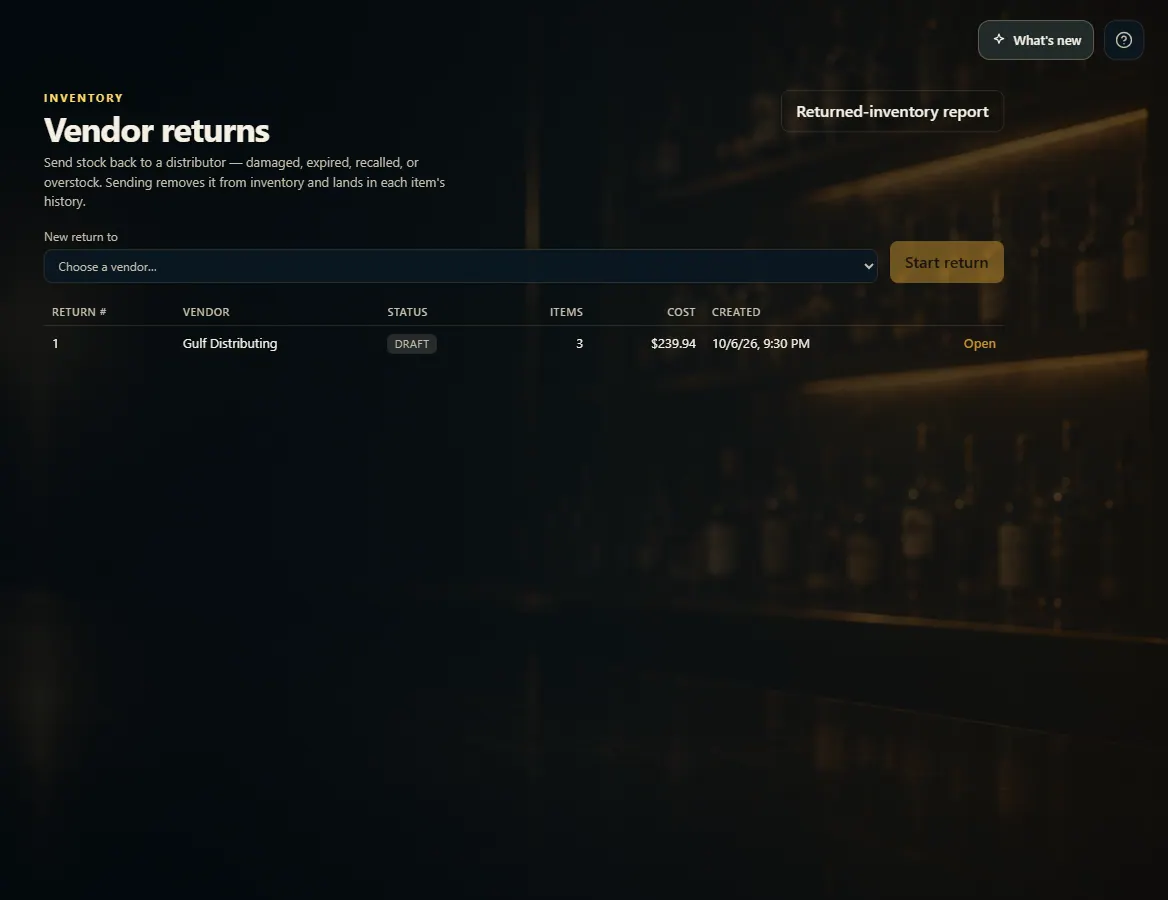
Open Vendor Returns from the menu (under Inventory).
Under New return to, choose the vendor and click Start return.
Search for each item, enter the Qty, pick a Reason, and click Add.
Check the list, then click Send return.
Good to know
Send return removes the stock from inventory and records it in each item's history. Until then it's a draft — Remove a line or click Cancel return to drop it.
Unit cost fills in by itself; type one only if the credit differs.
Returned-inventory report (top right) lists everything that has gone back, with vendor, reason and cost.
Vendor Returns only appears in the menu once it's turned on for your store — ask your FoolProof rep.
1. Start a return
Pick the vendor and click Start return. You then add the items, quantities and reasons, and send it when it's ready.
 123
123