Automatic discounts are set up once in Admin → Discounts; to change one line's price at the register, type the new price on the cart line and pick a reason.
A step-by-step walkthrough with real screenshots · FoolProof POS for alcohol retail
Steps
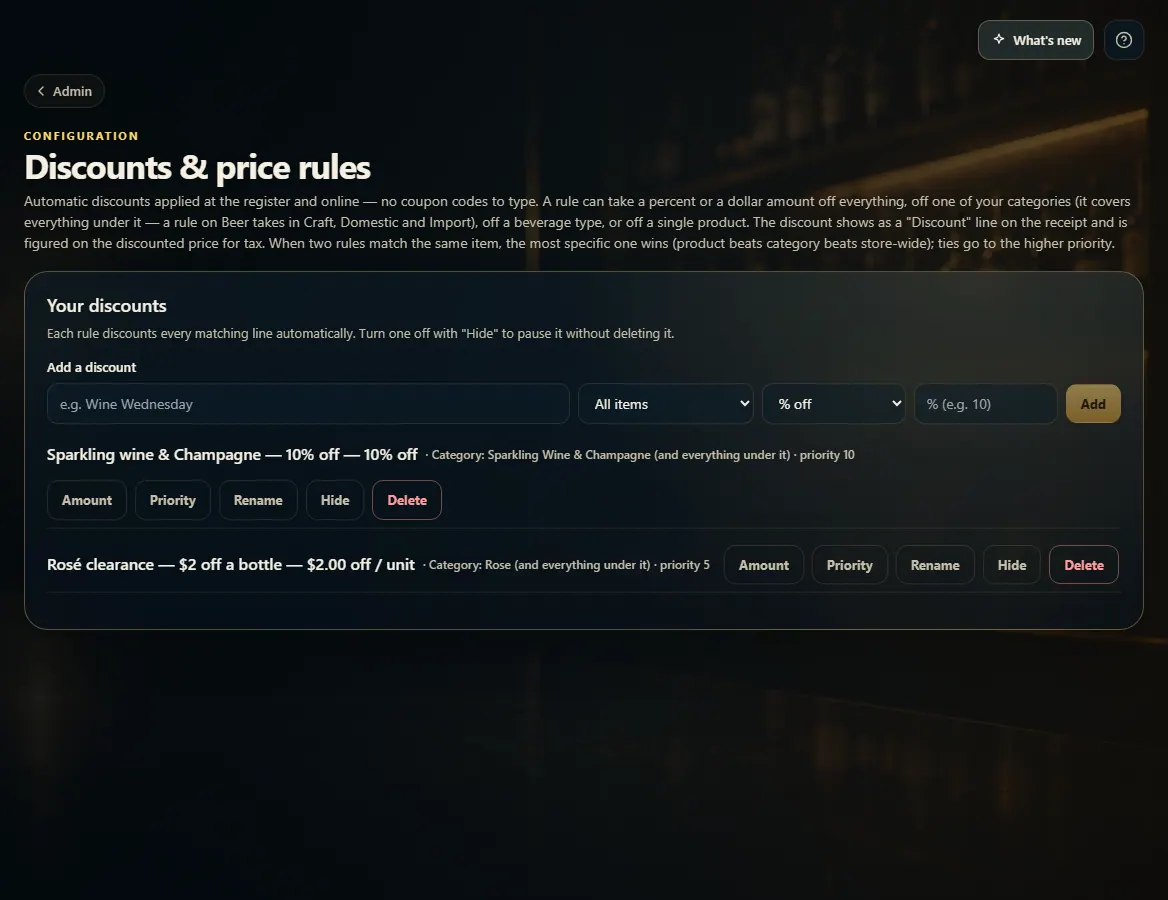
To set up an automatic discount, open Admin → Discounts, name it, pick All items, A category or One product, choose % off or $ off / unit, enter the amount and press Add.
Matching items get the discount at the register by themselves — it shows as a Discount line in the totals.
To change one item's price for this sale only, click the price on its cart line, type the new price and press Tab.
The line shows "override"; press its × to go back to the regular price.
Before Complete sale, pick a Reason for price override (required) and add a note if you like.
Good to know
Reasons: Manager discount, Price match, Promo / sale adjustment, Damaged — markdown, Correcting a pricing error, or Other.
A price below cost + tax shows "⚠ below cost" on the line as a warning.
In Discounts, Hide pauses a rule without deleting it. When two rules match, the most specific wins (product, then category, then store-wide).
To change a product's everyday price, edit the product in Inventory instead.
1. Set up an automatic discount
Name it, say what it covers and how much it takes off, then Add. It applies at the register and online.
1234
1Name the discount.
2All items, a category, or one product.
3% off or $ off per unit.
4Add it.
2. Change one line's price
Type the new price on the cart line. It's marked override; × puts the regular price back.
12
1Type the price for this sale.
2Marked as an override.
3. Pick a reason
A price override needs a reason before the sale can be completed.
 1234
1234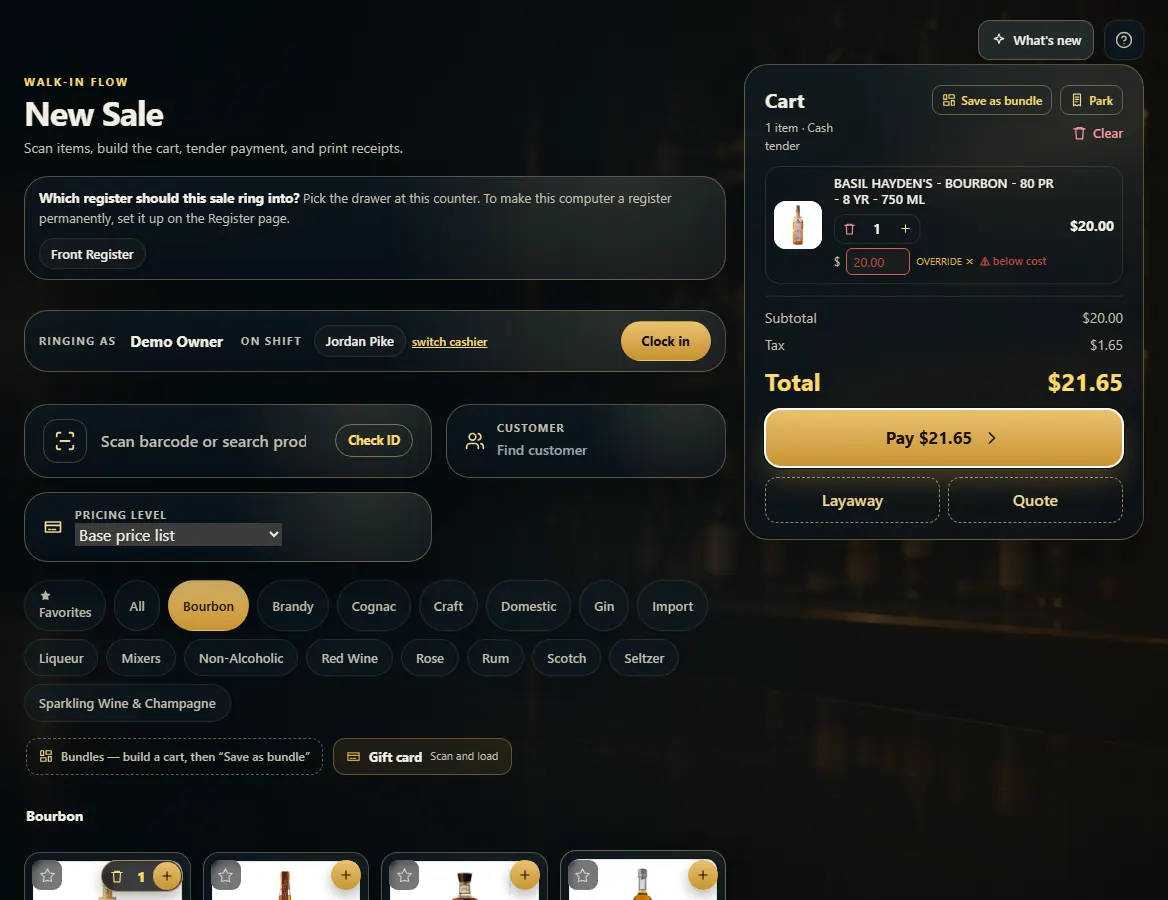 12
12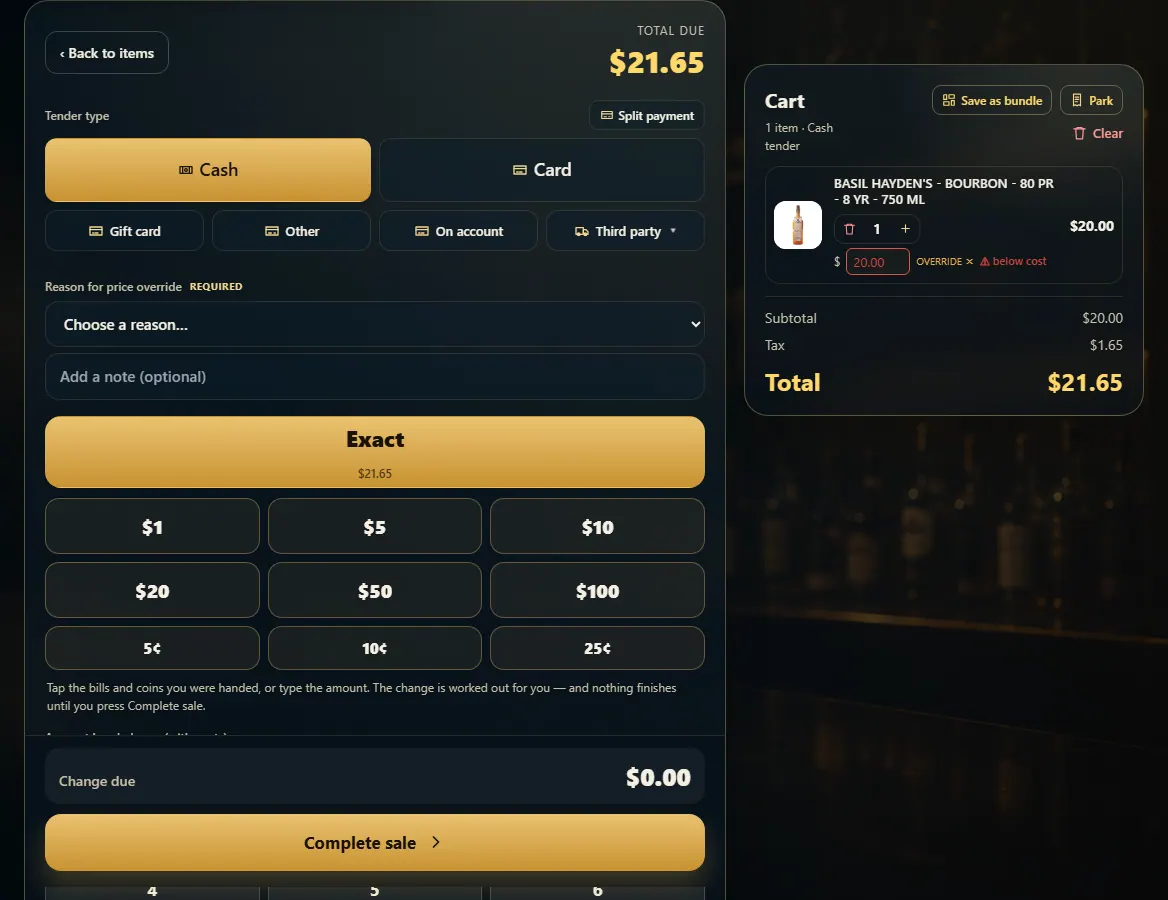 1
1