Choose which ways of paying the register offers, turn on tipping, see your card-surcharge settings, and set up bottle deposits and other fees — all under Admin.
A step-by-step walkthrough with real screenshots · FoolProof POS for alcohol retail
Steps
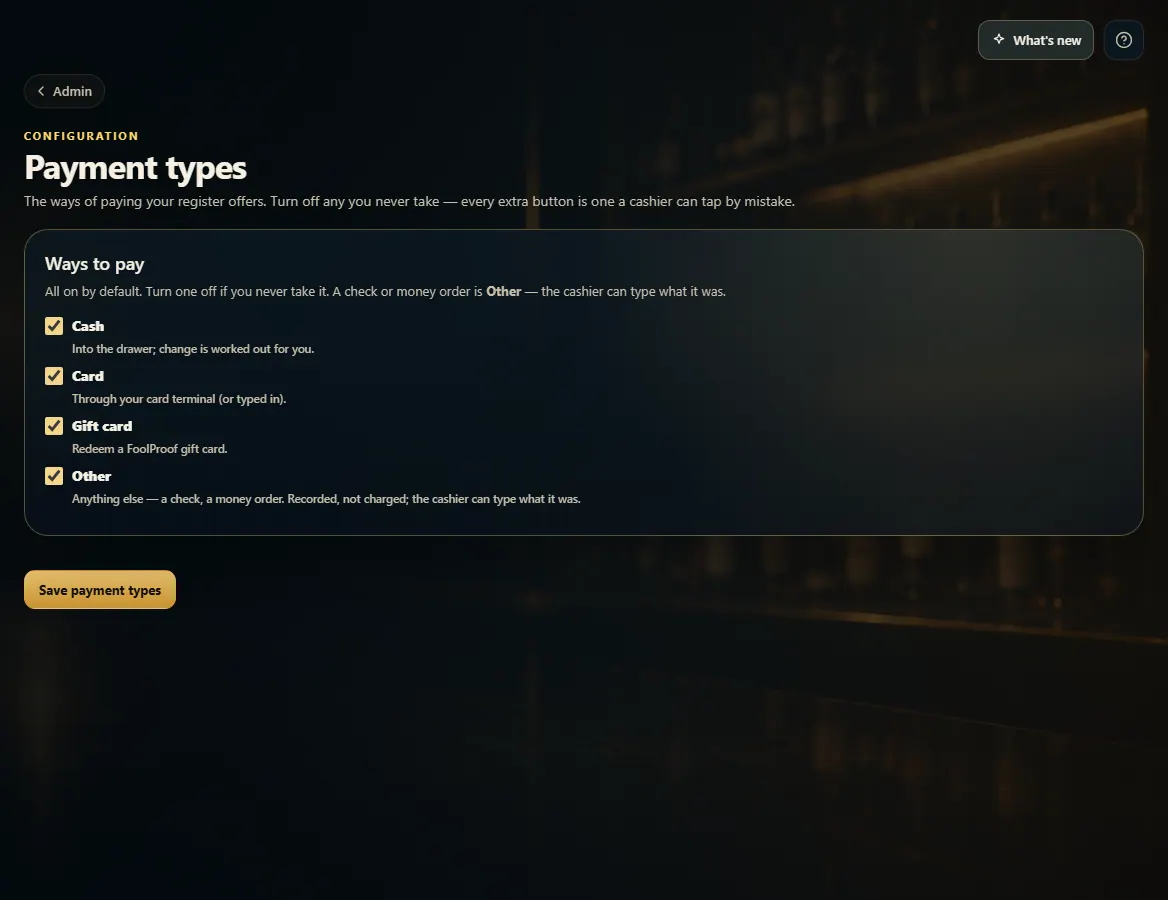
Open Admin → Payment types and untick any way of paying you never take (Cash, Card, Gift card, Other). Click Save payment types.
Open Admin → Payments to turn on Ask customers if they'd like to add a tip, set the Suggested tip percentages, choose where to ask, and click Save tipping settings.
To add a bottle deposit or item fee, open Admin → Fees & deposits, type a name and amount, and click Add. Then assign it to products in the product editor.
To record delivery-marketplace sales, open Admin → Third-party sales, type the marketplace (for example DoorDash) and click Add.
Good to know
Leave at least one payment type on. A check or money order is rung as Other — the cashier types what it was.
Credit card surcharge and dual pricing are Managed by FoolProof, because your payment processor must approve surcharging. Contact FoolProof to change them.
A marketplace sale is tagged on New Sale under Sale options; it's recorded at 0% tax because the marketplace already collected it.
Tips are added on top of the total and are never taxed.
1. Ways to pay
Every type is on by default. Turn off any you never take — every extra button is one a cashier can tap by mistake.
12
1Untick a way of paying you never take.
2Save your choice.
2. Surcharge and tipping
Surcharge settings are set by FoolProof with your processor. Tipping is yours to turn on.
12
1Set by FoolProof with your processor.
2Turn tipping on and pick the suggested percentages.
 12
12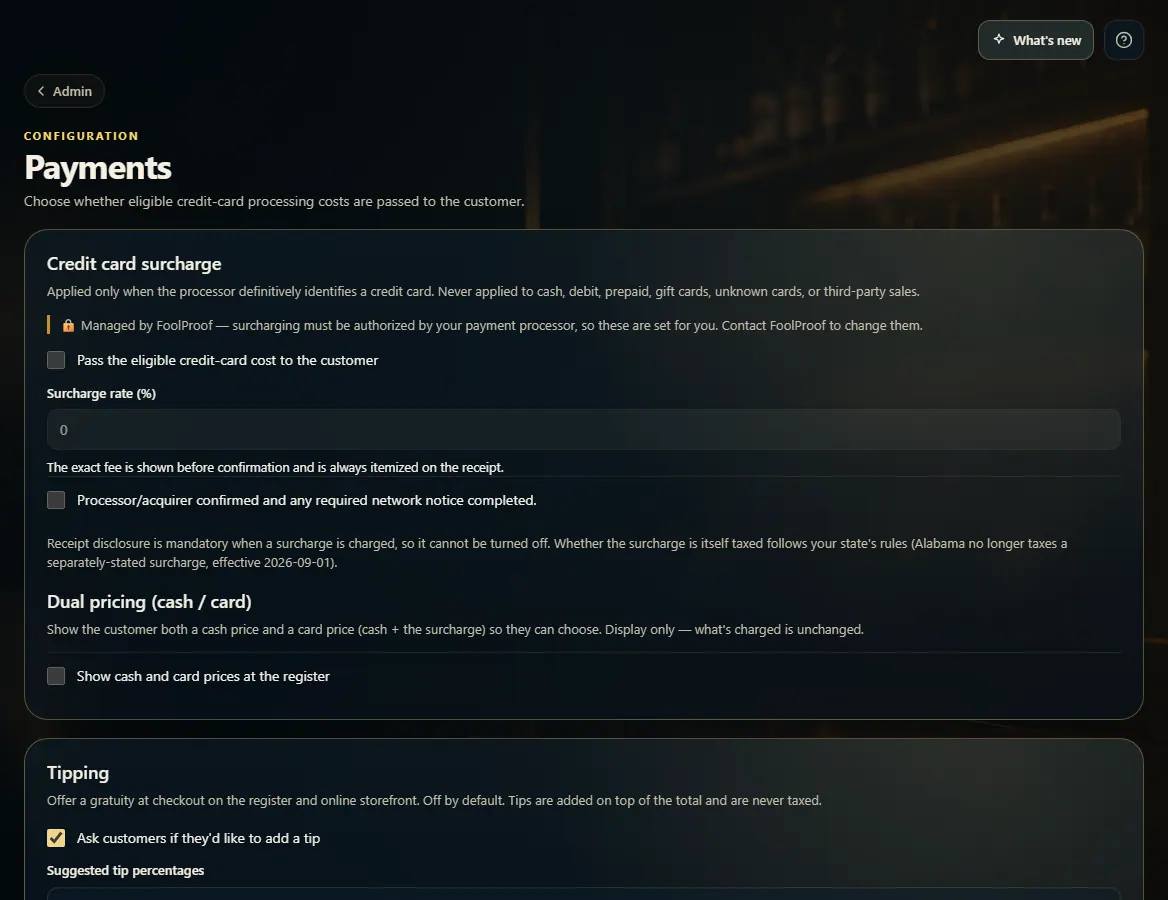 12
12